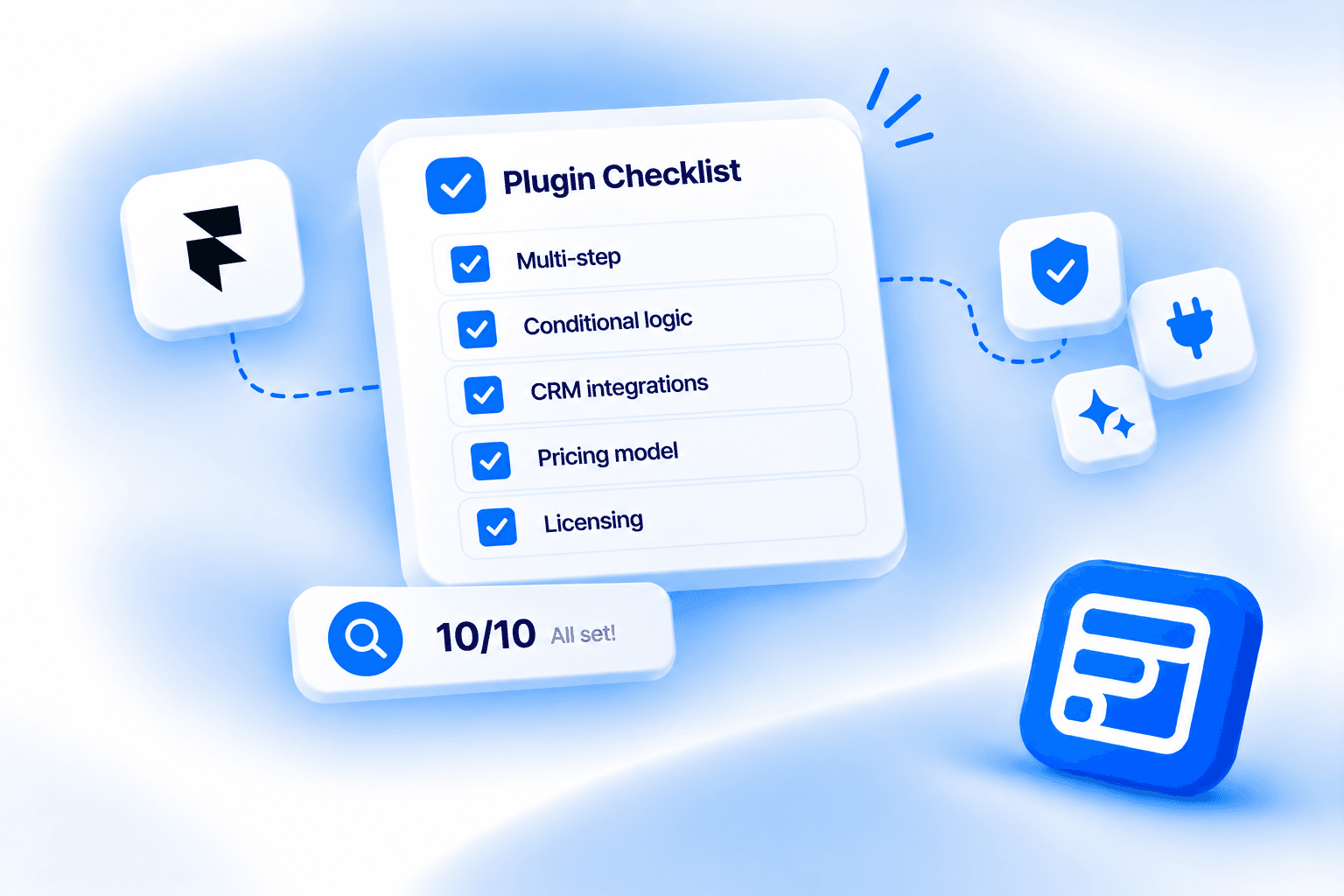
Key Takeaways
- This is a tool-agnostic 10-point checklist for evaluating any Framer forms plugin, not a ranking against named competitors.
- The most overlooked item is attribution and submission tracking, most buyers check CRM integration and stop there without asking where a lead actually came from.
- Conditional logic gating is per field type, not a blanket plan restriction, check whether a plugin bundles the whole logic engine behind its top tier or gates specific field types instead.
- Pricing model matters as much as feature count, a one-time lifetime purchase and a recurring subscription carry very different long-term costs and risks.
- Commercial and agency licensing terms are easy to skip during evaluation and expensive to discover a problem with mid-project.
Overview
This is a Framer forms plugin checklist for the moment before you install one, not after. Framer's marketplace lists more forms plugins every quarter, and most of their product pages read the same: "no code," "fully customizable," "native to Framer." None of that tells you whether a plugin will still handle your project in six months, once you need a multi-step intake form, a CRM connection, or a way to prove which campaign actually produced a lead.
The 10 items below cover what's worth checking on any forms plugin, not just this one, explained generically first so the reasoning holds regardless of which plugin you end up choosing, then illustrated with how Forms Plugin specifically handles it. This isn't a ranking against named competitors. It's a list of questions to bring to whichever product page you're reading.
How to use this Framer forms plugin checklist
Read each item's generic layer first and decide whether it applies to your project at all. A single-page contact form doesn't need multi-step support or conditional page jumps, and skipping items that don't apply is the point, not a shortcut. For the items that do apply, the second layer under each one shows what a real implementation looks like, using Forms Plugin as the concrete example, so you have something specific to compare against whatever plugin's page you're actually reading.
Quick Answer
- Check whether multi-step forms exist as a real feature, not just a design trick, with progress indicators and conditional branching.
- Check how deep conditional logic actually goes: which actions it supports, and whether it's gated by plan or by field type.
- Check spam protection options for a range from zero-setup to enterprise-grade, not just one bundled checkbox.
- Check whether CRM integrations are native or route through third-party middleware like Zapier.
- Check whether AI-assisted building exists and what it actually generates versus what it claims to generate.
- Check whether pricing is a one-time purchase or a recurring subscription, and read the fine print either way.
- Check template availability against your actual use case, not just the total count advertised.
- Check field type variety for the specific advanced fields your project needs, not a generic count.
- Check whether the plugin can tell you where a submission actually came from, most buyers never think to ask this.
- Check commercial and agency licensing terms before you use it on a client site, not after.
Does it support multi-step forms?
A form with more than 6 or 7 fields on one page asks a lot of a visitor before they've committed to anything. Splitting it into steps lowers that upfront commitment, and the effect is measurable: Reform's research on form layout found multi-step forms convert 86% higher than single-step equivalents, partly because people who've already started a process feel pulled to finish it.
But "multi-step" means different things across plugins. The bare minimum is splitting fields across pages with a Next button. What actually matters is whether the plugin gives you a progress bar or step indicator so visitors know how much is left, and whether it supports conditional branching, skipping a step entirely based on an earlier answer, rather than forcing everyone through every page regardless of relevance. A plugin that only does the bare minimum will feel like a downgrade the moment your form gets more than trivially complex.
Forms Plugin's PageFlow system includes a progress bar, a step indicator, dynamic step captions like "Step 2 of 5," and conditional page jumps driven by AND/OR rules, available on the Pro and Scale plans. Our multi-step design patterns post covers how to structure the steps themselves once the mechanics are in place.
How deep does its conditional logic actually go?
Conditional logic is what turns a static list of questions into a form that reacts to the person filling it out. The floor is show/hide: a field appears only if an earlier answer matches some condition. The ceiling includes making a field required or disabled based on a condition, resetting a field's value automatically, and combining multiple conditions with AND/OR logic instead of one rule at a time.
The gap between the floor and the ceiling matters more than it sounds. A plugin that only supports show/hide can still leave you asking for information you don't need (a required field that should have been optional) or accepting stale data (a dependent field that should have cleared when its parent changed). Also check whether logic is gated by plan tier or by field type, those are different things. A plugin might bundle the entire logic engine behind its top tier, or it might make logic itself free everywhere and gate specific advanced field types instead, meaning you pay for the field, not for the ability to add a rule to it.
Forms Plugin's conditional logic supports five actions (show, hide, require, disable, reset), compound AND/OR rule chaining, and works across all 30+ field types with no field-type exception. The logic engine itself isn't gated by plan. What's plan-gated is which field types you have access to in the first place, some fields are available on the free Basic plan, others (like the Advanced Fields) require Pro or Scale, and once a field exists in your form, conditional logic works on it the same way regardless of which plan unlocked it. Our conditional logic guide walks through the operators available per field type.
What spam protection options does it offer?
Every public form on the internet attracts some amount of bot traffic, and a form with no defense against it eventually fills an inbox or a CRM with junk. The question isn't whether a plugin has spam protection, most do something, it's whether it gives you a range of options rather than one bundled setting you can't adjust.
The useful range runs from zero-setup options (a basic math or number challenge that needs no third-party account) to invisible, background checks (services like Cloudflare Turnstile or reCAPTCHA v3 that score risk without interrupting a real visitor) to the industry-standard checkbox challenge most people already recognize. Each trades off differently on setup effort, visitor friction, and privacy. That last point deserves attention specifically: Google reCAPTCHA collects IP address, device and browser data, mouse movement patterns, and behavioral signals, and sends them to Google's servers, which is a real GDPR consideration if your audience is in the EU and you haven't disclosed it. A plugin that only offers reCAPTCHA leaves you with no alternative if that's a problem for your project.
Forms Plugin ships 5 distinct options: Math Verification, Numeric Code, Cloudflare Turnstile, hCaptcha, and Google reCAPTCHA (v2 and v3), on the Pro and Scale plans. That range covers the zero-setup case, the privacy-conscious case, and the industry-standard case in one plugin instead of forcing a single default. See the full CAPTCHA options guide for how the 5 compare.
Does it integrate natively with your CRM, or route through middleware?
A lead sitting in a form's own dashboard isn't useful until it reaches wherever your sales or marketing process actually lives, a CRM, an email platform, a spreadsheet. The question is how that data gets there. A native integration sends the submission straight to the destination the moment someone submits. A middleware setup, typically a Zapier or Make automation sitting between the form and the CRM, adds a hop, and that hop has real costs. Zapier's own help documentation confirms that once you hit your plan's task limit, new zap runs get held rather than processed immediately, sitting until your billing cycle resets or you upgrade. For a lead-gen form during a busy campaign, that's a delay you don't want.
Native integration isn't automatically better in every case, middleware gives you more flexibility to route data into tools a plugin doesn't support directly. But if the CRMs you actually use are common ones, check whether the plugin talks to them directly before assuming you'll need Zapier as a permanent fixture.
Forms Plugin connects natively to 10+ CRM and email platforms (HubSpot, Mailchimp, Brevo, Klaviyo, ActiveCampaign, HighLevel, and more), gated identically across all of them on the Pro and Scale plans, no per-integration split. Submissions go directly to the connected platform with no middleware step and no task limit to hit. Our HubSpot integration guide walks through what that setup actually looks like field by field.
Does it include AI-assisted form building?
Building a form from a blank canvas means picking every field type, every label, every validation rule by hand, which is fine for a 4-field contact form and tedious for anything longer. AI-assisted building lets you describe what you need in plain language and get a structured starting point instead of a blank canvas. The value isn't that it replaces your judgment on the final form, it's that it removes the blank-page problem and gets you to something editable faster.
What to actually check: does the AI generate real, appropriate field types (a date field for a date question, not a generic text box), does it work with the integrations you already use, and are the credits or usage limits clear upfront. A plugin that markets "AI-powered" but gates it behind an unclear or per-use cost structure is worth reading the fine print on before you rely on it.
Forms Plugin's AI Form Builder takes a plain-language description of what you're building and generates a structured, editable form in seconds, with field types matched to the description and compatibility with the existing CRM integrations. Credits are lifetime, not monthly: 3 on Basic, 8 on Pro, 15 on Scale, and they don't renew once used. Our AI builder walkthrough shows the actual generation flow.
Is the pricing a one-time purchase or a subscription?
This is a real fork in how a tool costs you money over time, not a minor detail. A subscription keeps charging for as long as you use the plugin, which usually buys ongoing updates and support but means the total cost keeps climbing the longer a project lives. A one-time, lifetime-access model charges once and (assuming the vendor stays in business) keeps working indefinitely, which is cheaper over a multi-year horizon but shifts a different risk onto you: if the company shuts down, gets acquired, or quietly narrows what "lifetime" means in an updated terms of service, your access ends anyway, and there's no refund path for the years you didn't get to use. Read the actual terms either way, "lifetime" in software pricing usually means the lifetime of the product, not of the buyer.
Forms Plugin uses a one-time, lifetime-access model on both paid tiers: Pro at $99 and Scale at $119, no monthly fee, no recurring charge. Basic is free with no credit card required. Our lifetime vs subscription post runs the actual multi-year cost math against subscription alternatives. Check the pricing page directly before buying, prices and tier inclusions do shift over time on any product.
Does it ship with ready-made templates?
A template library saves you the setup time of building a common form type from scratch, contact forms, feedback forms, booking forms, the shapes that show up on most sites. The count advertised matters less than whether the templates match your actual use case and whether they come pre-configured with sensible field choices and validation, not just a layout with placeholder text.
Check specifically whether templates are free across every plan tier or reserved for paid ones, some plugins use templates as an upsell lever, which changes the calculus if you're starting on a free tier and expecting a real head start.
Forms Plugin ships 8 templates: Contact Us, Customer Feedback, Inquiry, Support Request, Charity Donation, Product Demo, Appointment Booking, and Hotel Booking. Each arrives as a working Framer project with fields, validation, and submit settings already configured, not just a visual layout. Which specific templates are unlocked on which plan tier isn't consistently documented, so confirm current access on the template library or pricing page directly rather than assuming a specific plan unlocks all 8.
How wide is its field type library?
Field type variety determines what kind of form you can build without reaching for a workaround. A contact form only needs text, email, and a textarea. An intake form, a booking form, or an application form usually needs more: file uploads for documents, signatures for agreements, ratings for feedback, date pickers for scheduling. A plugin with a thin field library forces you into an embedded third-party widget for anything beyond the basics, which is exactly the iframe-bolted-on feeling a native plugin is supposed to avoid in the first place.
This isn't a full catalog of what to look for in every field type, that's a deeper topic on its own, but two are worth checking specifically because they're common project requirements and not every plugin includes them: file uploads and e-signatures.
Forms Plugin's File Upload field accepts documents, images, audio, and video up to 50MB per file on Pro and Scale, with no external storage service to configure separately. The E-Signature field lets a visitor draw a signature with a finger or mouse directly inside the form, timestamped and stored with the submission, removing the need for a separate tool like DocuSign for anything that needs a signed acknowledgment. Both are part of a wider Advanced Fields set on Pro and Scale.
Can it tell you where a submission actually came from?
Most people evaluating a forms plugin check whether it integrates with their CRM and stop there, without asking whether it can tell them which campaign, ad, or referral actually produced each lead. That's an easy thing to overlook, because a form works fine without it, submissions still arrive, fields still map to your CRM. What you lose is the ability to answer "which channel is actually working" without stitching that answer together from analytics tools separately.
The baseline version of this is capturing UTM parameters. The more useful version also captures the referring page, persists that data across a visitor's session so it survives internal navigation, and, if you run paid ads, captures the ad platform's own click identifier (Google's gclid, Meta's fbclid, and equivalents from Microsoft, LinkedIn, TikTok, and X), which lets you trace a submission back to the individual ad click, not just the general campaign.
Forms Plugin's URL Source Tracker covers all of this: UTM parameter capture, referrer tracking, and ad-platform click ID capture across 6 platforms, with a first-touch option to persist attribution through a visitor's whole session. It's a Pro and Scale field. Our full feature breakdown covers the capture modes in detail, worth reading before assuming a hidden UTM field is the whole story.
Why do commercial licensing terms belong on your plugin checklist?
If you're building a form for your own personal site, licensing terms rarely matter. If you're a freelancer or an agency building it for a client, they matter immediately, and it's the kind of thing that's easy to skip past during evaluation and then discover a problem with mid-project. Two questions specifically: does the license cover client work at all, and is it capped at one site or unlimited.
A single-site license bought for a personal project technically doesn't cover using the same plugin on a client's site, even if nothing stops you from doing it. Read the terms rather than assume, and if you're running an agency or building for multiple clients regularly, an unlimited-site commercial license is usually the only tier worth buying, a per-site cost adds up fast across a real client roster.
Forms Plugin's commercial license, covering client work and unlimited websites, is included on the Scale plan. Basic and Pro are capped at a single site each. Check the pricing page for the current terms before using any plugin on client work, this is the one item on this checklist worth double-checking even after you think you've confirmed it.
Frequently asked questions
Do I need to check all 10 of these for every project?
No. A single personal contact form barely touches half of this list. The checklist matters most once a project needs multi-step forms, CRM integration, or client-facing licensing, the areas where a thin plugin starts showing its limits.
Is a higher-priced plugin automatically the better choice?
No. Price tells you about the business model, not the fit. A cheaper plugin with the specific fields and integrations your project needs beats an expensive one missing something you actually require.
What's the single most overlooked item on this list?
Attribution and submission tracking. Most people check CRM integration and stop, without asking whether the plugin can also tell them which campaign or ad actually drove each lead.
Should I pick a plugin based on total feature count?
Not by itself. A long feature list that doesn't include the 2 or 3 things your specific project needs (a signature field, a native integration to your actual CRM, commercial licensing) is less useful than a shorter list that covers exactly those.
Does a one-time lifetime price mean no future updates?
Not necessarily, but it depends entirely on the vendor's terms. Read what "lifetime" actually covers, some one-time licenses include lifetime updates, others only guarantee access to the version you bought.
Bottom line
None of these 10 checks are exotic, they're the difference between a forms plugin that handles your project today and one that quietly runs out of room in six months. Multi-step depth, conditional logic scope, a real range of spam protection, native integrations, AI-assisted building, honest pricing terms, templates that match your use case, field variety for what you're actually building, attribution tracking, and commercial licensing. Bring this list to any product page in Framer's marketplace, not just Forms Plugin's, and you'll get a clearer answer than the marketing copy alone gives you.
Ready to build smarter Framer forms?
Forms Plugin gives you everything covered in this article - natively, inside Framer.
Get Forms Plugin
 Get this Plugin