Key Takeaways
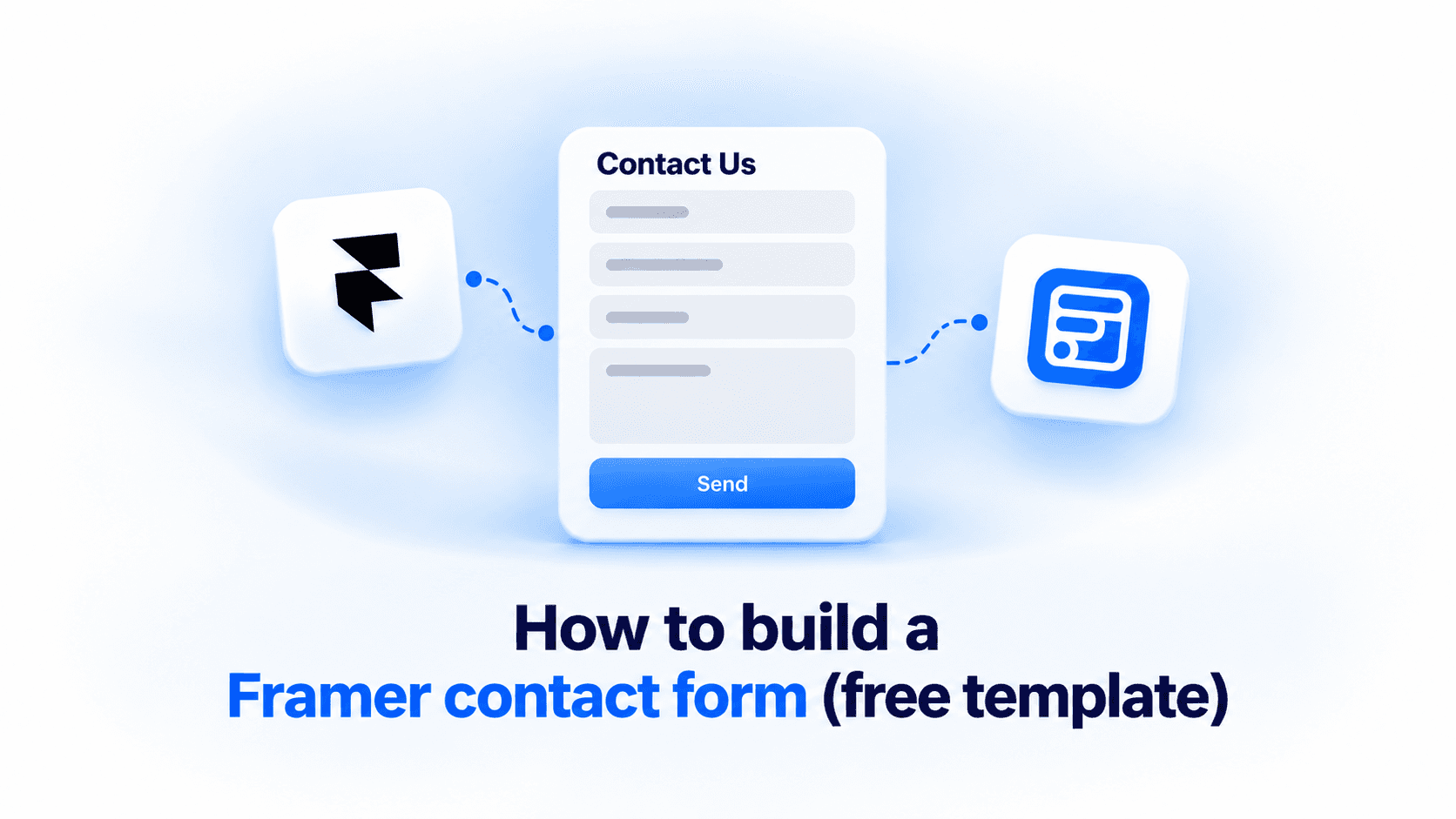
- The Contact Us template has four fields: Name, Email, Subject, and Message.
- The Contact Us template requires the Pro or Scale plan. Basic does not include it, Feedback is the only free template in the library.
- Connecting a CRM integration or adding CAPTCHA requires the Pro or Scale plan.
- Fields and styling are edited on Framer's canvas after insertion, with no code.
- This guide covers building the form. If submissions are not arriving, the email troubleshooting post covers delivery.
Overview
A contact form is the one form almost every Framer site needs, and building it should take minutes, not an afternoon. This guide covers the build: which fields to include, how to insert the Contact Us template, and how to connect, protect, and test it. If your form already exists and the submissions are not showing up in your inbox, that is a different problem, and our Framer contact form email troubleshooting post covers delivery.
Quick Answer
- The Contact Us template has four fields: Name, Email, Subject, and Message.
- The Contact Us template requires the Pro or Scale plan. Basic does not include it.
- You insert it from the Templates tab in the Forms Plugin panel, and it lands on the canvas as a native Framer component.
- Fields, copy, and styling are editable with Framer's own design tools, with no code.
- Connecting a CRM such as HubSpot and adding CAPTCHA are Pro and Scale plan features.
- Test one real submission before you publish.
What fields does a contact form actually need?
Fewer than most forms have. A contact form exists so a visitor can reach you, and every extra field is one more reason to close the tab. The Contact Us template keeps it to four:
- Name (text)
- Email (email, validated)
- Subject (dropdown)
- Message (textarea)
Name tells you who to address in your reply. Email is validated, so a visitor who mistypes it sees the problem before submitting, not after you have lost the only way to answer them. The Subject dropdown lets visitors categorize their inquiry, for example a sales question versus a general one. The Message textarea is where the actual request goes.
That is the whole form. Phone number, company, budget, and similar fields belong on a different kind of form. If you need those, browse the full template library for a better starting point instead of stretching a contact form.
The template is built for the pages where this form usually lives: agency contact pages, business contact forms, portfolio sites, and SaaS landing pages. The fields stay generic enough to fit any of them without edits.
Which fields should your contact form actually have?
The four-field default fits most sites, but it is a starting point, not a rule. The right configuration depends on who is filling out the form and what you need to know before you reply.
| Use case | Suggested fields |
|---|---|
| Simple portfolio contact form | Name, Email, Message |
| Agency inquiry form | Name, Email, Service required, Message |
| B2B sales contact form | Name, Work email, Company, Inquiry type, Message |
A portfolio site rarely needs more than a name and a way to reply, so Subject and any extra field just add friction for no real benefit. An agency fielding different kinds of work benefits from a Service field, it tells you what the visitor wants before you open the message. A B2B sales form benefits from Company and a Work email field specifically, since a personal email address on a B2B lead is a weaker signal than a company domain.
The rule that holds across all three: add a field only if you will act differently depending on the answer. If every submission gets the same reply regardless of what someone picks in a field, that field is not earning its place on the form.
Since the Contact Us template is a native Framer component, building any of these configurations is the same process, add or remove fields from Forms Plugin's library directly on the canvas after inserting the template.
Starting from the Contact Us template
This post assumes you have already decided to use Forms Plugin. If you are still weighing Framer's built-in form against a plugin, our practical guide to Framer forms covers that comparison, and it is not repeated here.
To build the form:
- Open Forms Plugin inside your Framer project.
- Click Templates in the plugin panel. You need to be signed in to browse or insert templates.
- Search or browse for Contact Us Form. Templates locked to a plan show a plan badge, and this one shows a Pro badge, it requires the Pro or Scale plan.
- Optional: hover the card and click Preview to see the form live before inserting it.
- Click Insert Template. The form is added to your canvas as a native Framer component.
- Customize the fields, copy, and styling using Framer's own design tools and Forms Plugin's field settings. Once inserted, the form adapts to your site's color mode automatically.
Because it is a native component, you edit it the way you edit anything else on the canvas. Rename the Subject options to match how your business sorts inquiries, change the Message placeholder, restyle the button, and move on.
The template is also fully responsive. It adapts to mobile, tablet, and desktop automatically, so you do not need to build separate layouts for each breakpoint.
Connecting it to your CRM
By default, a contact form only collects submissions. If you want each one to land in a system your team already works in, you connect an integration.
The Contact Us template pairs with HubSpot. The template page describes it as routing every submission into HubSpot CRM, with field mapping and workflow triggers. Our Framer HubSpot integration guide walks through the setup and the field mapping step by step.
HubSpot is one of 10+ native integrations: HubSpot, Mailchimp, Brevo, Klaviyo, ConvertKit (Kit), MailerLite, ActiveCampaign, Drip, Beehiiv, and more. None of them need Zapier. You connect the one you want under Integrations in the plugin.
Connecting a CRM integration requires Pro or Scale. Basic does not include native integrations, that part is confirmed. Check the pricing page for the current plan comparison before you build around a specific tier.
Adding spam protection
A public contact form attracts bots. CAPTCHA is how you keep them out of your inbox.
Forms Plugin offers five options: reCAPTCHA, hCaptcha, Cloudflare Turnstile, numeric, and math. Our CAPTCHA options post compares them so you can pick the right one for your audience.
Like CRM integrations, advanced CAPTCHA options are a Pro and Scale feature, confirmed. If spam protection matters for your form, plan on Pro or Scale.
Testing before you publish
A contact form that looks right can still fail quietly, so test it before it goes live.
- Publish the Framer site. Submissions route to your connected platforms automatically once it is live.
- Fill out the form yourself with a real email address, and pick each Subject option at least once.
- Check that the submission arrives where you expect it: your inbox, and your CRM if you connected one.
- Submit once with a deliberately malformed email to confirm the validation message appears.
- Open the page on your phone and submit once from there.
If the submission does not arrive, do not guess. The contact form email troubleshooting post walks through the delivery causes in order.
Frequently asked questions
Is the Contact Us template free?
No. It requires the Pro or Scale plan. The only free template in the library is Feedback. Connecting a CRM integration or using advanced CAPTCHA options also require Pro or Scale. See the pricing page for what each plan includes.
What fields does the Contact Us template include?
Four: Name (text), Email (email, validated), Subject (dropdown), and Message (textarea). You can customize them after inserting the template.
Does the Subject dropdown send submissions to different places?
No. It is a standard dropdown that lets visitors categorize their inquiry. It does not route or trigger anything on its own.
Can I edit the form after inserting it?
Yes. The template is a native Framer component. You edit fields, copy, and styling on the canvas with Framer's design tools and Forms Plugin's field settings, with no code.
Do I need Zapier to send submissions to HubSpot?
No. HubSpot is one of 10+ native integrations. It requires the Pro or Scale plan.
Bottom line
A Framer contact form does not need to be complicated. Four fields cover what most sites need. The Contact Us template requires the Pro or Scale plan, and so does connecting a CRM like HubSpot or adding stronger spam protection. Start from the Contact Us template, customize it on the canvas, test one real submission, and publish. If you want other starting points, the full template library has them.
Ready to build smarter Framer forms?
Forms Plugin gives you everything covered in this article - natively, inside Framer.
Get Forms Plugin
 Get this Plugin