Key Takeaways
- Multi-step forms outperform single-page forms for B2B lead gen when the form has 6 or more fields, or when questions fall into natural topic clusters.
- The optimal step count is 3 to 7. Fewer than 3 does not justify the format. More than 7 causes completion to drop.
- The first screen should ask one easy question, not load every field at once.
- Conditional page jumps let you skip entire steps that do not apply to a specific visitor, keeping every path focused.
- Forms Plugin's multi-step builder handles multi-step flows natively inside Framer, including per-step validation and conditional step skipping, on a one-time $99 Pro plan.
Overview
A client came to us saying their homepage form was not generating leads. When we looked at the page, the problem was immediate: 14 fields on a single screen, every one visible before the visitor had decided they wanted anything. The form looked like work before the conversation had even started.
We asked if we could restructure it as a multi step form Framer-native, splitting the same 14 fields into three short, logical steps. They agreed. After the change, their lead form completion rate jumped in a way that surprised even us. The form did not get shorter. It got organized. That is the idea this post is built around.
When does a multi step form outperform a single-page form?
A multi-step form outperforms a single-page form when the form has 6 or more fields, or when the questions fall into natural topic clusters that can be separated into distinct screens.
Zuko's research identifies the 6-field threshold as the point where cognitive overload starts affecting completion. Below it, a single page is faster and simpler. Above it, visitors see a wall of inputs, calculate the effort, and leave before typing anything. Splitting the same fields across focused steps reduces perceived effort without reducing the information collected. Venture Harbour documented cases where switching from single to multi-step lifted conversion rates by over 300%. The form content was the same; the structure was different.
There is a psychological factor too. Once a visitor answers the first question, consistency and completion principles work in your favor. Most people do not abandon a form they have started. The hard part is getting them to start. A first screen with one or two questions makes starting feel like nothing.
For simple use cases (a newsletter signup, a 3-field contact form) single-page is the right call. Multi-step earns its place on B2B lead gen forms, qualification flows, booking forms, and job applications.
How many steps should a multi-step form Framer project include?
The optimal range is 3 to 7 steps. Below 3, the navigation overhead outweighs the benefit. Above 7, completion rates fall as the form starts to feel like an audit.
Forms Plugin's multi-step builder is designed around this range. The recommended structure is 3 to 5 steps for most lead gen forms and up to 7 for detailed onboarding or booking flows with many options. Beyond 10 steps, completion drops steeply regardless of how well each individual step is designed.
The practical ceiling also depends on your first screen. A form that opens with a single easy question ("What are you looking for?") can carry a visitor through more steps than one that opens with a required company size and budget range. Start easy. The qualifying questions can come later.
How should you group fields into logical steps?
Group fields by topic cluster, not by field count. Each step should feel like one coherent question to the visitor, not an arbitrary slice of a longer list.
A three-cluster pattern that works well for B2B lead gen:
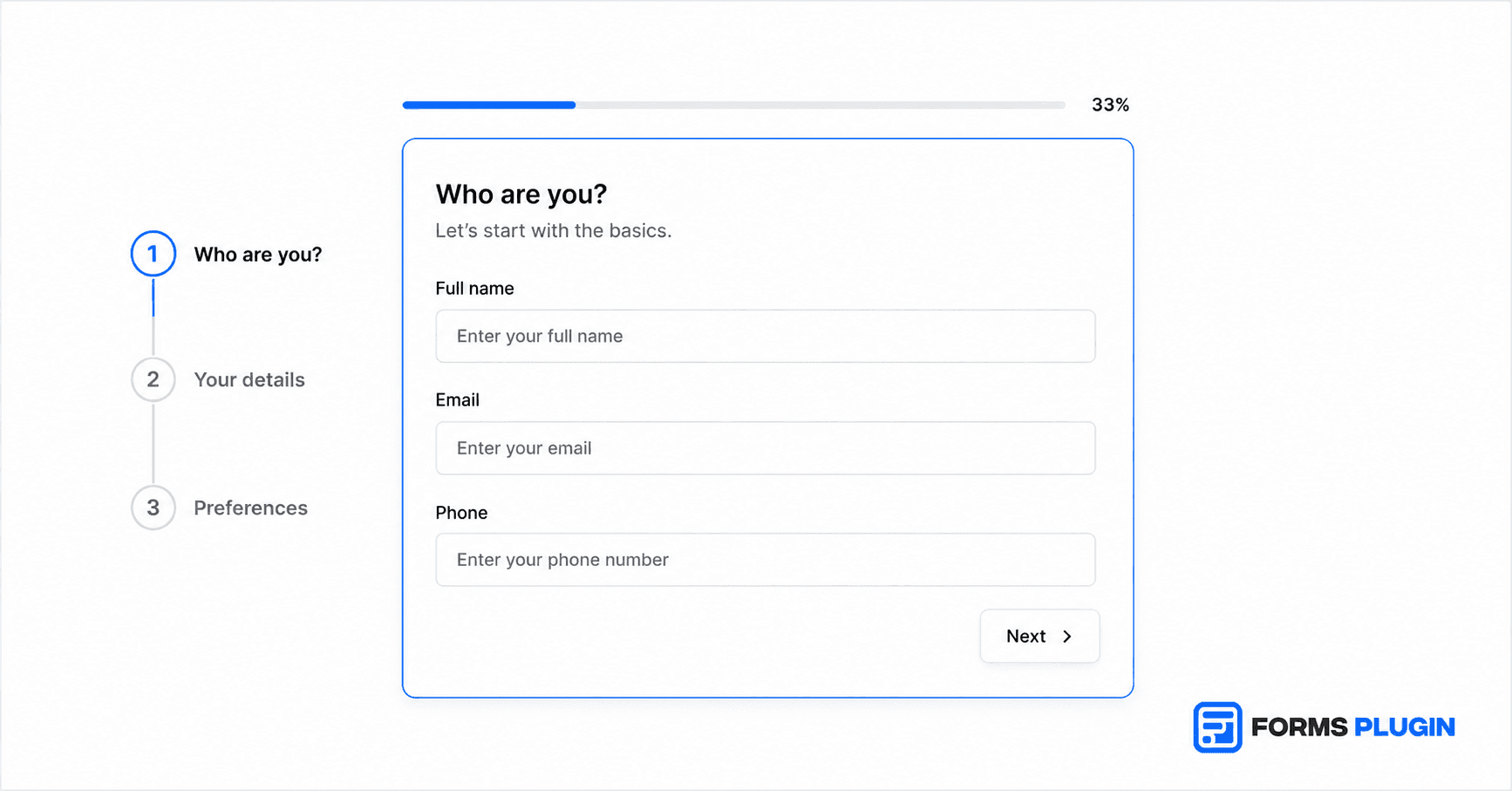
- Step 1: Who are you? Name, company, role. Easy questions, no stakes. The visitor is just introducing themselves.
- Step 2: What do you need? Service interest, budget range, timeline. The qualifying layer.
- Step 3: How do we reach you? Email, phone, preferred contact method. Contact details last, after the visitor is already invested.
The client we mentioned had all three clusters mixed together on one page. Separating them changed the feel of the whole form. Step 1 became an introduction, not an interrogation. By step 3, visitors had already committed to the process and were far less likely to abandon.
A useful test: read each step aloud as a single question. If the step cannot be summarized as one clear ask, split it further or cut the fields that are not essential.
Progress indicators: why they matter and which type to use
A progress indicator tells the visitor how much work remains. Without one, the form is an unknown commitment, and uncertainty increases drop-off at every step.
Zuko's data identifies progress bars as one of the most effective tools for reducing mid-form abandonment. Visible progress turns an open-ended obligation into a known one. "Step 2 of 4" removes the fear of a form that never ends.
Three indicator styles suit different contexts:
- Progress bar: fills as steps complete. Good for forms where steps are roughly equal in length.
- Step dots: circles that fill per step. Good for short forms (3 to 4 steps) where the visual stays clean at small sizes.
- Step labels: numbered labels with titles ("About you", "Your project", "Contact"). Good for longer flows where names reduce confusion about what is coming.
Forms Plugin's multi-step builder supports all three. Each component is styled directly on the Framer canvas, so the indicator matches your design system without custom CSS.
Why does per-step validation matter on multi-step forms?
Per-step validation blocks a visitor from advancing until all required fields on the current step are filled and valid. Without it, a visitor can skip through all steps with blank required fields and submit an incomplete record.
Without per-step validation, the multi-step structure provides navigation but not data quality control. The CRM receives partial records. The qualification questions on step 2 go unanswered. The whole point of collecting structured data across steps is defeated if those steps can be bypassed.
Conditional logic in Forms Plugin runs per-step validation natively. Each step checks its required fields before the Next button fires. A visitor who leaves the company field empty on step 2 sees the error on step 2, not at final submission. This pairs directly with the field-level rules covered in our validation guide: blocked domains, regex patterns, and character limits all apply per step, not just at the end.
How do conditional page jumps improve multi-step flows?
Conditional page jumps route different visitors through different step sequences based on what they answered earlier, so no one sees steps that do not apply to them.
Without this, every visitor walks the same path regardless of relevance. A B2B qualifier that shows a "number of employees" step to a freelancer wastes their time and signals that the form was not designed for them. Conditional logic in Forms Plugin works across the whole form including multi-step forms, using AND/OR rules to skip, show, or require entire steps based on any earlier answer.
Five actions are available on any field or step: show, hide, make required, disable, or reset. A qualifier form can route an agency visitor through budget and team-size questions while sending a solo founder straight to the contact step, without any code. For agencies building lead gen forms across multiple client verticals, this is the feature that makes a single form structure work for multiple audience segments.
How to add a multi-step form Framer supports natively
Forms Plugin's multi-step builder wraps a standard Framer form in a step management layer. The setup follows four steps:
- Install Forms Plugin from the Framer Marketplace (Insert > Plugins > Forms Plugin).
- Add a Framer form to your canvas. Use the native form component as the base, configured with your Send To destination (email, Google Sheets, or webhook).
- Drop the multi-step wrapper onto the form from the Forms Plugin panel. This converts the single-screen form into a paginated flow immediately.
- Add fields per step. Each logical step becomes a named section inside the wrapper. The plugin manages step state and navigation automatically.
Navigation buttons (Next, Back, Submit), step indicators, and progress bars are separate components you place on the canvas and style like any Framer element. The existing Send To pipeline keeps working. No code, no iframe, no third-party service.
For agencies billing across multiple client sites, this setup is repeatable. Build a structure once, remix it per client, swap fields and styling. The Scale plan at $119 one-time covers unlimited sites with a commercial license, see the pricing page for the full breakdown.
Which multi-step form templates does Forms Plugin offer?
Forms Plugin ships 8 free templates across the most common use cases, available on every plan with no upgrade required.
The full set: Contact, Customer Feedback, Inquiry, Support Request, Charity Donation, Product Demo, Appointment Booking, and Hotel Booking. Each arrives as a Framer remix with fields, validation rules, and submit settings already in place. The Product Demo and Appointment Booking templates are structured as multi-step flows out of the box. The others insert as single-screen forms and can be converted to multi-step after inserting.
Templates are starting points. After inserting, you rearrange fields, add conditional logic, connect CRM integrations, and apply your design system. The structure is done; the customization is yours.
Common questions
Does the native Framer form support multi-step flows?
No. The native Framer form is single-screen only. Community workarounds exist (a stack named "Steps" with visibility toggled by interactions) but they require maintaining custom interactions and break when the form structure changes. Forms Plugin's multi-step builder adds this natively to the Framer form without interactions or code.
Does multi-step affect the Send To destinations?
No. Forms Plugin's multi-step builder wraps the native Framer form, so your existing Send To destinations (Email, Google Sheets, Webhook) keep firing as normal. You get multi-step navigation without losing any native form behavior or switching to a different submission pipeline.
Does a multi-step form work on mobile in Framer?
Yes. Forms Plugin's multi-step builder is responsive by default. Each step fills the full form width and the layout stacks correctly at mobile breakpoints. Progress bars and navigation buttons scale with the layout. For mobile specifically, the multi-step format is an improvement over a long single-page form because each step fits the viewport without scrolling.
Can I skip entire steps based on earlier answers?
Yes. Conditional page jumps in Forms Plugin let you route visitors past steps that are not relevant to them, based on any field answer from any earlier step. The rules use AND/OR logic, the same system as field-level conditions.
Is a multi-step form right for agency client sites?
Multi-step forms are the right default for any B2B lead gen form with more than 5 fields. For agency clients specifically, the Forms Plugin Scale plan at $119 one-time covers unlimited sites with a commercial agency license. You build the structure once and reuse it across clients.
The biggest mistake on a lead gen form is showing every question at once. Visitors see the full cost before deciding to pay it. A well-structured multi-step form changes that: step 1 is a small commitment, step 2 is slightly larger, and by step 3 the visitor is already invested in completing what they started. Forms Plugin's multi-step builder is how you build that structure inside Framer, without writing code, without an iframe, in one session on the canvas.
Ready to build smarter Framer forms?
Forms Plugin gives you everything covered in this article - natively, inside Framer.
Get Forms Plugin

 Get this Plugin