Key Takeaways
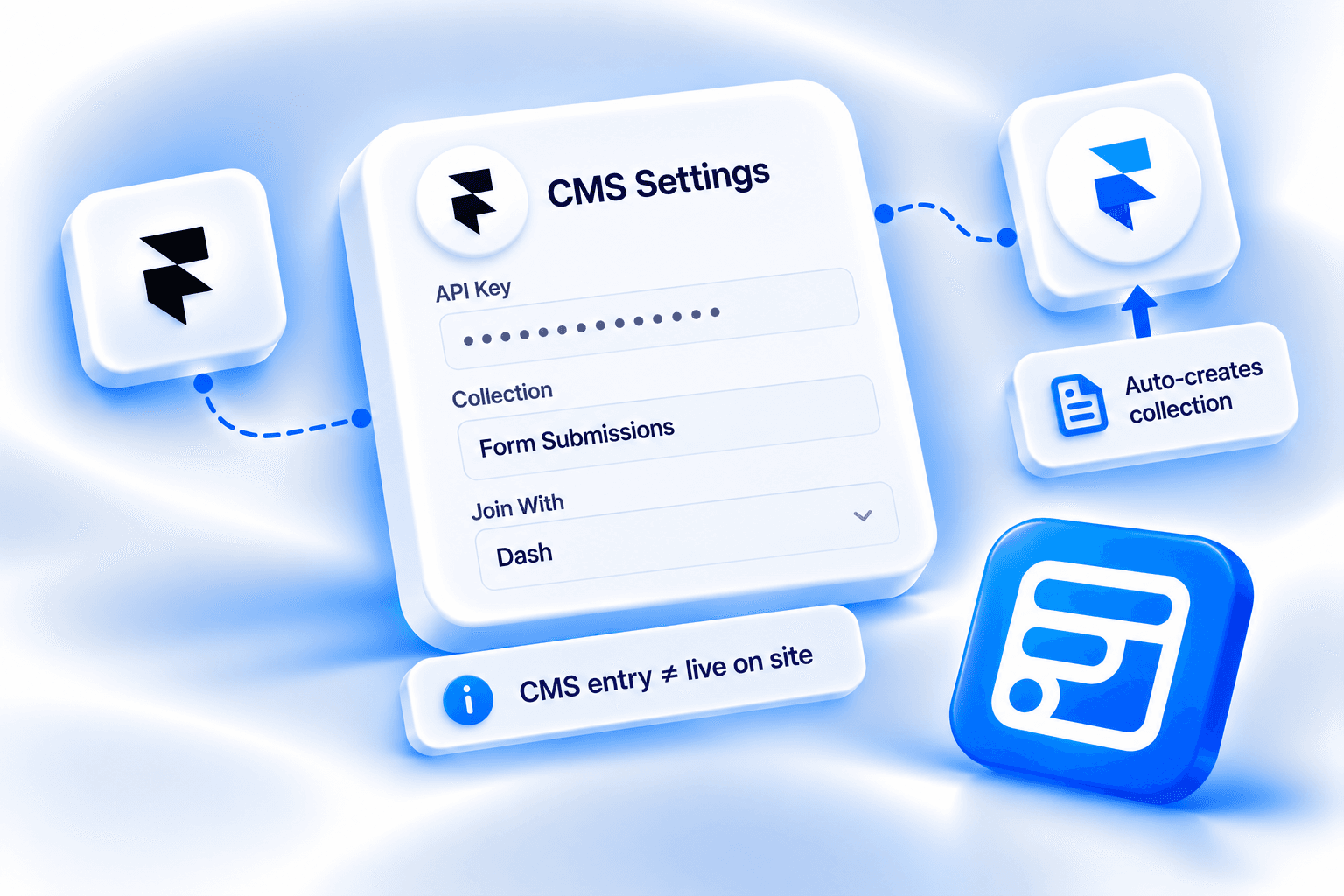
- Forms Plugin writes submissions into a CMS collection in the same Framer project through Framer's Server API, with no external database, Zapier, or Make.
- You do not need to create the collection first. Naming a collection that does not exist yet creates it with the first submission.
- Entries appear in the CMS immediately on submission, but they go live on the published site only after the project is published next.
- The Type dropdown only applies when a field has to be created. An existing CMS field always keeps its own type.
- Framer CMS is a Pro and Scale feature in Forms Plugin, like the other advanced integrations, and Basic does not include it.
Overview
Connecting a Framer form to the Framer CMS with Forms Plugin means creating a Framer API key, pasting it with your project URL, naming a collection, and mapping form fields to CMS fields. Submissions then land as entries in that collection inside the same Framer project. This guide covers the actual panel fields, how slugs are built, how field types behave, and the difference between an entry appearing in the CMS and an entry appearing on the live site.
Quick Answer
- The Framer CMS integration connects through Framer's Server API and writes form submissions into a CMS collection inside the same Framer project.
- CMS Settings has seven fields: API Key, Project URL, Collection, Slug From, Join With, Always Unique, and Add As Draft.
- Field Mappings has one Mappings list. Each item pairs a Form Field with a CMS Field and a Type.
- Entries appear in the CMS immediately. They go live on the published site only after the project is published next.
- Framer CMS is a Pro and Scale feature in Forms Plugin. Basic does not include it.
What is the Framer CMS integration?
The Framer CMS integration is a component you place inside a Forms Plugin form. On the canvas it appears as a tile reading "Framer CMS, Connect API key." In the Integrations picker, it is listed as "Framer CMS Integration."
When a visitor submits the form, the component writes the submission directly into a CMS collection in the same Framer project, using Framer's Server API. There is no external database, no Zapier, and no Make in between.
The component has exactly two property-control groups: CMS Settings and Field Mappings.
The use cases for it are:
- Testimonial collection. A testimonial form writes each submission into a Testimonials collection, ready to review and drop into a design component.
- Job applications. An application form fills an Applicants collection so the team can read submissions inside Framer without another tool.
- Directory and listing submissions. A submit-your-listing form adds draft entries to a directory collection, published once approved.
For the official reference, see the Framer CMS integration docs. Forms Plugin has also added a HighLevel integration, covered separately in the HighLevel integration setup guide.
Setting up CMS Settings
Start in Framer, then work inside the plugin.
- In Framer, go to Site Settings, then General, and generate an API key for the project.
- Copy the project URL from the browser address bar.
- Open Forms Plugin inside the Framer project, go to Integrations, and insert the Framer CMS component into the form.
- Paste the API key and project URL into CMS Settings, and name the collection to write to.
- Map form fields to CMS field names in Field Mappings, and choose which field names each entry through Slug From.
- Publish the Framer site and submit a test entry to confirm it appears in the collection.
The CMS Settings panel has seven fields.
API Key. A text input. The panel describes it as: "Framer API key for this project. Create one under Site Settings > General. This key can edit and publish the project, so treat it like a password."
Project URL. A text input. The panel describes it as: "The project this form writes to, e.g. https://framer.com/projects/xxx-aabbccdd1122." The xxx-aabbccdd1122 part is an example format, not a literal value. Use the URL of your own project.
Collection. A text input with the default value "Form Submissions." The panel describes it as: "Collection to add entries to. If it does not exist yet, it is created with the first entry."
Slug From, Join With, and Always Unique control how each entry is named. They are covered in the next section.
Add As Draft. A Draft/Live control, set to Live by default. It is covered in the Draft vs Live section.
Treat the API key like a password
The API key can edit and publish the entire project it belongs to, not just the one collection. Treat it like a password. If you remove the component, generate a new key.
Slugs: Slug From, Join With, and Always Unique
Every CMS entry needs a slug. Three fields in CMS Settings control how Forms Plugin builds it.
Slug From
Slug From is a list control, and the example item shown in the panel is "email." The panel describes it as: "Form fields joined to name each entry, in order. Leave empty to use the email address."
So you list the form fields that should name each entry, in the order they should appear. If the list is empty, the email address is used.
Join With
Join With is a dropdown, set to Dash by default. The options are Dash, Underscore, Dot, Comma, Space, None, and Custom.
The panel describes it as: "Character placed between each slug field. Anything that is not URL-safe becomes a dash in the final slug." Whichever character you pick, a character that is not URL-safe ends up as a dash in the final slug.
Always Unique
Always Unique is a Yes/No toggle, set to No by default. In the panel screenshot the label is truncated to "Always Un...", so this guide uses "Always Unique" based on its description. The exact full label text was not fully visible, but the behavior is confirmed.
The panel describes it as: "Add a random suffix to every slug. Off keeps slugs readable; a suffix is still added automatically if a slug is already taken."
With it off, slugs stay readable, and a suffix is still added automatically when a slug is already taken. With it on, every slug gets a random suffix.
Field Mappings and CMS field types
Field Mappings has one control, the Mappings list. The panel describes it as: "Map form field names to CMS field names. Missing fields are created on the collection automatically."
Each mapping item has three parts:
- Form Field: a text input. "The name attribute of your form field."
- CMS Field: a text input. "Name of the field on the collection."
- Type: a dropdown, set to Text by default. "Used only when the field has to be created. An existing field always keeps its own type."
The Type options are Text, Formatted Text, Number, Toggle, Date, Link, Image, File, Color, and Option.
When Type applies
Type only applies when a field has to be created because it did not already exist on the collection. An existing CMS field keeps whatever type it already has. This integration never changes an existing field's type.
The integration also only appends genuinely missing fields to an existing collection. It does not alter the type or the ordering of fields that already exist.
You do not need to create the collection first
Naming a collection that does not exist yet creates it with the first submission. Combined with the Mappings behavior, a collection and its fields can be created entirely from the form.
Draft vs Live entries
Add As Draft is a Draft/Live segmented control, set to Live by default. The panel describes it as: "Drafts are excluded when you publish the site. Entries appear in the CMS either way."
This is where two different moments need to stay separate.
- An entry appears in the CMS immediately on submission. This happens whether Add As Draft is set to Draft or Live.
- An entry appears on the live site after the project is published next. This is the same as editing CMS content by hand. A new entry does not go live until you publish.
Add As Draft does not control whether the CMS record exists. It controls a separate draft or live state on the entry itself. Entries set to Draft are excluded when you publish the site.
That makes it the setting for a review-before-publish workflow. For a directory or listing submission form, set Add As Draft to Draft. Each submission shows up in the CMS as a draft entry, and the listing is published once approved.
What plan do you need for Framer CMS
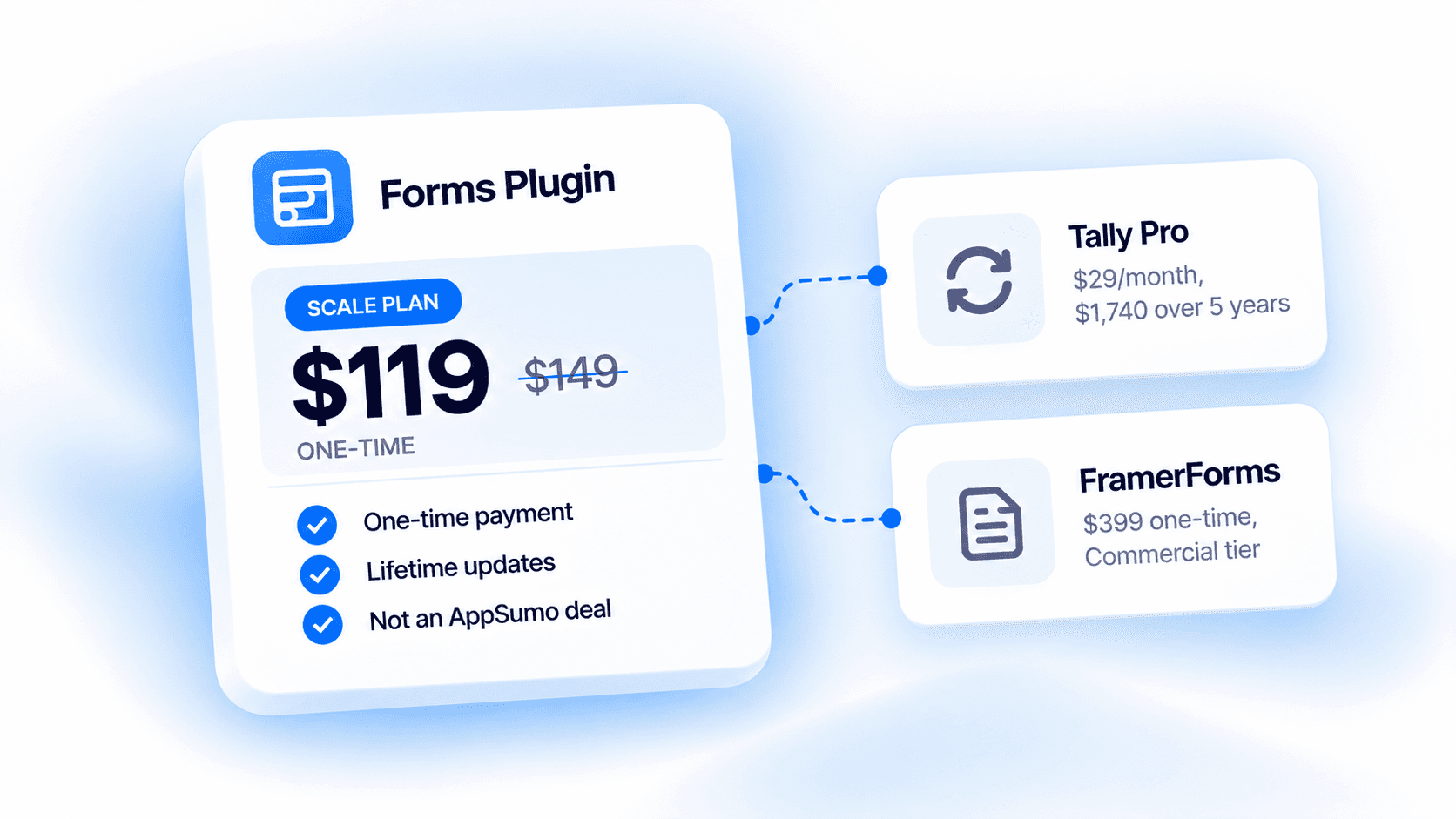
Advanced integrations in Forms Plugin are a Pro and Scale feature. Basic does not include them, and Framer CMS follows the same rule. See the pricing page for the full plan breakdown.
Frequently asked questions
Do I need to create the collection in Framer first?
No. If the collection named in the Collection field does not exist yet, it is created with the first entry.
Do I need Zapier or Make?
No. The component writes to the CMS through Framer's Server API, inside the same Framer project, with no middleware in between.
Why does a new entry show in the CMS but not on my live site?
Entries appear in the CMS immediately on submission, but they go live on the published site only after the project is published next, the same as editing CMS content by hand.
Does Add As Draft decide whether the entry shows up in the CMS?
No. The panel says "Entries appear in the CMS either way." Add As Draft controls a separate draft or live state on the entry, and drafts are excluded when you publish the site.
Will it change the type of a field that already exists?
No. The Type dropdown is used only when a field has to be created. An existing field always keeps its own type, and the integration does not alter the type or ordering of existing fields.
What if a field in my mappings is not on the collection yet?
It is created on the collection automatically, using the type chosen in the Type dropdown.
What name does each entry get?
The fields listed in Slug From, joined in order with the Join With character. If Slug From is empty, the email address is used.
Is the API key safe to leave in the component?
The key can edit and publish the whole project it belongs to, so treat it like a password. Generate a new one if the component is removed.
Bottom line
The Framer CMS integration is a short setup: an API key from Site Settings, the project URL, a collection name, and a Mappings list. Naming the collection is enough to create it, and the Type dropdown only matters for fields that do not exist yet. Keep two moments apart: an entry lands in the CMS immediately, and it reaches the live site after the next publish. Use Add As Draft when submissions need review first. For the full field reference, see the official Framer CMS integration docs.
Ready to build smarter Framer forms?
Forms Plugin gives you everything covered in this article - natively, inside Framer.
Get Forms Plugin

 Get this Plugin