Key Takeaways
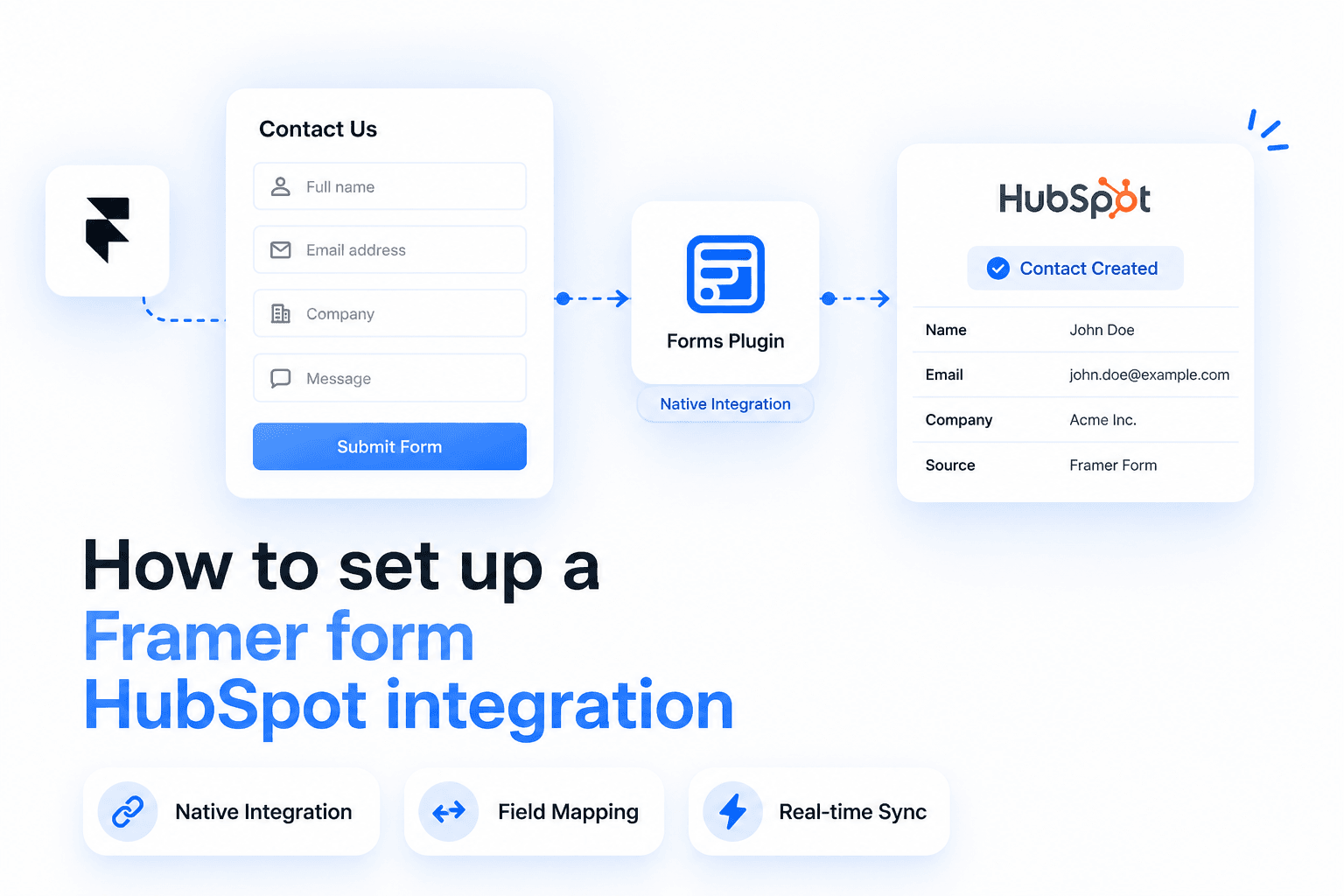
- There are two real ways to connect a Framer form to HubSpot: Framer's native HubSpot embed component, or a native field-mapped integration.
- The embed method needs your HubSpot form's portalId and formId, and styling then lives inside HubSpot, not Framer.
- A native integration keeps styling inside Framer, maps any form field to any HubSpot contact property, and matches contacts by email so repeat submissions update rather than duplicate.
- Most "form isn't reaching HubSpot" reports come down to duplicate forms, a wrong portalId/formId, or testing only in preview instead of the published site.
Overview
You built a form in Framer and you want every submission to land in HubSpot automatically, as a contact, in real time, without a middleman like Zapier. That part is simple in principle. What is not obvious until you go looking is that there are two genuinely different ways to set up a Framer form HubSpot integration, and they are not just two paths to the same result.
Pick the wrong one for your situation and you end up with a form that does not match your site's design, because HubSpot owns the styling. Or you rebuild a form that already had working HubSpot logic behind it, losing progressive profiling or workflow triggers you did not realize were tied to the old embed. Both are avoidable, but only if you know the tradeoff exists before you start, not after you have built the wrong one.
Quick Answer
There are two ways to connect a Framer form to HubSpot:
- HubSpot's native embed component. You drop HubSpot's own form onto your Framer page. Best if you already build and manage forms inside HubSpot and want to keep using its workflows and progressive profiling as-is.
- A native field-mapped integration (for example, through Forms Plugin). You build the form in Framer and map its fields to HubSpot contact properties on submit. Best if you want full Framer design control and do not want your form's styling to live in a second system.
Both methods get submissions into HubSpot. They differ in who owns the form's styling, how much setup each takes, and which HubSpot-specific features stay available.
What is HubSpot?
HubSpot is a CRM (customer relationship management) platform: it stores your contacts, tracks their activity, and runs marketing automation like email sequences and workflows on top of that data. When you connect a Framer form to HubSpot, every new submission creates or updates a contact record there automatically, so a lead that fills out your form shows up in HubSpot in real time, ready for your sales or marketing team to work, without anyone manually copying data over.
What are the two ways to set up a Framer HubSpot integration?
Framer ships a native HubSpot form component built specifically for embedding HubSpot forms on your site. Separately, form plugins like Forms Plugin offer a native HubSpot integration that connects your own Framer-built form directly to HubSpot, no embedded HubSpot form involved at all. The first keeps your form fields and styling inside HubSpot's system, the second keeps everything inside Framer and just routes the data.
Should I use the embed or the native integration?
| Feature | HubSpot embed | Native integration |
|---|---|---|
| Design control | Limited, styling lives in HubSpot's form editor | Full, form is built and styled natively in Framer |
| Styling matches your site | Rarely, without extra HubSpot-side work | Yes, by default |
| Setup difficulty | Low if the HubSpot form already exists | Low, one-time account connection plus field mapping |
| Custom field mapping | Handled inside HubSpot's form editor | Mapped directly in the integration, any field to any property |
| Progressive profiling | Supported, it is a real HubSpot form | Not applicable, this is a HubSpot-form-specific feature |
| Best for | Teams already running forms and workflows in HubSpot | Sites that need the form to visually match the page |
If you already build and manage forms inside HubSpot, with workflows or progressive profiling tied to them, use the embed, you are reusing what already exists rather than rebuilding it. If you need the form to visually match the rest of your Framer site and want one design system instead of two, use the native integration. It also sidesteps the usual performance cost of iframe-style embeds, since nothing has to wait on a second document loading inside the page. Still not sure? Ask which system needs to own the form's behavior day to day. HubSpot, embed. Just getting the lead into HubSpot, go native.
How do I set up Framer's native HubSpot embed?
- In HubSpot, open the form you want to use (or create a new one), click Embed in the top right of the form editor, and copy the
portalIdandformIdvalues from the embed code. - In Framer, open the Insert panel, scroll to Forms, and drag the HubSpot component onto your page.
- Select the component, and in the Properties panel, paste your
portalIdandformIdinto the matching fields. - Any styling changes, fields, colors, button copy, validation messages, happen inside HubSpot's own form editor, not in Framer.
- Preview to check the layout, then publish. Some HubSpot behavior only initializes correctly on the live, published domain, so do your final check there.
This is a genuine embed, the form you see is HubSpot's form rendered through HubSpot's own script, not a Framer-native element. Any HubSpot feature tied to that form, progressive profiling, conditional fields, workflow enrollment triggers, keeps working exactly as it does anywhere else HubSpot forms are embedded. The tradeoff: the form's fonts, colors, and spacing come from HubSpot's editor, not your site's design system, so it rarely matches pixel-for-pixel without extra HubSpot-side styling work.
How do I set up a native HubSpot integration?
With Forms Plugin's HubSpot integration, the form is built and styled entirely in Framer, fields, layout, colors, all native. Setup:
- Open Forms Plugin inside your Framer project and pick the form you want to connect.
- In the plugin panel, select Integrations and click HubSpot.
- Authenticate with your HubSpot account (OAuth flow), no API keys to copy and paste.
- Map each form field to the matching HubSpot contact property.
- Optionally specify a HubSpot list to auto-add contacts to, or a workflow to trigger on submission.
- Publish your Framer site, then test-submit the form and confirm the contact appears in HubSpot.
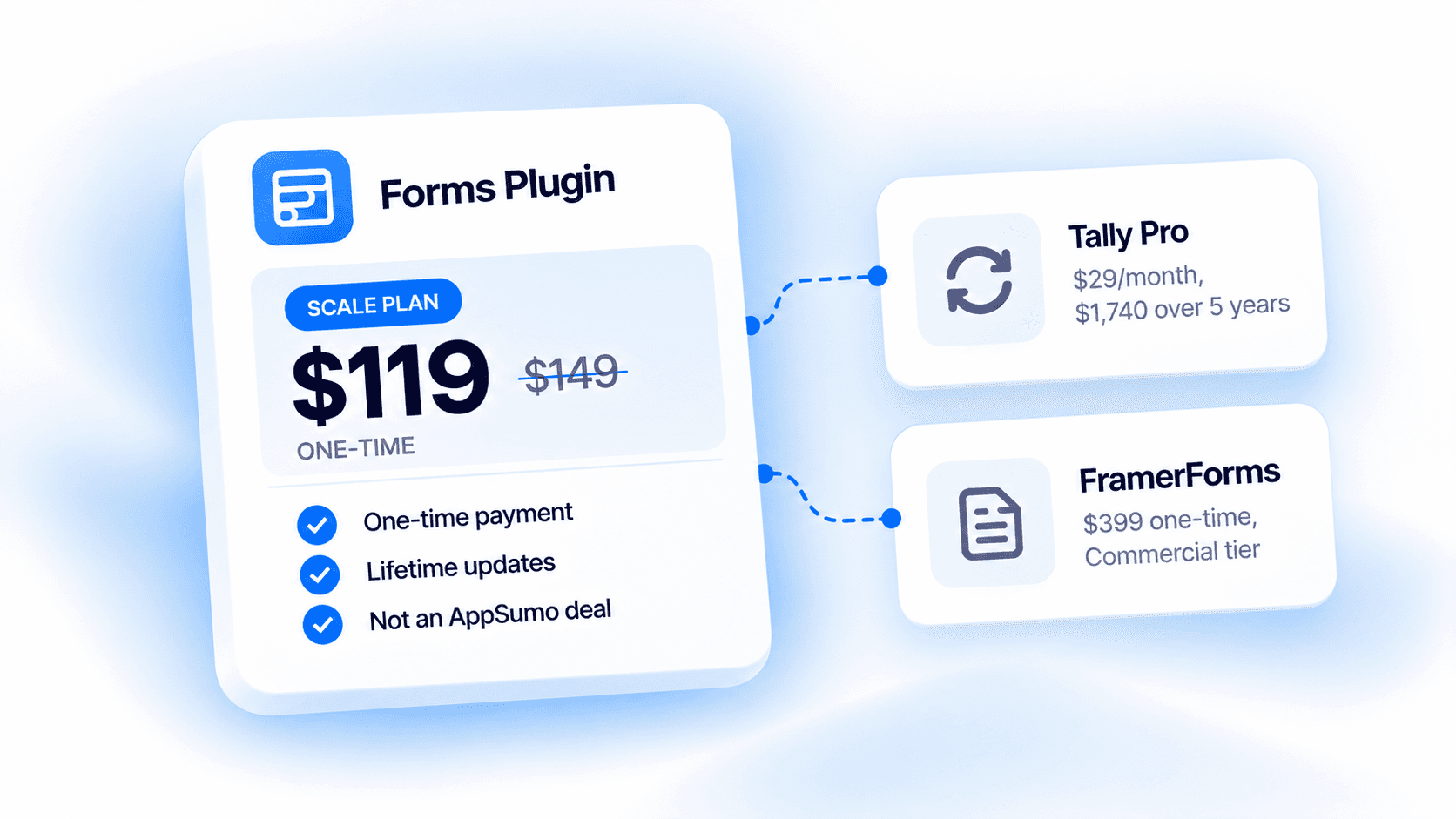
Submissions push straight into HubSpot on submit, no embedded HubSpot form, no iframe, no separate styling system to keep in sync with the rest of your site. This requires Forms Plugin's Pro or Scale plan, where native CRM connections including HubSpot live, Basic does not include them. Check pricing for the current plan details. Field mapping is a one-time step per form, every later submission follows it automatically.
Testing checklist
Run through this after setup, on the published site, not just in preview:
- Submit a real test entry through the live form
- Confirm a new contact was created in HubSpot (or an existing one updated, if the email already matched)
- If you configured a workflow trigger, confirm the workflow actually fired for that contact
- If you mapped any custom properties, confirm they show the submitted values, not blank
- Repeat the test submission on a real mobile device, not just a resized desktop browser
Which Framer fields map to which HubSpot properties?
Standard contact fields map straightforwardly. With Forms Plugin's native integration, any form field can be mapped to any HubSpot contact property, including custom ones:
| Framer form field | HubSpot property |
|---|---|
| First name | First name |
| Last name | Last name |
| Company | Company name |
| Phone | Phone number |
| Anything else (budget, lead source, etc.) | A matching custom property |
Custom properties need to exist in HubSpot before you can map to them, a field like "project budget" won't appear automatically just because your Framer form has a matching field. Check your HubSpot property list before building the form, five minutes spent confirming property names up front avoids a rebuild later.
What are the most common Framer HubSpot integration problems?
Most issues with the embed method are well documented and fall into a few buckets:
- Duplicate forms. The HubSpot component sits inside a structure that repeats, a CMS Collection List item, a duplicated component instance, or it has been embedded twice on the same page.
- Blank or missing form. Something is blocking HubSpot's embed script from loading, an ad blocker, a corporate firewall, or a strict content security policy.
- Submissions not reaching HubSpot. Almost always a wrong
portalIdorformId, or you're checking a different HubSpot account than the one the form points to. - Layout looks broken. The component has a fixed height set too small for the form's actual content.
- Styling doesn't match your site. Not a bug, styling for embedded HubSpot forms lives entirely in HubSpot's form editor.
- Works in the editor, breaks live. HubSpot's embed script needs the page's real published context, testing exclusively in Framer's canvas or preview mode can hide problems.
If you're on the native integration, most of these do not apply, there is no separate script to block, no portalId/formId pair to mismatch, and no second styling system.
Common mistakes
- Wrong field mapping. Mapping a Framer field to the wrong HubSpot property (email into a text property, for example) means the data lands somewhere you are not looking for it, even though the submission technically succeeded.
- Missing required properties. If a HubSpot property is required and the mapped Framer field is empty, the contact update can fail depending on how the workflow handles it. Check which properties are required before mapping.
- Wrong HubSpot account or portal. Especially common on agency setups managing several client portals, connecting to the wrong account means submissions land somewhere nobody is watching.
- Testing only in preview mode. Some HubSpot behavior, especially with the embed method, only initializes correctly on the published domain. Working in preview is not proof it works live.
- Not checking workflows. Confirming a contact was created is not the same as confirming a workflow fired. Verify it separately, do not assume it ran just because the contact exists.
Frequently asked questions
Can I trigger HubSpot workflows from a Framer form submission?
Yes, with the native integration you can optionally specify a workflow to trigger on submission. With the embed method, workflow enrollment works the same way it would for any other HubSpot form, since the embed is a real HubSpot form.
Does this update existing contacts, or only create new ones?
It matches by email. If a submission's email already exists as a HubSpot contact, that contact is updated with the new data rather than a duplicate being created.
Does this create duplicate contacts?
No, matching is done by email address, so a repeat submission from the same email updates the existing contact instead of creating a second one.
Can I send custom properties to HubSpot?
Yes. Any HubSpot contact property, including custom ones you have created, can be mapped to any field in your Framer form, as long as the property already exists in HubSpot.
Does this work on HubSpot's free plan?
Yes. The integration works through HubSpot's Forms API, available on the free CRM plan, not just paid tiers. Marketing Hub adds extra workflow and list automation on top but is not required.
Does this work with multi-step Framer forms?
Yes. Field mapping applies to the submitted field values, not the step structure, so it works the same whether the form is single-step or split across multiple steps.
Getting started
Need HubSpot-specific features like progressive profiling or workflows already tied to an existing form? Use the embed. Need the form to visually match the rest of your Framer site? Use the native integration. Need both? That is the one case where you have to pick a side, decide based on which system should own the form day to day, then build it there. Check the HubSpot integration page and pricing for what is included with the native route.
Ready to build smarter Framer forms?
Forms Plugin gives you everything covered in this article - natively, inside Framer.
Get Forms Plugin
 Get this Plugin