Key Takeaways
- A Framer pop-up form works best for low-commitment asks like newsletter signups, feedback, or demo requests — not core conversion flows like checkout.
- Framer's Convert add-on provides behavior-based triggers: time delay, scroll depth, and exit intent. A manual 'open overlay' action on click is available on all plans with no code required.
- The most common complaint with popup forms on Framer sites is a form that looks bolted on, usually because it is an iframe embed that ignores the site's fonts, colors, and spacing.
- A modal form needs basic accessibility handling: trap focus inside it, let Escape close it, and never block the page indefinitely.
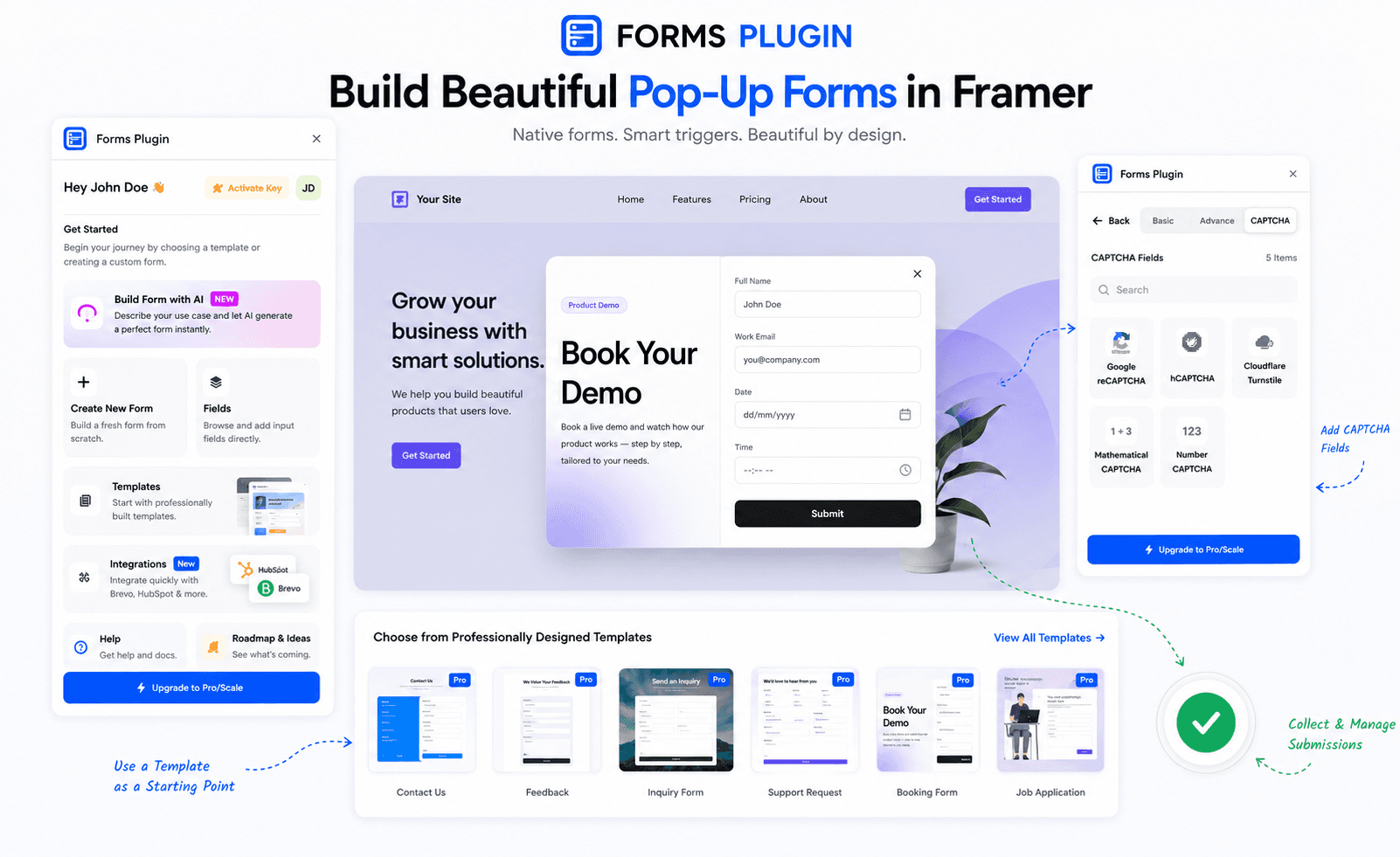
- Forms Plugin builds directly on the Framer canvas, so a popup form uses the same styling system as the rest of the site instead of sitting inside an iframe.
Overview
A popup form is one of the fastest ways to capture a lead, a piece of feedback, or a demo request without building a new page for it. It is also one of the easiest things to get wrong. A popup that fires the second someone lands, does not match the site's design, or has no visible way to close it does more harm than good — visitors dismiss it without reading, or worse, leave the page entirely.
This guide covers when a Framer pop-up form earns its place, how to build and trigger it without code, how to keep it accessible and on-brand, and the handful of mistakes that show up on almost every Framer site that uses one. For a broader look at how Framer forms work overall, the practical guide to Framer forms covers the full picture.
When does a Framer pop-up form make more sense than an inline form?
A popup form makes sense when the ask is small and timing matters more than placement — newsletter signups, quick feedback, or a demo request offered at the right moment in a visit. An inline form is better for anything the visitor came to do on purpose, like filling out a Framer contact form or completing a checkout step.
Modal dialogs work best for critical or time-sensitive requests, not for things a visitor can safely ignore. Newsletter signups and similar non-essential asks are specifically called out as poor candidates for a hard interruption. That does not mean skip the popup — it means keep it easy to dismiss.
Framer pop-up form vs modal form: is there a difference?
In practice, no. "Pop-up form" and "modal form" describe the same pattern: a form that appears above the page content and asks for attention before the visitor moves on. The terms just come from different habits — "popup" gets used more for marketing triggers like exit intent, "modal" gets used more for anything a visitor opens deliberately, like clicking "Request a demo."
Both are built the same way in Framer: a form sits inside an overlay component, and something — a timer, a scroll position, or a click — tells that overlay to appear.
How do you build a pop-up form in Framer without code?
You build the form inside an overlay component, then use a trigger or a button's "open overlay" event to show it. No code required for either piece. Here is the basic setup:
- Create an overlay frame on the canvas. Set its position to fixed, centered, with a semi-transparent backdrop behind it.
- Drop your form inside the overlay. Use Forms Plugin fields for anything beyond a basic name and email, since Framer's native form does not support conditional logic or advanced validation out of the box.
- Add a close button inside the overlay and wire it to the "Close overlay" event. A visible X icon is the minimum — do not rely only on clicking outside.
- Set the trigger. For a click-triggered popup, add a button on the page and wire it to "Open overlay" via the Interactions panel — available on all Framer plans. For behavior-based triggers (time delay, scroll depth, exit intent), these require the Framer Convert add-on and are configured in the overlay's "Show On" section.
- Publish and test on the live site, not just in preview — overlay triggers and form submissions behave differently in preview mode.
Framer's event system handles the open and close actions natively. The overlay closes on its "Close overlay" event, commonly wired to the X icon or a dismiss button inside it.
Which trigger should you use for a Framer pop-up form?
Use the trigger that matches what the popup is actually for: a delay for general offers, scroll depth for content-related asks, exit intent for a last-chance nudge, and a click for anything the visitor opens on purpose.
Behavior-based triggers — time delay, scroll depth, and exit intent — are part of Framer Convert, a paid add-on to Framer's hosting plans. Click-based triggers ("Open overlay" on a button interaction) are available on all Framer plans without Convert. If your popup only needs to open when a visitor clicks a button, you do not need Convert at all. If you want it to fire automatically based on behavior, Convert is required.
When you do have Convert, the trigger system supports all three behavior-based interactions, each combinable with conditions like a Repeat cooldown (1–365 days), a cookie check, URL parameters, visited page count, or a date/time window — so the same visitor is not hit with the same popup repeatedly.
A few practical defaults:
- Time delay: 20 to 30 seconds, long enough that the visitor has actually looked at something before you interrupt them
- Scroll depth: 50 to 70 percent, a signal they are engaged with the content, not bouncing
- Exit intent: reserved for a genuine last-chance offer, not a generic newsletter form
- Click: the safest option, available on all plans, since the visitor asked for the form by clicking a button
Use the Repeat condition to cap how often the same visitor sees it. A popup that reappears on every page load gets closed without being read.
Does exit intent actually work on a Framer site?
Yes, but it requires Framer Convert. Exit intent is one of Convert's three behavior-based interactions. It detects intent through two modes — "Mouse Out" for a desktop cursor leaving the browser window and "Page Hide" for a tab switch or minimize, which works on mobile where there is no cursor to track. That mobile gap matters: an exit-intent trigger set only to "Mouse Out" will never fire for the large share of visitors on a phone.
Set the mode to "Both" to cover desktop and mobile visitors, and keep the offer worth the interruption. Exit intent should carry your strongest offer, not the same generic form shown everywhere else on the site. Without Convert, exit intent is not available natively — you would need a third-party component from the Framer Marketplace to replicate the behavior.
How do you make a popup feel native instead of bolted on?
Style the popup with the same fonts, colors, corner radius, and spacing tokens as the rest of the site, instead of embedding a third-party form tool inside an iframe. An iframe form renders in its own sandboxed frame, which means it cannot inherit the site's typography or theme, and it usually shows up as a visually distinct box even after color tweaks in the embed tool's own settings.
This is the most common complaint from Framer builders who have tried the alternatives: the built-in form is limited, and an embedded tool solves the feature gap but breaks the native look. Forms Plugin fields are native to Framer — no iframes — so a popup styled with the site's design tokens looks like every other element on the page instead of a widget dropped on top of it. The same principle applies to any advanced field type, whether that is a file upload, a multi-step flow, or conditional logic — it all inherits the canvas styling.
Accessibility basics your modal form needs
A popup form is still a dialog, and dialogs have accessibility requirements regardless of how they were built. The ARIA dialog pattern lays out the core rules: focus should move into the dialog when it opens, Tab and Shift+Tab should stay trapped inside it while it is open, Escape should close it, and focus should return to whatever element opened it once it closes.
A few of these translate directly into a Framer overlay setup:
- Give the close action a visible button — not just a background click — so keyboard users have an obvious way out
- Wire Escape to the same "Close overlay" event as the close button
- Do not auto-focus a form field the instant the overlay opens if that would skip past a heading screen reader users need to hear first
- Never make the popup impossible to close: a form with no exit traps visitors and, per Google guidance on intrusive interstitials, full-page overlays that block content can also hurt how search engines read the page
None of this is exotic — it is the difference between a popup that feels like part of the site and one that feels like a trap.
Common Framer pop-up form mistakes worth avoiding
Most popup form complaints trace back to a handful of repeat mistakes:
- No visible close button. Relying on an outside click or an invisible tap zone leaves visitors stuck, especially on mobile.
- Firing on page load. A form appearing before the visitor has read a single word reads as desperate, not helpful.
- An iframe-embedded form that clashes with the site. Different fonts, different corner radius, a scrollbar that should not be there — it all signals "third-party tool" instead of "part of this site."
- No frequency cap. Showing the same popup to a returning visitor on every single page trains people to close it without reading it.
- Exit intent as the only behavior trigger, set to Mouse Out only. It misses every mobile visitor unless the Convert trigger's Exit interaction is set to "Both" (Mouse Out + Page Hide).
Each of these is fixable with the native trigger and condition tools already covered above — a better trigger, a better condition, or a better close pattern — rarely more code. For a broader look at how Framer form validation and submission errors surface in popups, that guide covers the browser console checks that catch silent failures fast.
Building your popup with Forms Plugin
Forms Plugin ships ready-made form templates, including a feedback form template that works well as a scroll-triggered popup, and a demo request template that fits an exit-intent or click-triggered modal for SaaS sites. Both arrive as Framer remixes — fields, validation, and submit settings already in place — so the overlay and trigger setup is the only thing left to wire up.
Multi-step forms and conditional logic — useful if the popup needs to branch based on an answer, the way a multi-step form would — are available on the Pro and Scale plans. Check the pricing page for the field types and integrations at each level before deciding how much logic to build into the popup.
Once the form is built, the overlay and trigger setup is pure Framer: an overlay component, a trigger from the list above, and a close action that behaves the way visitors expect. The popup mechanics stay the same regardless of which plugin builds the form — the form itself is where a native, no-iframe approach actually shows.
Frequently asked questions
Can I add a form to a Framer overlay?
Yes. Drop any form component — native or Forms Plugin — inside a Framer overlay frame. The overlay handles the show/hide behavior through triggers and events; the form handles field logic and submission independently. The two do not conflict.
What is the difference between a Framer popup and a Framer modal?
Nothing structural. Both are overlay components that appear above the page. "Popup" tends to refer to marketing-triggered overlays (time delay, scroll depth, exit intent), while "modal" tends to refer to overlays the visitor opens deliberately by clicking a button. They are built and styled identically in Framer.
Does exit intent work on mobile in Framer?
Yes, if you are on Framer Convert and set the Exit interaction mode to "Both." Convert's exit intent has two detection modes: "Mouse Out" for desktop cursors leaving the browser window, and "Page Hide" for tab switches or minimizes, which fires on mobile. A trigger set only to "Mouse Out" will never fire on a phone since there is no cursor to track. Without Convert, exit intent is not available natively in Framer.
How do I stop a popup from showing on every page visit?
Use the Repeat condition on the Convert trigger. Set a cooldown between 1 and 365 days — Framer stores whether the trigger already fired in the visitor's browser for that window. Without a Repeat condition, the trigger fires on every qualifying page load, which quickly trains visitors to dismiss it without reading. The click-based "Open overlay" interaction has no built-in frequency cap since the visitor opens it deliberately.
Can I use Forms Plugin inside a Framer overlay?
Yes. Forms Plugin fields are native Framer components, not iframes, so they sit inside an overlay the same way any other Framer element does. The overlay inherits the same fonts, colors, and spacing tokens as the rest of the site, and the form submits through the same pipeline as any other Forms Plugin form on the page.
Does a popup form affect SEO?
A popup that blocks the full page and cannot be dismissed can hurt how Google reads the page, per Google's guidance on intrusive interstitials. A popup with a visible close button that does not cover the entire viewport is not penalized. Keep the dismiss path obvious and the overlay sized to leave content visible behind it.
Should I use a popup or an inline form for a newsletter signup?
Either works, but an inline form on a newsletter signup page or embedded in a blog post footer tends to convert better for visitors who are already engaged with content. A popup is better for catching visitors who are about to leave or who have shown scroll-depth engagement. Using both — an inline form for high-intent visitors and a scroll-triggered popup as a secondary catch — is a common pattern on content-heavy sites.
Ready to build smarter Framer forms?
Forms Plugin gives you everything covered in this article - natively, inside Framer.
Get Forms Plugin

 Get this Plugin