Key Takeaways
- Framer doesn't include a dedicated newsletter signup component out of the box; you can build one using the Form Builder or connect an email tool such as Mailchimp.
- Conversion rates vary by placement, audience, and traffic source. Inline forms typically convert in the low single digits, while well-timed popups often perform better.
- Both native forms and embedded widgets are valid choices. Native forms usually offer more design control, while embedded widgets work well when that is all your provider offers.
- Test the full signup flow, including validation, both states, and mobile, before launch, and add spam protection if submissions become an issue.
Overview
A framer newsletter signup form is usually the smallest form on a site and the easiest one to get wrong. Framer doesn't include a dedicated newsletter signup component out of the box. Instead, you can build one using Framer's Form Builder or connect an email marketing service such as Mailchimp. A Framer community thread shows people are still asking how to do this, since there's no purpose-built starting point for it.
This walks through what a newsletter signup form, or email signup form, actually needs, how to wire it to your email tool, GDPR and accessibility basics, common mistakes, and a template you can copy field for field. For general Framer form basics beyond newsletters specifically, see our Framer forms guide.
What counts as a newsletter signup form?
A newsletter signup form, sometimes called an email signup form or email opt-in form, is a single-field form: email address, a consent checkbox if your audience needs one, and a submit button. That is the entire input surface. Compare that to a contact form, which usually asks for name, email, subject, and a message body, or a booking form, which needs date and time fields on top of contact details.
The smaller footprint means every extra field you add costs you completions. Keep it to email only unless you have a specific reason to add more, like a first name field for personalization.
Conversion rates for this kind of form vary a lot depending on placement, audience, traffic source, and whether you're offering an incentive. Inline forms, the kind sitting in a footer or a dedicated homepage section, typically convert in the low single digits. Well-timed popups, triggered by scroll depth or exit intent rather than firing immediately, frequently perform better, though a poorly timed one just gets closed and ignored. There isn't one universal benchmark number worth anchoring to, your own placement and audience will tell you more than an industry average will.
Where should you place a newsletter signup form?
Three spots cover most sites: the footer, a dedicated section on the homepage, and a popup or slide-in triggered by scroll or exit intent.
Footer forms receive less visibility than a dedicated homepage section, they're easy to scroll past without noticing. However, they appear on every page of the site, and they often capture visitors who have already read your content and are more likely to want more of it, a low-effort, always-on placement. A dedicated homepage section gets more visibility and works well if growing the list is a real priority rather than an afterthought. Popups convert at a notably higher rate than static placements when timed well, but interrupt the visitor if they fire immediately or too often.
If you're not sure where to start, the footer costs nothing to add and gives you a baseline mailing list signup point. Add a homepage section or popup later if you want to actively grow the list rather than just make signing up possible.
Does Framer have a built-in newsletter signup form?
Framer doesn't include a dedicated newsletter signup component out of the box. Instead, you can build one using Framer's native Form Builder, which gives you generic input fields, validation, and submission routing, or connect an email marketing service such as Mailchimp through its embed component. Closer to a purpose-built option: a paid Subscription Button component in the Framer Marketplace, which handles the animation and layout, not the backend connection to your email tool.
If you searched "framer newsletter" expecting Framer's own design newsletter, that is a different thing. This post is about building a subscribe form on your Framer site.
How do you create a newsletter signup form in Framer?
With Forms Plugin, the steps are:
- Drag a form block onto the page.
- Add a single email field, set its type to Email so it validates format automatically and rejects malformed addresses before they ever reach your list.
- Add a submit button and label it something specific ("Subscribe", "Join the list") instead of a generic "Submit". Specific labels tell the visitor exactly what happens next, a generic one leaves them guessing.
- Email notifications are a good starting point for routing submissions. As your subscriber list grows, connecting directly to your email platform helps automate subscriber management instead of manually copying addresses over.
- Style the field and button to match your site, then set your success and error states.
That covers the whole build. No multi-step logic needed, you are only collecting one piece of data for this email subscription form.
Which email tools can you connect a Framer newsletter form to?
Forms Plugin connects natively to Mailchimp, Beehiiv, ConvertKit, Brevo, MailerLite, Klaviyo, ActiveCampaign, Drip, and HubSpot, see the full list on the integrations page. These native connections are available on the Forms Plugin Scale plan specifically, not to be confused with Framer's own plans. Each connection pushes new signups straight into that tool's list as an email list form entry, no Zapier or Make step in between.
Prefer to route it yourself? Framer forms also support webhook delivery, which sends a submission anywhere that accepts a POST request.
Should you use single opt-in or double opt-in?
Use double opt-in if list quality matters more than list size. Double opt-in confirms the subscriber actually owns the email address before adding them, which improves deliverability with fewer bounces and fewer spam complaints. The tradeoff is a small drop in confirmed signups, since some people never click the confirmation link.
Single opt-in grows your list faster because there is no second step, but you inherit more risk: typos, fake addresses, and bot submissions all get added instantly. A few countries, Germany and Austria among them, treat double opt-in as closer to a requirement than a best practice, so check your audience's location before defaulting to single opt-in.
Most email tools let you toggle this at the list level rather than the form level, so the choice usually lives in Mailchimp, Beehiiv, or whichever CRM you connected, not in Framer itself.
What GDPR basics apply to your newsletter signup form?
If your audience includes visitors from the EU or UK, a few GDPR basics apply directly to a newsletter signup form. Consent needs to be an active, unambiguous action, an unchecked opt-in checkbox the visitor ticks themselves, not a pre-checked box. Mailchimp's own GDPR guidance is a reasonable reference if you're setting this up for the first time. Keep the checkbox language specific about what the visitor is agreeing to, and link to your privacy policy near the form rather than assuming visitors will find it elsewhere.
Beyond the legal minimum, the practical version is simple: only collect the information you actually need, usually just email, and if part of your audience is in a GDPR-regulated region, make sure your consent wording and privacy policy link are visible before the visitor submits, not buried afterward.
What accessibility basics apply to your newsletter signup form?
A signup form that only some visitors can actually use is losing signups it should be getting. A few basics, drawn from the Web Content Accessibility Guidelines, cover most of what matters for a simple form like this. Use a visible label on the email field rather than relying on placeholder text alone, placeholder text disappears the moment someone starts typing and isn't reliably announced by screen readers. Make sure the field and button are reachable and operable by keyboard alone, with a visible focus state. Give the button a descriptive label rather than a bare icon, keep text and border contrast readable against your background, and show validation errors as visible text near the field, not only as a color change.
Native forms vs embedded newsletter widgets
Embedding a third-party signup widget through an iframe is one valid way to get a newsletter form live, particularly if your email provider only offers an embed code and switching tools isn't on the table. Iframes can delay your Largest Contentful Paint because the browser has to wait on a second document to load, and a late-loading iframe is a common cause of layout shift if space for it wasn't reserved ahead of time, but the actual performance impact depends heavily on how the embed is implemented, a lightweight, properly sized embed behaves very differently from a heavy one.
A form built natively in Framer generally gives you more design consistency and fewer styling limitations, since it renders with the rest of the page using your site's own components rather than whatever the embed provider ships. If spam is a concern for a public form, Forms Plugin's CAPTCHA and spam protection runs on the same native form.
| Native Framer form | Embedded widget | |
|---|---|---|
| Styling | Matches your site directly | Limited to what the provider allows |
| Performance | No second document to load | Depends on the embed's implementation |
| Maintenance | Managed inside Framer | Managed by the provider |
| Integrations | Native to the plugin you're using | Specific to what the provider supports |
Neither option is universally better, an embedded widget is a perfectly reasonable choice when it's the fastest path to a working form your provider already supports.
What should a newsletter signup form template include?
At minimum, this newsletter subscription form template needs: a headline, a one-line reason to subscribe, the email field, a specific button label, and both a success and an error state. Here is a template to copy directly:
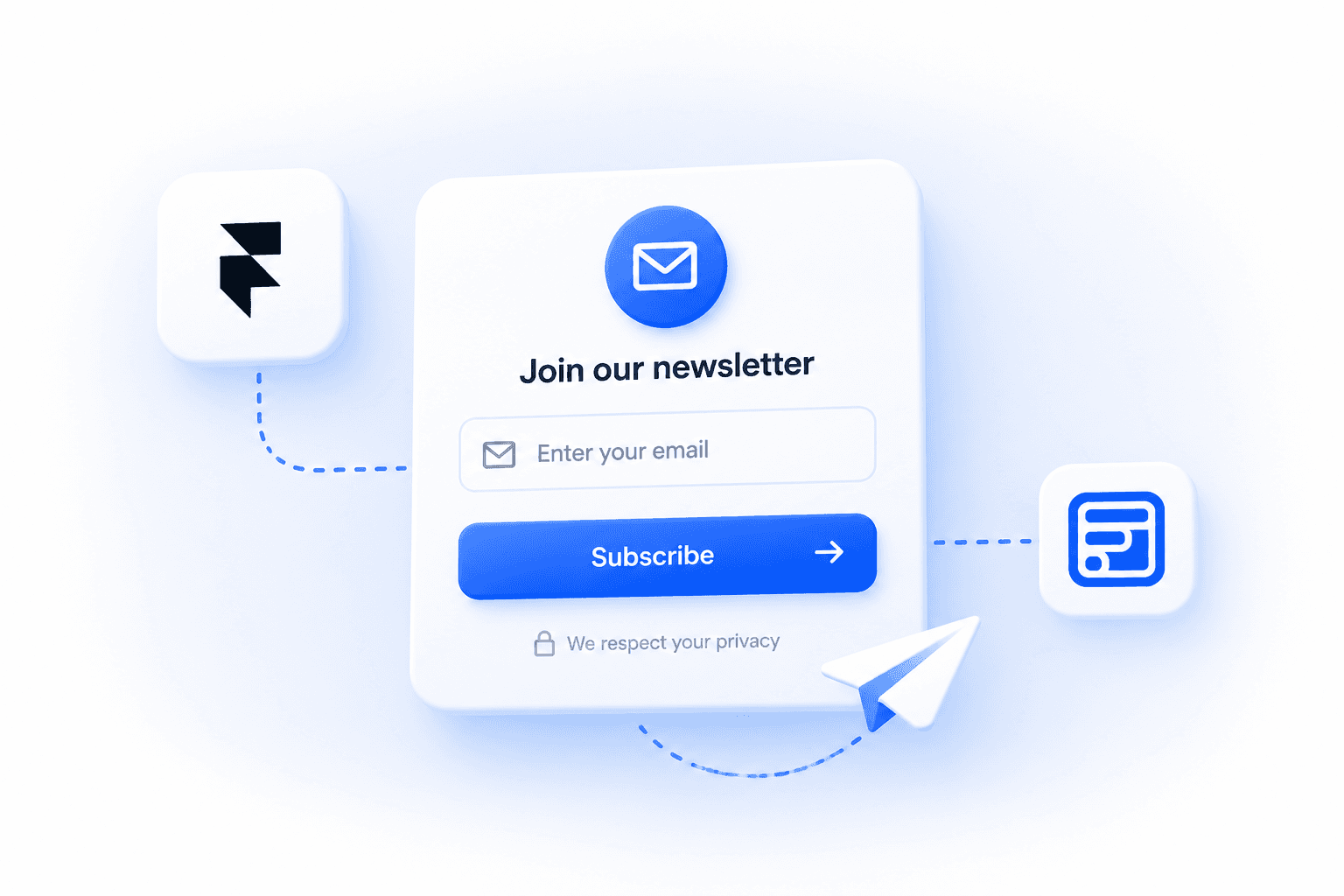
Headline: Join our newsletter
Subhead: Get [specific topic] delivered [frequency], no spam.
Field: your@email.com
Button: Subscribe
Success state: You're in. Check your inbox to confirm.
Error state: That email didn't work. Try again?
Swap the bracketed parts for your own topic and frequency. Keep the success state honest: if you are using double opt-in, say so ("check your inbox to confirm") instead of implying the visitor is already subscribed. An email capture form doesn't need much more than this to work well.
If you are gating something behind the signup, a template or a guide, adjust the subhead to name the thing directly ("Get the template, plus a new tip every week") rather than leaving it vague. Vague subheads are a common reason a well-placed form still underperforms.
How should you test a newsletter signup form before launch?
Before publishing, work through the full flow rather than a single happy-path click:
- Submit with an invalid email address and confirm the form actually blocks it (see our form validation guide for regex and blocked-domain rules beyond basic required-field checks)
- Submit a valid entry and confirm the success state displays
- Trigger the error state deliberately and confirm it displays too
- Check that the submission actually reaches your email platform or inbox, not just that the button showed a success state
- Test on a real mobile device, not just a resized browser window
- If you're using double opt-in, confirm the confirmation email actually arrives and the link works
A form that passes every step except the last one, confirming data actually lands where it's supposed to, is a common way a form quietly fails for weeks before anyone notices.
Common mistakes to avoid
A few patterns show up repeatedly on newsletter signup forms specifically:
- Asking for more than an email address without a real reason to
- Leaving the button labeled "Submit" instead of something specific like "Subscribe"
- Skipping the success or error state, so the visitor has no idea whether it worked
- Never testing the actual integration end to end, only the button's visual state
- Vague subhead copy that doesn't say what the visitor is signing up for
- Placing the only signup form somewhere low-visibility, with no other placement on the site
- Building and testing on desktop only, then finding out later it breaks on mobile
A common mistake worth calling out on its own: treating the button's success animation as proof the form works. That animation confirms the click registered, not that the data reached Mailchimp, Beehiiv, or wherever it's supposed to land.
Frequently asked questions
Does Framer have a newsletter signup component?
No, not a dedicated one. You build one from Framer's generic Form Builder or connect an email tool like Mailchimp.
Can I connect Mailchimp to Framer?
Yes, either through Framer's own Mailchimp embed component or through a form plugin's native Mailchimp integration, styled inside Framer instead of inside an embed.
Can I use Beehiiv with Framer?
Yes, Forms Plugin connects natively to Beehiiv on its Scale plan, or you can embed Beehiiv's own signup widget directly.
Should I use single or double opt-in?
Double opt-in protects list quality and deliverability at the cost of some signups, single opt-in grows faster with more risk of invalid addresses. A few countries treat double opt-in as closer to a requirement than a preference.
Can I build a newsletter form without code?
Yes, both Framer's native Form Builder and a form plugin like Forms Plugin build this entirely without code.
Can I send newsletter signups to a webhook?
Yes, Framer forms support webhook delivery, which sends each submission to any endpoint that accepts a POST request.
Which email marketing tools work with Framer?
Mailchimp has an official Framer embed component. Beehiiv, ConvertKit, Brevo, MailerLite, Klaviyo, ActiveCampaign, Drip, and HubSpot connect natively through Forms Plugin's Scale plan.
Getting started
Keep the form itself simple: one field, a specific button label, and both states set up before you publish. Place it somewhere visitors will actually see it, test the entire flow including the destination it's supposed to reach, and if a public form starts attracting spam, add CAPTCHA or another layer of protection sized to your actual traffic rather than the maximum available by default.
Forms Plugin covers all of this natively: single-field forms, visible success and error states, and CAPTCHA and spam protection built in. If you want signups synced directly into Mailchimp, Beehiiv, ConvertKit, or another CRM instead of just landing in your inbox, that native integration is available on the Forms Plugin Scale plan specifically.
Ready to build smarter Framer forms?
Forms Plugin gives you everything covered in this article - natively, inside Framer.
Get Forms Plugin
 Get this Plugin