Key Takeaways
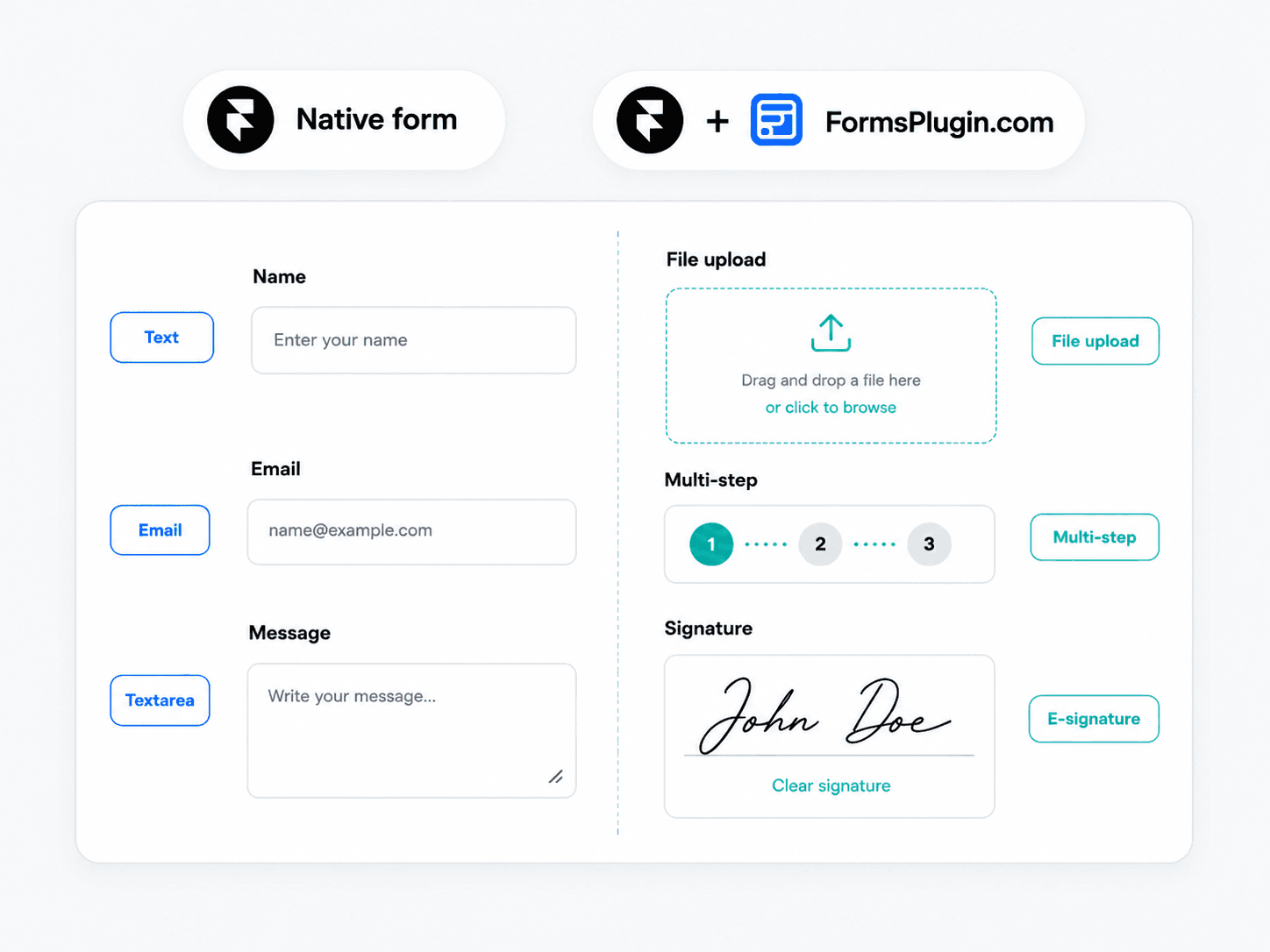
- The Framer form ships natively with over 10 input types: text, email, number, phone, date, time, dropdown, radio, checkbox, and textarea.
- Three Send To destinations are native: Email, Webhook, and Google Sheets. No script, no backend.
- The native form is the right call for single-screen forms. It breaks at file upload, multi-step pages, conditional logic, regex validation, and most CRM integrations beyond webhook.
- Forms Plugin extends the native form. It does not replace it. Same Send To pipeline, more field types and integrations on top.
- Pricing: native is free. Forms Plugin Pro is $99 one-time. Scale is $119 one-time. No subscriptions.
Overview
The Framer form is more capable than most designers realize. It ships over 10 input types, three send-to destinations, freeform editing on the canvas, and quiet spam protection. For a single-screen contact form, that is enough. For a 10-field multi-step lead capture with file uploads and a CRM, it is not. This guide draws the line.
TL;DR
- The Framer form ships natively with over 10 input types: text, email, number, phone, date, time, dropdown, radio, checkbox, and textarea.
- Three Send To destinations native:
Email,Webhook, andGoogle Sheets. No script, no backend. - The native form is the right call for single-screen forms. It breaks at file upload, multi-step pages, conditional logic, regex validation, and most CRM integrations beyond webhook.
- Forms Plugin extends the native form. It does not replace it. Same Send To pipeline, more field types and integrations on top.
- Pricing: native is free. Forms Plugin Pro is $99 one-time. Scale is $119 one-time. No subscriptions.
We have been shipping Framer client sites since 2024. Every project hits the same wall at the form step. The line between "what the native form can do" and "what your client actually needs" is the most useful thing to be honest about before you reach for an embed or a plugin.
What does the Framer form ship with natively?
Out of the box, the Framer form gives you over 10 input types, three submission destinations, freeform editing, and built-in spam protection. No plugin, no script, no backend.
The native input types include:
- Text (single line, for names, subjects, short answers)
- Email (with format validation)
- Textarea (multi-line message field)
- Number
- Phone (with international country-code prefix)
- Date (with built-in date picker)
- Time (with built-in time picker)
- Select / dropdown (with predefined options)
- Radio (set of mutually exclusive options)
- Checkbox (for consent and agreements)
You can configure required fields, placeholder text, default values, and the default checked state for checkboxes. Each field type is documented in Framer's help center.
Three native send destinations, set from the form inspector under Send To:
- Email: direct delivery to one or more inboxes, with custom subject lines and sender names
- Webhook: any URL that can accept a POST, useful for routing to Zapier, Make, or a custom backend
- Google Sheets: the form auto-creates a sheet in your Drive on first connect, and writes the header row from your field names on the first submission (full setup)
The whole form lives on the Framer canvas. You componentize it once and reuse it across pages. Spam protection runs quietly without a visible CAPTCHA.
When is the Framer form enough for B2B lead capture?
The Framer form is enough when the form has one screen, basic fields, and email or sheet routing. Below this threshold, reaching for a plugin or an embed is over-engineering.
The pattern that works natively:
- Single contact form on a landing page. Name, email, message, consent checkbox. Native, free, ships in 10 minutes.
- Newsletter signup. Email and optional name, pointing at a Webhook destination.
- Simple inquiry form. Five or six fields, routing to a Google Sheet that a non-technical teammate watches.
- Booking request form. Date, time, contact name, and a message.
For each of these, the native form is the right call. The form is free, the Sheet destination is free, and there are zero extra moving parts to debug six months later. You do not need a pricing tier for a contact form.
Where does the Framer form break?
The Framer form breaks the moment you need file uploads, multi-step pages, conditional field visibility, or advanced field types. It also breaks at the integration layer when you want anything more than email and a sheet.
The six gaps, in roughly the order you hit them as the form grows:
- No file upload. The most common first wall. Resumes, signed contracts, design briefs, brand assets, all of it has to go somewhere outside the form.
- No multi-step pages. Long forms get one screen with all fields visible, which kills completion rates on anything beyond five fields.
- No conditional logic. Every field shows for every visitor. You cannot show "company size" only when the user picks "B2B" on an earlier question.
- No advanced field types. No e-signature, no voice recording, no NPS rating, no star rating, no color picker, no full country selector beyond the phone-code prefix.
- No deep validation. Native validation covers required, email format, and number-type. There is no regex, no custom length, no cross-field rules.
- No CRM integrations beyond webhook. You can point a webhook at Zapier, but Zapier starts at $20 a month for any real volume. Direct HubSpot, Mailchimp, Klaviyo, and similar are not in the native menu (Forms Plugin ships them as one-click integrations).
Each of these has a real fix path. Most of them require something on top of the native form.
Six gaps you hit by client site number three
The pattern repeats. You ship the first client site with a clean native form. You ship the second the same way. Site three is when a client asks for the thing the native form does not do.
The walls in the order they show up:
- Client three: the CV upload. A recruiting site, a contractor application, a creative agency wanting portfolio attachments. The native form has no file upload. You reach for Tally or hire a developer.
- Client five: the multi-step intake form. Service businesses with 12-field intake. The native form can hold the fields, but a 12-field single-page form converts poorly. The right answer is three steps of four fields each. The native form cannot do that, multi-step is plugin territory.
- Client seven: the qualifier with conditional logic. A B2B lead form that should only show "company size" if the user picked "business" earlier. Conditional logic is plugin territory.
- Client ten: the dual-route submission. Client wants the form to go to HubSpot AND a shared Google Sheet for the marketing team. The native form can do one Send To at a time, not two in parallel. Forms Plugin's integrations panel fires alongside the native Send To.
We saw this pattern across enough projects to stop patching around it. We kept reaching for Tally, paid the iframe tax on every form, and watched our designs lose consistency at the conversion step. Eventually we built Forms Plugin so the form lived inside Framer and the data still went wherever the client already worked.
Why are iframe embeds the wrong answer?
Iframe embeds from Tally, Typeform, or HubSpot are the wrong answer because they introduce design debt at the conversion point. An iframe is a different page rendered inside yours. Different fonts, different focus rings, different scroll behavior, different mobile rendering. The visitor's eye picks up the inconsistency at exactly the moment you want them to trust you.
The deeper problem is that iframes drag in the embedded vendor's stack. Tally's iframe ships Tally's CSS, Tally's tracking, Tally's spam filter. None of it follows your brand. Form UX research from web.dev is unambiguous on this point: forms convert better when they are visually continuous with the page that frames them.
There is also a data-ownership cost. Tally hosts the form, Tally hosts the submissions, you pay a monthly fee for the privilege. If you ever leave the vendor, you take your fields with you but not your form. Native forms keep the form on your domain, in your codebase, under your control.
How does Forms Plugin extend the Framer form?
Forms Plugin extends the native Framer form. It does not replace it. You drop Forms Plugin fields onto a Framer form (file upload, e-signature, multi-step pages, conditional logic, voice recording, rating fields), and the form stays a Framer-native form underneath. The Send To pipeline is unchanged.
That means three things in practice:
- Existing native forms keep working. Adding Forms Plugin does not migrate your form to a new system. Your
Send To Email,Send To Google Sheets,Send To Webhookdestinations all keep firing. - You only add what you need. A form with five native fields and one Forms Plugin file-upload field is still mostly the native form. You are not buying a replacement product, you are buying the missing pieces.
- The AI form generator is in-house, not OpenAI. You describe the form in plain English ("lead capture form with name, work email, company, message, resume upload"), and the AI form builder generates the structure in seconds. The AI is built in-house, no third-party API call.
For the Send To pipeline working through Forms Plugin fields end to end, the Google Sheets walkthrough is the canonical deep dive.
Native Framer form vs Forms Plugin: pricing and what is included
The native Framer form is free. Forms Plugin is one-time pricing on top, with two paid tiers.
| Tier | Price | AI Credits | What you get |
|---|---|---|---|
| Framer native form | Free | n/a | 10+ field types, Email + Webhook + Google Sheets destinations, spam protection |
| Forms Plugin Basic | Free | 3 lifetime | Single site, all basic fields, no multi-step |
| Forms Plugin Pro | $99 one-time | 10 lifetime | Single site, 30+ field types, multi-step pages, conditional logic, all CRM integrations |
| Forms Plugin Scale | $119 one-time | 15 lifetime | Unlimited sites, all of Pro, commercial agency license |
Forms Plugin is one-time and lifetime. There are no subscriptions. The Scale tier covers most agency cases (unlimited client sites, commercial use, all CRM integrations) for a single purchase.
Compare this to a Tally or Typeform subscription. A single agency running 10 client sites at Typeform's lowest tier hits over $4,000 in a single year. Forms Plugin Scale is $119 once. The economics flip on month two.
How do you move from Tally or Typeform to a Framer form?
Migration takes three steps and zero data loss. Most teams finish in an hour for a single form, less if you reuse a template.
- Rebuild the form in Framer. Use the AI form generator if the form is more than five fields. Describe what you have ("lead capture form with name, email, company, message, file upload for resume"), and Forms Plugin generates the structure. For simpler forms, the native Framer form is enough.
- Wire Send To. Pick
Email,Google Sheets, orWebhookdepending on where the data should land. If your CRM is one of the supported native integrations, use that path. Otherwise, Webhook to Zapier or Make. - Cut over and archive. Replace the Tally or Typeform embed on your live page with the Framer form. Keep the old form active for 30 days before deleting, in case you need to pull historical submissions.
The data already sitting in Tally or Typeform stays there. The new submissions flow to the new destination. There is no automated import, but most teams find that 30 days of overlap is plenty.
What matters for mobile and responsive forms?
What matters most on mobile is field-by-field input UX, not visual responsiveness. The form will resize to the viewport regardless. What changes the completion rate is whether each field opens the right keyboard, the right picker, and the right autofill flow.
Five mobile-specific rules:
- Use
Phonefor phone numbers, notText. The native Phone field opens the numeric keypad on iOS and Android. A text field opens the full keyboard, which loses you submissions. - Use
Datefor dates. The native picker is far better than a text input asking for "DD/MM/YYYY" in tiny text. - Keep multi-step pages short. Three steps of four fields each converts better on mobile than 12 fields on one scroll. Research from Nielsen Norman confirms the pattern at scale.
- File upload from camera roll. The native form has no file upload. If your form collects photos or documents, you need Forms Plugin's file upload field, which triggers the camera-roll picker on mobile.
- Avoid stacked inline labels. On mobile, labels above fields beat labels next to fields. Framer's freeform canvas lets you switch between layouts per breakpoint.
Pick a Framer form template that already handles these rules if you do not want to design from scratch.
Common questions
Does the native Framer form support file upload?
No. File upload is the most common reason designers reach for Forms Plugin. The native form has over 10 field types, but file is not one of them. Forms Plugin adds file upload alongside the native fields on the same form.
Can I use Zapier with the native Framer form?
Yes, indirectly. The native form ships a Webhook destination. Point that webhook at a Zapier webhook URL and you have a Framer form to Zapier pipeline. Note that Zapier paid plans start at $20 a month, so this only makes economic sense for paid Zapier customers.
Does Forms Plugin replace the native Framer form?
No. Forms Plugin extends the native form by adding 30+ field types and integrations. The native form is still the underlying form. The Send To pipeline (Email, Webhook, Google Sheets) still works without change. You only pay for the parts of Forms Plugin you actually use.
Is the free Forms Plugin tier enough for a single contact form?
Yes. Forms Plugin Basic (free tier) covers a single site with all basic fields and 3 lifetime AI form generations. For a single contact form on a single client site, the free tier is enough. The paid tiers start mattering when you need multi-step, file upload, or CRM integrations.
Can I add validation to a native Framer form field?
Partially. Required, email-format, and number-type validation are built in. Regex, length limits, and custom rules are not. For deeper validation, Forms Plugin Pro adds field-level regex and custom-rule support on top of the native validator. See our form validation guide for the full breakdown.
What about GDPR consent and the privacy checkbox?
The native form supports a checkbox field with a default unchecked state, which is what you need for GDPR consent. Pair it with a required toggle so submissions cannot fire without the box being checked. The data lives wherever your Send To points (Google Sheet in your Drive, email in your inbox, webhook to your backend), so data residency follows your destination, not Framer.
Wrap-up: when to use what
The decision is simple at the extremes and judgmental in the middle.
| Form profile | Recommendation |
|---|---|
| One screen, 5 fields or fewer, email or sheet routing | Native Framer form. Free, no plugin needed. |
| Single screen but needs file upload, e-signature, or advanced field | Native Framer form plus Forms Plugin Pro ($99 one-time) |
| Multi-step lead capture, conditional logic, CRM dual-routing | Native Framer form plus Forms Plugin Pro or Scale |
| Agency shipping forms across many client sites | Native Framer form plus Forms Plugin Scale ($119 one-time, commercial license) |
Start with the native form. Reach for Forms Plugin the moment a real form requirement crosses the line. Do not start with Tally or Typeform embeds, the iframe cost compounds across every page you ship.
The native form is more than most designers realize. The plugin is the rest.
Ready to build smarter Framer forms?
Forms Plugin gives you everything covered in this article - natively, inside Framer.
Get Forms Plugin


 Get this Plugin