Key Takeaways
- Framer's native form covers required fields and a basic browser-level email format check. That is enough for simple contact forms.
- Phone, name, and URL fields have no format restriction natively. Visitors can type anything into them.
- Blocking competitor domains, disposable inboxes, and temporary email services requires Forms Plugin's Blocked Domains feature. The native form cannot do this.
- Regex patterns, character length limits, and numeric range rules are plugin territory.
- Conditional logic, making a field required only based on an earlier answer, is not available in the native form.
Overview
One of our customers runs a SaaS product. They wanted to share their case studies with genuine customers only, not competitors, disposable inboxes, or temporary email services. Framer form validation, as they discovered, does not reach that far natively.
That situation covers all four levels at once: the email field must be present (required), it must look like an email (format), it must not come from a blocked domain (domain filtering), and later steps should only unlock for addresses that clear all three checks (conditional logic). This post walks through each level, what Framer ships natively, and where you need to extend it.
What does Framer's native form actually validate?
Framer's native form gives you two things out of the box: a required toggle on every field, and four input variant states you can design per field.
The required toggle blocks submission until the field has a value. You enable it per field in the inspector. That covers presence validation completely. For the variant states, Framer Academy documents four: Default, Focus, Blur, and Error. The Error state fires automatically on any required field that is empty at submission. You design each state on the canvas independently, so the visual treatment (a red border, an error message below the input) is your decision, not a fixed framework style.
The Email field type adds one more layer: a browser-level format check. If a visitor types hello with no @, the form blocks submission. That check is built into the browser, not Framer itself. It is the only format-level Framer form validation the native form provides.
Where does Framer form validation fall short?
The native form does not restrict what visitors type into most fields. Marking a phone field as required means it cannot be empty. It does not mean it cannot contain letters.
Three gaps appear immediately on real production forms:
- Phone fields accept anything. No digits-only restriction, no format pattern, no country-specific length check. A visitor types
not-a-phoneand the form submits. The Framer community has been raising this since the form component launched. - Name fields accept anything. Numbers, emoji, and phone numbers all pass a required name field. For a B2B lead form feeding a CRM, this is a data quality problem from the first submission.
- Email format validation is browser-level only.
user@xpasses. Competitor domains pass. Disposable inboxes pass. There is no domain-level filtering.
Beyond field types, there is no character minimum, no character maximum, no numeric range, and no pattern matching. If you need any of those, the native form cannot provide them without a code override, which means a developer writing and maintaining JavaScript in your project.
How do you block competitor and disposable email addresses?
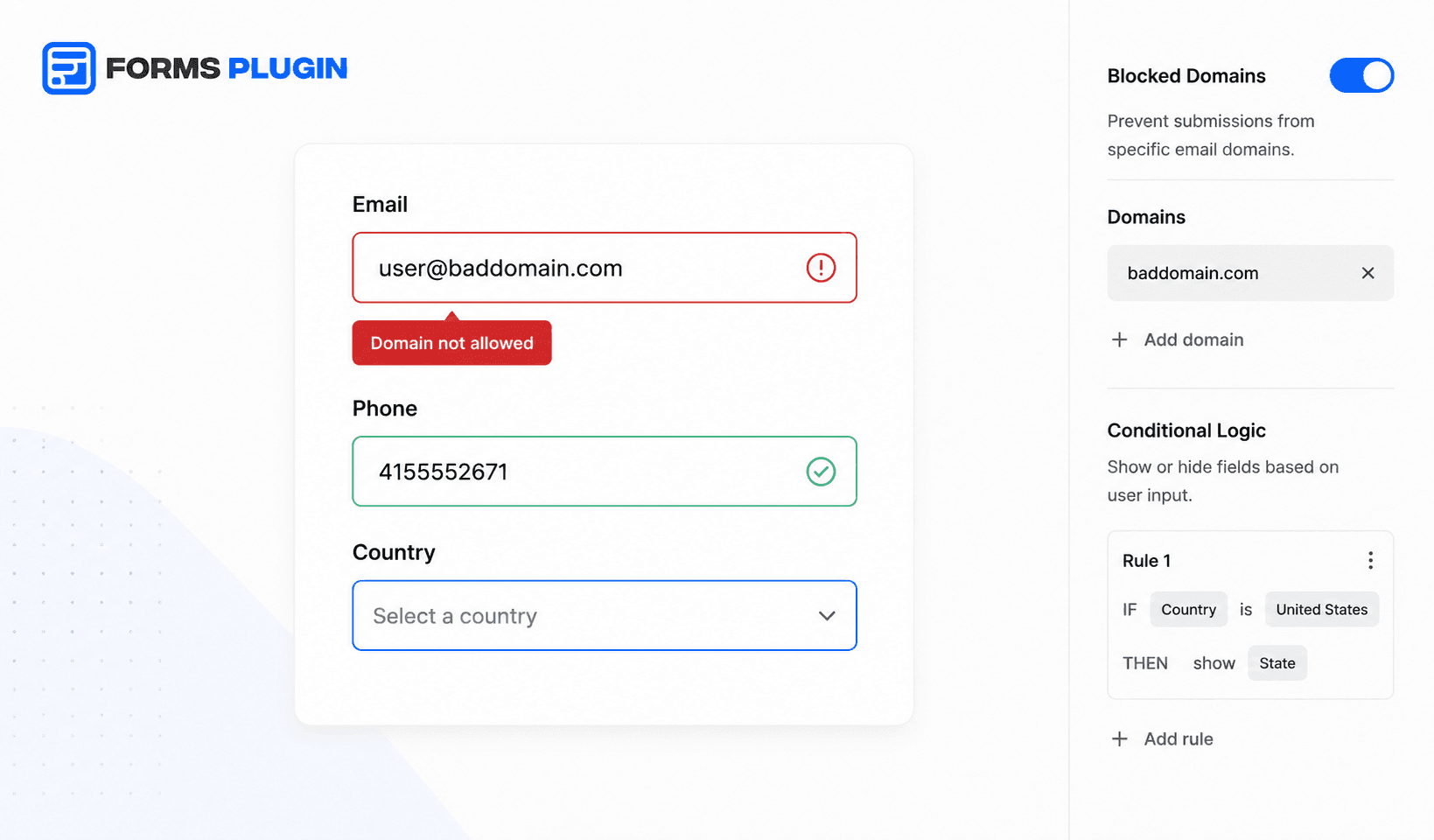
Forms Plugin has a Blocked Domains property on the Email field that solves the case study gating problem directly.
One of our customers needed to share case studies only with genuine customers. No competitors, no throwaway inboxes, no temporary email services. In Framer's native form, there is no mechanism for this. The Blocked Domains feature lets you list any domains you want to reject. Matching is case-insensitive. A visitor who submits an address from a blocked domain sees the field enter its error state and cannot proceed. The rejection happens before the submission reaches your inbox or CRM.
The practical setup: add your known competitor domains, add common disposable email services (mailinator.com, guerrillamail.com, tempmail.com, and similar), mark the field as required. The form then only passes addresses that clear all three checks: present, correctly formatted, and not on the blocked list. For gated content, resource downloads, and case study access forms, this is the difference between a list of real prospects and a list of noise.
Can Framer form validation handle regex and custom rules?
Pattern-based validation matches a regular expression against a field value before submission. In plain terms: you write a rule like "this field must contain only digits and be at least 10 characters" and the form enforces it.
Native Framer forms have no regex support. Enforcing a pattern requires a JavaScript code override, which means developer time to write it and ongoing maintenance whenever something in the project changes.
Validation rules clients regularly ask for in production forms:
- Phone field: digits only, 10-character minimum. Filters junk entries on day one.
- Message field: 20-character minimum. Filters "hi" and "test" submissions before they reach a CRM.
- URL field: must start with
https://linkedin.com/in/. Used on job application forms. - Postcode field: country-specific format. Used on address capture and local delivery forms.
Forms Plugin exposes these as panel settings. You set the pattern, write the error message text, and the rule runs client-side on the field. The community workaround for just the phone-digits rule natively requires a custom code override, a regex string, an event listener, and maintenance cost from the day it ships.
How does conditional logic change what your form requires?
Conditional logic means a field becomes required, visible, or active based on what the visitor answered earlier. Without it, every field is either always required or never required.
Conditional logic in Forms Plugin gives you five actions on any field: show it, hide it, make it required, disable it (read-only), or reset its value. You combine triggers with AND/OR logic across seven comparison operators: equals, not equals, contains, does not contain, is empty, is not empty, greater than, less than.
A concrete example: a callback request form. A "Contact preference" dropdown has two options, email and phone. The phone number field should only be required if the visitor picks phone. In the native Framer form, phone is either always required or never required. With conditional logic, you mark it required only when contact preference equals "phone." A visitor who picks email skips the phone field entirely, and their submission is still valid.
I have seen agencies bring forms with 20 or more fields to a single Framer screen. The right answer in almost every case is to cut the first screen to six fields and handle the rest through conditional logic and a multi-step structure. Most of the additional fields can be asked in a follow-up email, inferred from earlier answers, or removed. Conditional required rules are what hold that structure together, because the form only asks for what is genuinely relevant to the specific visitor in front of it.
Should you validate fields inline or at submission time?
Inline validation, where an error fires the moment focus leaves a field, produces fewer errors at submission than validating everything at once when the visitor clicks Submit.
Framer's native form validates at submission time by default. The error state appears when the visitor clicks Submit. Fields do not show errors as the visitor types or when focus leaves. Web.dev recommends listening to the blur event so errors fire the moment focus leaves a field. The practical UX difference: a visitor fills in five fields, reaches Submit, and sees three errors at once. With on-blur validation, they see and fix each error as they go. That pattern reduces abandonment, particularly on mobile where scrolling back to fix earlier fields adds real friction.
One accessibility point worth following regardless of approach: pair every visual error state with a text error message below the field. A red border communicates nothing to a colorblind visitor. Framer's variant states give you full control here, since you design the Error state yourself on the canvas. The rule from web.dev: never communicate error state through color alone.
Forms Plugin runs inline validation by default. The error message appears as the visitor finishes each field, before they reach Submit.
Spam protection: the validation layer most designers skip
Framer's native form runs quiet background bot protection with no visible CAPTCHA. For most low-to-medium traffic contact forms, that is sufficient.
Five CAPTCHA options are available in Forms Plugin: Google reCAPTCHA v2, hCaptcha, Cloudflare Turnstile, Numeric CAPTCHA, and Math CAPTCHA. The tradeoff between them is friction versus privacy. Cloudflare Turnstile provides a low-friction experience with minimal user interaction. hCaptcha is a privacy-first alternative for teams that want to avoid Google's data collection. Math and Numeric CAPTCHA require no third-party account and work as simple challenge fields the visitor completes before submitting.
Add a CAPTCHA when the form connects directly to a CRM and you need bot submissions excluded from your pipeline entirely, or when the page attracts enough traffic to bring real bot volume. Rejected CAPTCHA submissions never reach your inbox or CRM.
Native Framer validation vs. Forms Plugin: what each level covers
| Validation type | Native Framer form | Forms Plugin |
|---|---|---|
| Required fields | Yes, all field types | Yes, all field types |
| Email format (browser-level) | Yes | Yes |
| Blocked domains on email | No | Yes |
| Phone digits-only | No | Yes |
| URL format | No | Yes |
| Character length min/max | No | Yes |
| Regex / pattern matching | No | Yes |
| Numeric range (min/max value) | No | Yes |
| Conditional required | No | Yes, 5 actions with AND/OR logic |
| Show/hide on condition | No | Yes |
| Per-step validation (multi-step) | No | Yes |
| Inline / on-blur validation | Basic browser-level validation | Advanced custom inline validation |
| CAPTCHA spam protection | Quiet background only | 5 options including Turnstile and reCAPTCHA |
Forms Plugin Pro is $99 one-time for a single site. Scale is $119 one-time for unlimited sites with a commercial agency license. Both are lifetime purchases with no subscription. Full tier details are on the pricing page.
Common questions
Can I validate a phone field in Framer without code?
No, not with the native form. The phone field accepts any text after the country-code prefix. Restricting input to digits, or enforcing a country-specific format, requires a JavaScript code override or Forms Plugin, which handles both from the inspector panel.
Can I block free email providers like Gmail?
The Blocked Domains feature works on any domain you add to the list. Blocking Gmail would reject a large share of legitimate submissions, so the practical use is narrower: known competitor domains, known disposable and temporary email services, and role-based domains you have identified as low-quality for your specific audience.
Does Framer form validation work the same way on mobile?
The validation logic (required, format, blocked domains, regex) runs in the browser and behaves identically on desktop and mobile. The mobile-specific consideration is field type: use the Phone field so the numeric keypad opens automatically, and use the Email field so mobile keyboards surface the @ key. Getting the field type right is part of making validation usable on small screens.
What is the difference between required and conditionally required?
A required field must be filled before the form submits, for every visitor, every time. A conditionally required field must be filled only when a specific condition is true. Native Framer forms support the first. Conditional logic in Forms Plugin supports the second, with five trigger actions and AND/OR rule combinations.
Every validation rule is a quiet conversation with your visitor. A required field says: this matters. A blocked domain list says: we are careful about who gets through. A conditional rule says: we only ask for what is relevant to you right now. The native Framer form can start that conversation. Forms Plugin is what lets you finish it.
Ready to build smarter Framer forms?
Forms Plugin gives you everything covered in this article - natively, inside Framer.
Get Forms Plugin


 Get this Plugin