Key Takeaways
- Framer's native form editor already has a Select field that renders as a dropdown, added the same way as any other field, no plugin required for the basics.
- Reach for a dropdown once you're past about 5 answer options. Below that, radio buttons keep every choice visible and are easier to scan.
- A dropdown also gives you clean, consistent values ("Consulting" every time) instead of the mess of typos and phrasing a free text field produces.
- Framer's dropdown options are typed manually into the field's properties. They don't pull from a CMS collection, that's a separate feature built for filtering displayed content, not form input.
- The two most common mistakes: dumping 30+ unfiltered options into one dropdown, and placeholder text that looks like a real answer someone already picked.
Overview
A Framer form dropdown is one of those questions that sounds basic until you actually try to configure one properly, choosing between a dropdown and radio buttons, deciding what the default should say, and figuring out where that value ends up once someone submits the form. This guide covers all three. For a wider look at what Framer's native form ships with and where it breaks, see our practical guide to Framer forms.
What is a Framer form dropdown field?
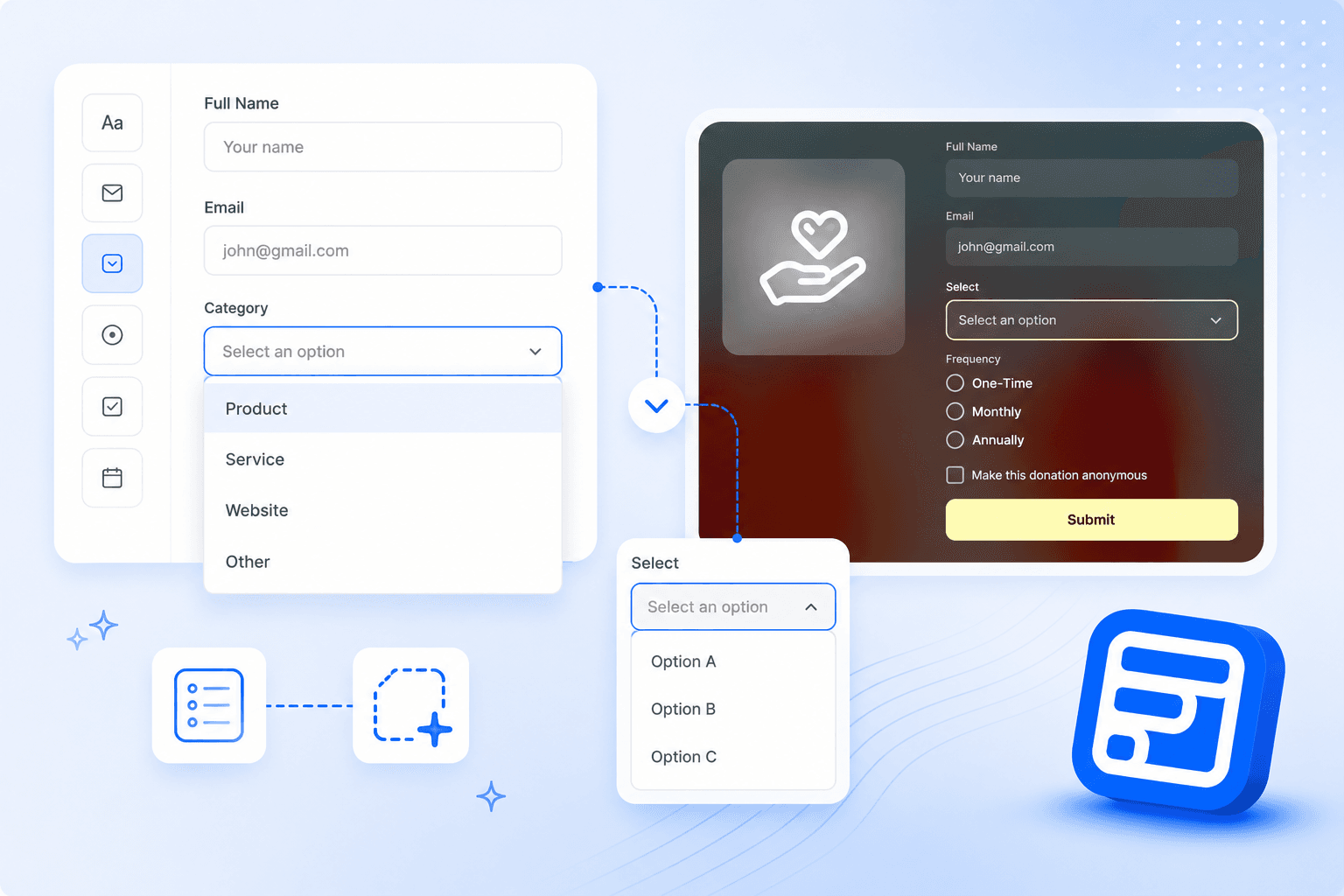
A Framer form dropdown field is a select input that lets someone choose one option from a list without seeing every option at once. Framer's native form editor calls this field type Select, and it behaves the same way a standard dropdown does anywhere else on the web: click it, a list of choices appears, pick one, it collapses back down.
You add field types to a native Framer form the same way regardless of which one you want: select the Form layer on the canvas, click the plus icon in the toolbar, then choose Select from the list. It's a narrower question than "what fields does Framer support," and it comes up often enough that people ask about it directly in Framer's community rather than finding the answer buried in general form documentation.
Dropdown vs radio buttons vs free text in Framer forms
Once you're past about five choices, a dropdown saves space that radio buttons can't. Nielsen Norman Group draws the line at roughly 5 to 15 options for a dropdown or listbox. Below that, radio buttons keep every choice visible, which makes them easier to scan and easier to tap accurately on a phone. Past 15 or so, even a dropdown starts to strain, and a searchable list or a free text field usually wins instead.
There's a second reason to reach for a dropdown that has nothing to do with usability: structured data. A dropdown value like "Consulting" or "Support" submits as exactly that string, every single time. A free text field for the same question gets you "consulting," "Consulting please," "need help w/ support," and a dozen other variations that are painful to filter or route later.
Is a Framer select field the same as a dropdown?
Yes. In Framer's own terminology the field is called Select, and functionally it's the dropdown people mean when they ask about a Framer form dropdown. The two terms describe the same field, "select" is the more technical name and "dropdown" is what most people search for and click on.
How do you add a Framer form dropdown field?
In Framer's native editor: select the Form layer, click the plus icon, choose the Select field type, then open the properties panel to type in your options one at a time. That covers a short, static list like "Small / Medium / Large" fine.
For anything past a handful of static choices, or if you need the dropdown's answer to land somewhere specific (a CRM field, a routing rule, a spreadsheet column), most builders reach for a dedicated form plugin instead. A dropdown is one of the field types available in Forms Plugin starting on the free plan, with 30+ total field types (e-signature, file uploads, star ratings, and more) unlocked on paid tiers for more specialized inputs.
Setting up the field: default values, placeholders, and required vs optional
Give the dropdown a real placeholder like "Select a service," not a blank first row and not a pre-filled answer. A pre-selected first option is easy to miss and easy to submit by accident, the person never actually chose it, your data just says they did. Accessibility guidance backs this up directly: a select element needs a descriptive label that's specific to what it's asking, not just a generic default sitting in the box.
Mark a dropdown required only when the answer actually changes what happens next, routing a support ticket to the right inbox, for example. If it's a nice-to-have segmentation question like "how did you hear about us," leave it optional. Forcing an answer to a question someone may not have costs you completions for very little in return. Our form validation guide covers required vs optional logic in more depth, including conditional required rules that go beyond what Framer's native form supports.
Can Framer form dropdown options come from a CMS collection?
No, not directly. Framer's dropdown options are typed manually into the field's properties inside the form editor, they aren't linked to a CMS collection the way other page elements can be.
What Framer does offer is dynamic filters on a CMS collection list, which can include a dropdown control. That's a different feature: it filters what's already displayed on the page (a list of blog posts, products, or listings), it doesn't populate the option list inside a form field. If your dropdown options genuinely need to track a CMS collection (a list of services or locations that changes often), the practical workaround today is keeping the form's option list updated manually when the collection changes, rather than expecting the two to sync automatically.
How do dropdown values map into email, CRM, and webhook data?
A dropdown's selected value submits exactly like any other field: as plain text, keyed to the field's name. When a form sends to a webhook, Framer posts the submission as JSON, with each field name as a key and its value, in this case the dropdown option someone picked, sitting right next to it.
This is exactly why clean dropdown option strings matter more than they first appear to. Forms Plugin's pricing page confirms native integrations with HubSpot, Brevo, Mailchimp, MailerLite, ConvertKit (Kit), Klaviyo, ActiveCampaign, Drip, and Beehiiv on its Scale plan. A dropdown value that's always exactly "Consulting" or "Support" routes cleanly into a CRM property or a webhook rule. A free text field asking the same question does not, someone downstream still has to clean up the variations by hand before the data is actually usable.
Common mistakes with dropdown fields in Framer forms
Too many options with no way to search. A dropdown with 30 or 40 unfiltered entries is painful on desktop and worse on a phone, where every option requires a separate scroll and tap. Nielsen Norman Group's own guidance is blunt about it: very long dropdowns force scrolling and stop people from seeing their choices at a glance. Past roughly 15 options, a search field or a shorter, better-categorized list beats a giant dropdown every time.
Placeholder text that looks like a real answer. "United States" sitting pre-selected in a country dropdown reads as a real, deliberate choice, not a placeholder. Someone skimming the form can submit it without ever opening the dropdown. A neutral instruction like "Select a country" avoids the ambiguity entirely, and it doubles as the accessible label screen readers rely on.
Marking every dropdown required by default. It's the path of least resistance when you're building the form, but it punishes anyone who genuinely doesn't have an answer yet.
Which field type actually wins for your Framer form?
It depends on the number of options and what happens to the answer afterward. Five or fewer choices, use radio buttons, all options stay visible and nothing gets missed. Five to fifteen structured choices with one clean answer, use a dropdown. Need someone to pick more than one thing, use checkboxes or a multi-select field instead of a dropdown built for a single value.
You can see this play out on real templates: a booking form uses a dropdown for service type because the list of services is short and fixed, while a support form uses one for issue category so tickets route to the right queue automatically. In both cases the dropdown isn't there for decoration, it's there because the value needs to be exact.
Frequently asked questions
Can I set a default selected option on a Framer form dropdown?
Yes, but avoid pre-selecting a real answer. Framer lets you set any option as the default, including a neutral placeholder like "Select a service." A pre-selected real option (the first item in your list, for example) reads as a deliberate choice and gets submitted by people who never actually opened the dropdown.
Does the dropdown field work in multi-step forms?
Yes. A Select field behaves the same inside a multi-step form as it does in a single-page one, the value still submits keyed to the field's name once the form's final step is completed.
Can I search or filter a long list of dropdown options in Framer?
Not with the native Select field, it's a standard dropdown with no built-in search. Forms Plugin's own Dropdown field has a showSearch property control, a toggle in the inspector that adds a search box inside the dropdown, built for exactly this case. Past roughly 15 options, that's a better fit than Framer's native dropdown.
Can I make one dropdown's options depend on another field's answer?
Not currently, in Framer's native form or in Forms Plugin. Forms Plugin's conditional logic works at the whole-field level, show, hide, require, disable, or reset a field based on another answer, it doesn't filter or swap the option list inside a dropdown. If you need one dropdown's choices to change based on an earlier answer, the workaround today is separate dropdowns shown conditionally per branch, not a single field that adjusts itself.
Ready to build smarter Framer forms?
Forms Plugin gives you everything covered in this article - natively, inside Framer.
Get Forms Plugin
 Get this Plugin