Key Takeaways
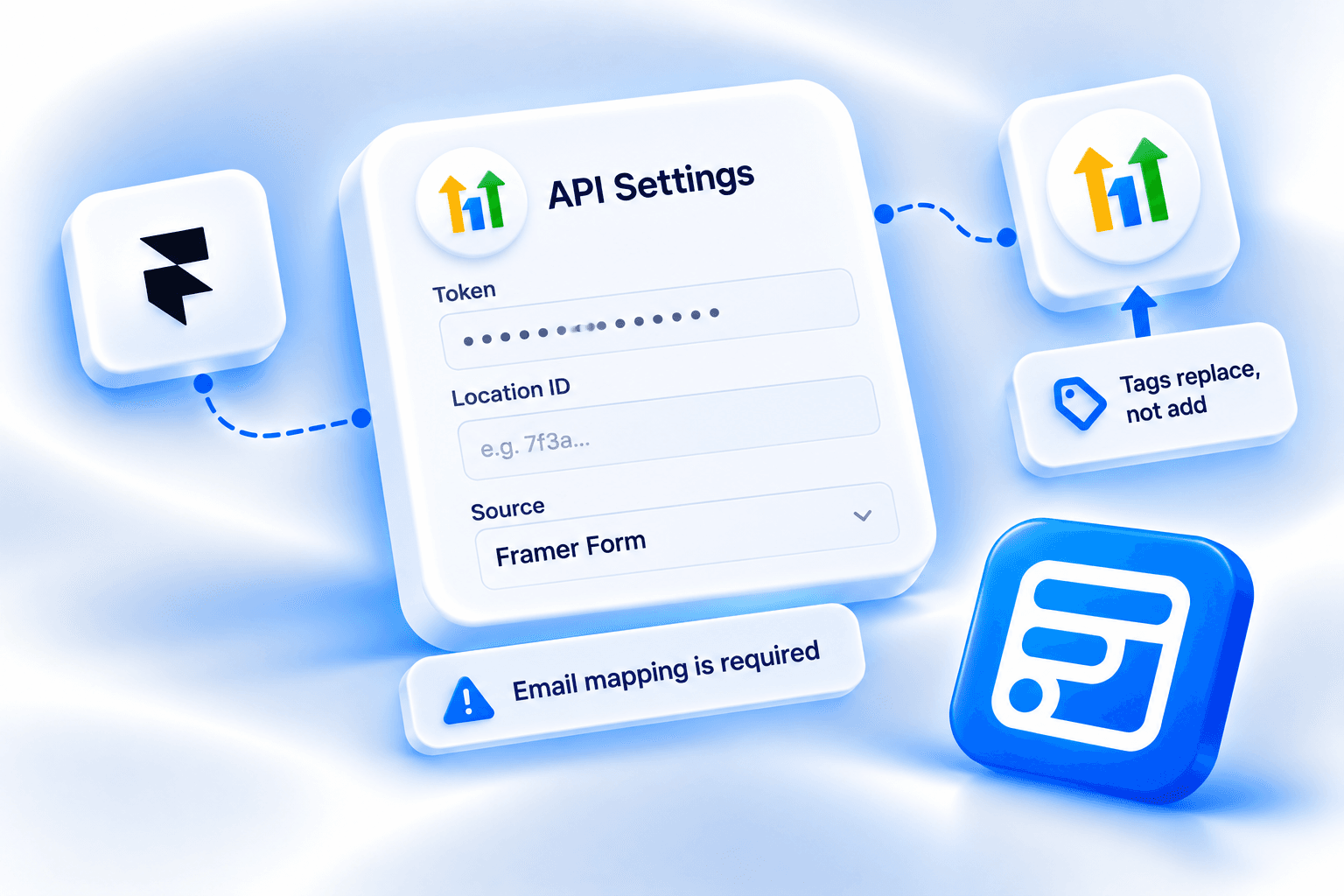
- Forms Plugin connects to HighLevel's contacts API with a Private Integration Token and a Location ID, not OAuth.
- At least one mapping in Field Mappings must target Email, and it is a hard requirement.
- HighLevel replaces all of a contact's existing tags whenever Forms Plugin sends any tag at all.
- Dynamic Tag Fields take a Comma or Array format depending on how the form field submits its values, and the option value must be the tag name itself.
- HighLevel is a Pro and Scale feature in Forms Plugin, matching the other CRM integrations, and Basic does not include it.
Overview
Connecting a Framer form to HighLevel (also known as GoHighLevel) with Forms Plugin means creating a Private Integration Token, copying a Location ID, and mapping form fields to HighLevel contact fields. The setup is short. The part that catches people is tags: HighLevel replaces a contact's tags instead of adding to them, and Forms Plugin has two separate ways of sending tags. This guide covers the actual panel fields, what each one does, and the tag behavior in detail.
Quick Answer
- The HighLevel integration connects through HighLevel's contacts API with a Private Integration Token. It does not use OAuth.
- API Settings has four fields: Token, Location ID, Source, and Update Existing.
- Field Mappings has a Mappings list, Static Tags, and Dynamic Tag Fields. One mapping must target Email.
- Whenever Forms Plugin sends any tag, HighLevel replaces all of the contact's existing tags. Leave both tag lists empty to keep existing tags untouched.
- HighLevel is a Pro and Scale feature in Forms Plugin. Basic does not include it.
What is the HighLevel integration?
The HighLevel integration is a component you place inside a Forms Plugin form. On the canvas it appears as a tile reading "HighLevel, Connect API key." In the Advanced Fields and Integrations picker, it is listed as "HighLevel Integration."
When a visitor submits the form, the component writes the submission to HighLevel as a contact through HighLevel's contacts API. The connection is direct. There is no Zapier, no Make, and no middleware between your Framer site and HighLevel.
The component has exactly two property-control groups: API Settings and Field Mappings.
Because the Location ID is set per component instance, different forms on the same Framer site can write to different HighLevel sub-accounts. That is useful for agencies managing several clients from one site. The common use cases follow from that:
- Agency client intake. A landing page writes leads into that specific client's own HighLevel sub-account by Location ID, keeping each client's data separate.
- Lead capture with source tracking. A campaign page sets a distinct Source value per form, so paid, organic, and referral leads stay distinguishable inside HighLevel.
- Tagged segmentation. A pricing-page enquiry form applies Static Tags on arrival, so HighLevel automations route contacts to the right pipeline immediately.
For HighLevel's own reference, see the official HighLevel integration docs. Forms Plugin has also added a Framer CMS integration, which is a separate setup covered in its own docs.
Setting up API Settings
Start in HighLevel, then move to Framer.
- In HighLevel, go to Settings, then Other Settings, then Private Integrations, and create a token with the View Contacts and Edit Contacts scopes.
- Copy the Location ID from Settings, then Business Profile.
- In Framer, open Forms Plugin, go to Integrations, and insert the HighLevel component into your form.
- Paste the Token and Location ID into API Settings.
- Map form fields to HighLevel contact fields in Field Mappings, making sure one mapping targets Email.
- Publish the Framer site and submit a test entry to confirm the contact appears in HighLevel.
The API Settings panel has four fields.
Token. A text input for your HighLevel Private Integration Token. The panel describes it as: "HighLevel Private Integration Token. Create one under Settings > Other Settings > Private Integrations, with View Contacts and Edit Contacts enabled."
Location ID. A text input for the sub-account this form writes to. Find it under Settings, then Business Profile.
Source. A text input with the default value "Framer Form." It is recorded on the contact so you can tell HighLevel leads apart by origin. Change it per form if you want paid, organic, and referral pages to show up as different sources.
Update Existing. A Yes/No toggle, set to Yes by default. It is described as "Update existing contacts if email already exists." With Yes, a resubmission from an email already in HighLevel updates that contact instead of creating a duplicate.
Which token scopes you need
Edit Contacts is required to write the contact. View Contacts is also needed if Update Existing is turned off, so the integration can detect duplicates. Nothing beyond these two scopes is required, so there is no reason to grant the token broader access.
Field Mappings: the Email requirement
The Mappings list pairs form fields with HighLevel fields. Each mapping item has two parts:
- Form Field: a text input for the form field's Name attribute.
- HighLevel: a dropdown of the HighLevel field to write that value to.
One mapping must target Email. At least one mapping is required, and it is not optional.
The HighLevel dropdown has 14 options: Email, First Name, Last Name, Full Name, Phone, Company Name, Address, City, State, Postal Code, Country, Website, Date of Birth, and Custom Field.
To write to a field that isn't in that list, choose Custom Field and paste the field key from Settings, then Custom Fields in HighLevel.
Static Tags vs Dynamic Tag Fields
Tags are the most distinctive part of this integration, and the one most worth reading carefully, because of how HighLevel handles them.
The replacement rule
HighLevel replaces all of a contact's tags whenever any are sent. It does not add to them.
The Static Tags panel describes it this way: "Tags applied to EVERY submission. Leave empty to keep the contact's existing tags, HighLevel replaces all tags whenever any are sent."
This applies to the integration as a whole. If Static Tags and Dynamic Tag Fields are both empty, Forms Plugin sends no tags and the contact's existing tags are left untouched. If either one produces even a single tag for a submission, the contact's tags are replaced with what Forms Plugin sends.
If your HighLevel automations depend on tags added by other workflows, decide before launch whether this form should send tags at all.
Static Tags
Static Tags is a list of fixed tag strings applied to every submission, for example "warm-lead." Use it when every contact coming through a given form should carry the same tag, such as a pricing-page enquiry form that routes contacts into a specific pipeline.
Dynamic Tag Fields
Dynamic Tag Fields is a separate list for tags that depend on what the visitor chose. Each item has two parts:
- Field Name: the form field's Name property. This is the same value used by Conditional Logic, for example "interests." If you have used conditional logic in Forms Plugin, it is the same naming convention.
- Format: a control with two options, Comma or Array.
The Format option tells Forms Plugin how the form field submits its values, and picking the wrong one is the main way to get this wrong.
- Comma is for a single hidden input with the values joined together. This is how ButtonChoice, Select, and Checkbox fields submit.
- Array is for multiple inputs that share one name. This is how native checkbox groups submit.
One more rule applies to both formats: option values must be the tag name itself, not the label. Set the option value to the exact tag you want to see in HighLevel.
What plan do you need for HighLevel
Advanced integrations in Forms Plugin are a Pro and Scale feature. Basic does not include them, and HighLevel follows the same rule as the other CRM integrations. See the pricing page for the full plan breakdown.
Frequently asked questions
Does this use OAuth or an API key?
Neither, strictly. It uses a HighLevel Private Integration Token, which you create in HighLevel under Settings, Other Settings, Private Integrations. You paste it into the Token field in API Settings.
Can I send different forms to different HighLevel sub-accounts?
Yes. The Location ID is set per component instance, so each form can point at a different sub-account. This is the setup agencies use to keep each client's contacts in that client's own sub-account.
Why did a contact lose its existing tags after a submission?
HighLevel replaces all of a contact's tags whenever any tags are sent, and Forms Plugin sends whatever Static Tags and Dynamic Tag Fields produce. To keep a contact's existing tags, leave both lists empty.
Do I need Zapier or Make?
No. The component talks to HighLevel's contacts API directly, with no middleware in between.
What happens if the email already exists in HighLevel?
With Update Existing set to Yes, the existing contact is updated. With it set to No, the integration needs the View Contacts scope to detect the duplicate, so keep both View Contacts and Edit Contacts enabled on the token.
How do I send a value to a custom field?
Add a mapping, set the HighLevel dropdown to Custom Field, and paste the field key from Settings, then Custom Fields in HighLevel.
Bottom line
The HighLevel integration is a short setup: a Private Integration Token with two scopes, a Location ID, and a Mappings list where Email is the one required mapping. The part to slow down for is tags. HighLevel replaces all of a contact's tags whenever any are sent, so either send a deliberate, complete set through Static Tags and Dynamic Tag Fields or leave both empty. For the full field reference, see the official HighLevel integration docs.
Ready to build smarter Framer forms?
Forms Plugin gives you everything covered in this article - natively, inside Framer.
Get Forms Plugin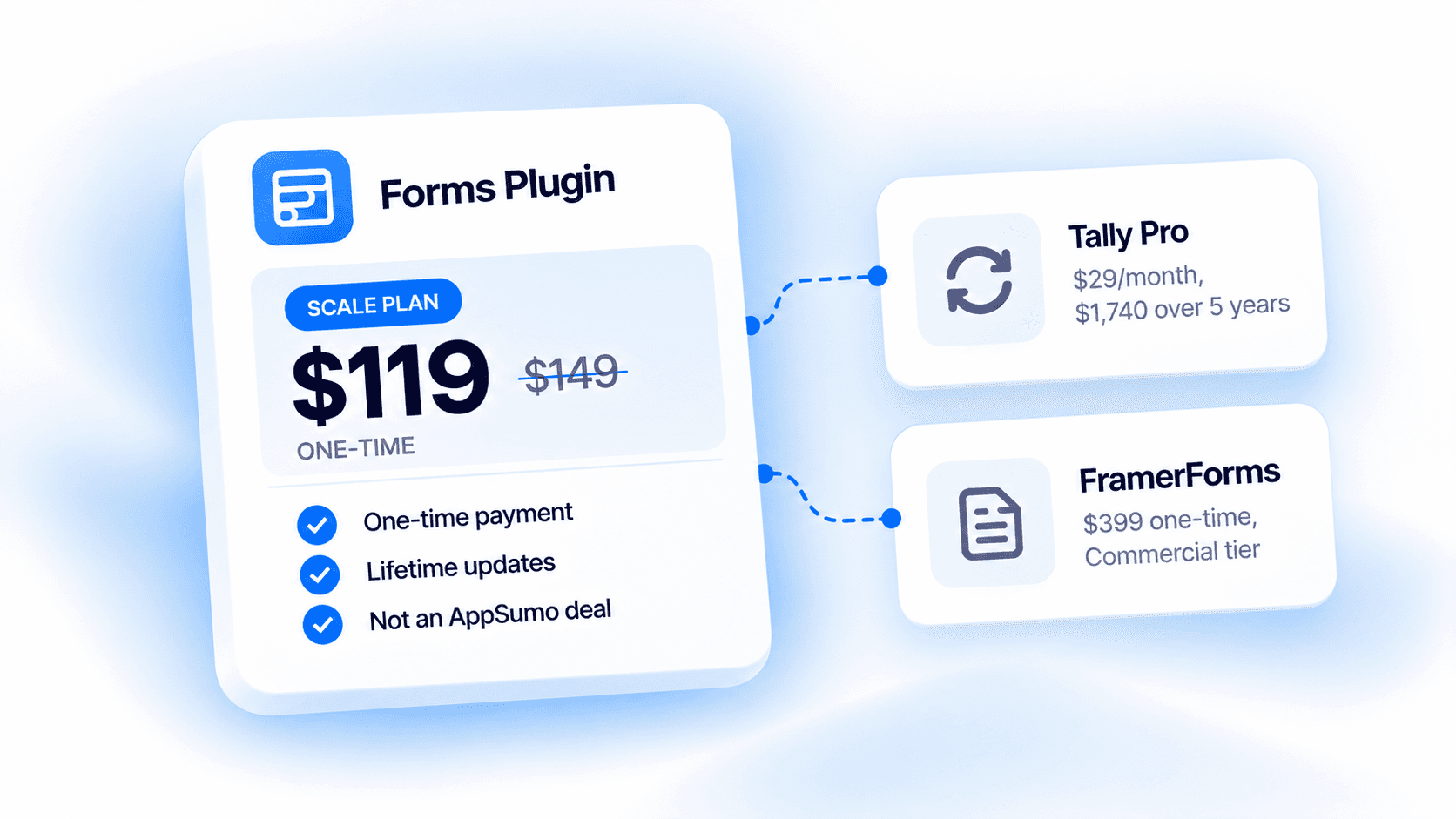


 Get this Plugin