Key Takeaways
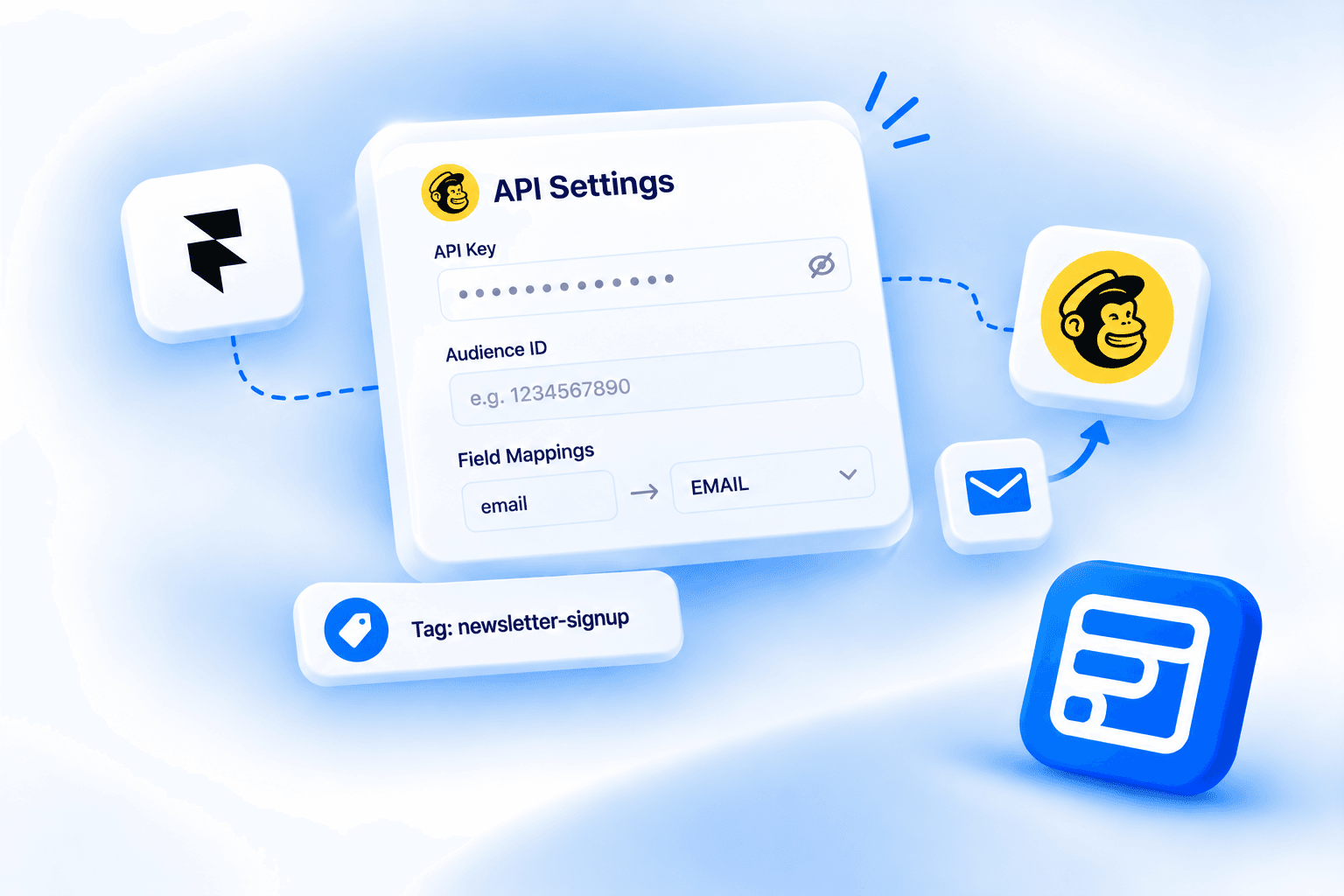
- Forms Plugin's Mailchimp integration uses an API key and a manually entered Audience ID, not a dropdown picker.
- One field mapping must target EMAIL, that's a hard requirement before anything else works.
- Static Tags apply to every submission, Dynamic Tags pull their value from a form field, the two solve different problems.
- If a submitted email already exists in Mailchimp, the existing subscriber is updated rather than duplicated, tied to the Update Existing toggle.
- Mailchimp is a Pro and Scale feature in Forms Plugin, Basic does not include native integrations.
Overview
Connecting a Framer form to Mailchimp with Forms Plugin means pasting an API key, entering an Audience ID by hand, and mapping form fields to Mailchimp merge tags, plus an optional tagging setup that's easy to get wrong the first time. This covers the actual panel fields, what each one does, and where the marketing copy and the real component don't quite match.
Quick Answer
- The Mailchimp integration needs an API Key and an Audience ID, entered as plain text fields in the component's API Settings.
- The Audience ID is typed in manually. It is not a dropdown or picker, despite how some setup copy describes it.
- Field Mappings require at least one mapping to target EMAIL, everything else is optional.
- Static Tags apply to every submission. Dynamic Tags pull their value from a form field at submission time. They are not interchangeable.
- If Mailchimp already has a contact with the submitted email, the integration updates that subscriber instead of creating a duplicate.
Setting up API Settings
Add the Mailchimp integration component inside your form in Forms Plugin, then fill in the API Settings panel. It has three fields.
API Key. Paste the key generated from your Mailchimp account, there's a "Get API Key" link in the panel. In Mailchimp itself, that key lives under your profile icon, then Profile, then the Extras dropdown, then API keys, you generate one from there and can't view it again after closing the dialog, so save it somewhere secure.
Audience ID. This is a manual text field, not a dropdown. The panel's tooltip points to where to find it: Audience, then Settings, then Audience name and defaults, inside your Mailchimp account. This is worth calling out because Forms Plugin's own integration listing describes the setup step as "select destination audience," which reads like a picker. The actual component doesn't offer one, you copy the ID over yourself.
Update Existing. A Yes/No toggle: "Update existing contacts if email already exists." This is the setting that governs what happens on a resubmission from someone already in your audience, covered in more detail below.
Field Mappings: Mappings, Static Tags, and Dynamic Tags
This panel has three distinct parts, and they're easy to conflate if you've only skimmed the setup.
Mappings. The component detects the fields available in your form and lets you pair each one with a Mailchimp merge tag from the component settings. Add one row per field you want to send. Each row has two parts:
- Form Field: the name attribute of your form field, not the visible label. If a mapping silently isn't working, check the field's name attribute rather than the label text on the form.
- Merge Tag: the Mailchimp merge tag, EMAIL, FNAME, LNAME, PHONE, or others, with a "Manage Tags" link. That link implies custom merge tags beyond the standard four are also supported.
One mapping must target EMAIL. That's a hard requirement, Mailchimp can't create or update a subscriber without it.
Static Tags. A comma-separated list of tag names applied to every single submission through this form, regardless of what the visitor entered. Useful for tagging all submissions from a specific form or page, "landing-page-a" or "webinar-signup," without any per-field logic.
Dynamic Tags. Optional, and a different mechanism entirely: form fields whose values become the tags, rather than a fixed tag name. Each dynamic tag entry needs:
- Field Name: the form field's Name property, the same value Conditional Logic uses.
- Format: Comma or Array. Comma means a single hidden input with values joined together, used for ButtonChoice, Select, Checkbox, and ImageButtonChoice field types. Array means multiple inputs sharing the same name, which is how native HTML checkbox groups submit.
Field option values need to be in kebab-case to become valid Mailchimp tags. A checkbox option labeled "Product Updates" needs an underlying value like "product-updates" for the tag to come through clean.
The distinction that matters: Static Tags are fixed and the same for every submission, Dynamic Tags change per submission based on what the visitor actually selected. Use Static Tags to mark the source of a submission, use Dynamic Tags to segment subscribers by what they told you.
What happens if the email already exists
If a submission comes in with an email that's already in your Mailchimp audience, Forms Plugin updates that existing subscriber with the new merge field data and tags rather than creating a second, duplicate contact. This is tied to the Update Existing toggle in API Settings, when it's set to Yes, a matching resubmission updates the existing record instead of leaving it untouched. The public documentation doesn't spell out the toggle's off-state behavior in detail, so if you need a submission from an existing email to be rejected or handled differently, test that specific case before relying on it.
Double opt-in
If double opt-in is enabled on the connected Mailchimp account, the integration is built to respect it. That's stated directly on Forms Plugin's Mailchimp integration page, though the setup docs don't add further detail on what a double opt-in submission looks like from the visitor's side. If your audience has double opt-in turned on, expect new subscribers to get a Mailchimp confirmation email before they're fully subscribed, same as any other double opt-in signup to that audience.
What plan do you need for Mailchimp
Native integrations, including Mailchimp, HubSpot, Brevo, ActiveCampaign, and the rest of Forms Plugin's connected CRM and email platforms, are a Pro and Scale feature. Basic does not include them. Pro is $99 one-time and Scale is $119 one-time, both lifetime, not subscriptions. Check the pricing page for the full plan comparison before you build around this integration.
Frequently asked questions
Do I need to map every form field, or is email the only requirement?
Email is the only hard requirement, one mapping must target EMAIL or Mailchimp can't create or update the subscriber at all. Everything else in the Mappings panel is optional. Map FNAME, LNAME, PHONE, or any custom merge tag only if you're actually collecting that data and want it in Mailchimp, an unmapped field is simply left out of the submission rather than causing an error.
What happens if Update Existing is set to No and the submitted email already exists?
This isn't spelled out in Forms Plugin's public documentation, so it's not something this post can confirm one way or the other. The panel description only says the toggle controls whether "existing contacts" get updated "if email already exists," which tells you what Yes does but not what happens when it's off, whether the submission is silently dropped, rejected with an error, or something else. If your setup depends on that exact behavior, set the toggle to No and test a duplicate submission yourself before building anything around the assumption.
Can Static Tags and Dynamic Tags be used together on the same form?
Nothing in the panel or the setup suggests they're mutually exclusive, they're two separate sections of the same Field Mappings panel, not a choice between one or the other. A common pattern would be a Static Tag marking the form's source ("newsletter-signup") alongside a Dynamic Tag pulling in something the visitor selected, like a topic preference from a checkbox group. Since this combination isn't explicitly called out as tested or supported in the public docs either, treat it as reasonable based on how the panel is structured, not as a confirmed, documented pattern.
Does this integration work with Mailchimp's free plan, or does it require a paid Mailchimp tier?
Based on general research into Mailchimp's own API documentation and third-party developer guides, free Mailchimp accounts can generate API keys and use core API operations like adding, updating, and tagging subscribers, which is what this integration relies on. Some advanced Mailchimp API endpoints are paid-tier only, but those aren't the ones this integration touches. That said, Mailchimp's own pricing page doesn't spell out API access plan by plan the way ActiveCampaign's does for its Lite tier, so this isn't confirmed with the same certainty as the ActiveCampaign Lite restriction. If you're on Mailchimp's free plan and the integration isn't connecting, check Mailchimp's current plan terms directly before assuming Forms Plugin is at fault.
Why isn't my field mapping working even though I set it up?
The most common cause is a Form Field entry that doesn't match the actual name attribute of the field in Framer. The Mappings panel asks for that name attribute, not the label text a visitor sees on the form, so a mapping that looks correct at a glance can still fail to match. Double-check the field's name property in Forms Plugin rather than assuming the visible label is what the mapping is reading.
Bottom line
The Mailchimp integration itself is a short setup: an API key, a manually typed Audience ID, and a Field Mappings panel where EMAIL is the one non-negotiable mapping. The part worth slowing down for is Static versus Dynamic Tags, since they look similar in the panel but serve different jobs, a fixed label for every submission versus a tag pulled from what the visitor actually chose. Get the field name attributes right, make sure EMAIL is mapped, and the rest of the setup follows from there.
Ready to build smarter Framer forms?
Forms Plugin gives you everything covered in this article - natively, inside Framer.
Get Forms Plugin
 Get this Plugin