

Connect Mailchimp with Framer Forms
Capture leads from your Framer forms and automatically add them to your Mailchimp audience using the Forms Plugin.Step 1 - Get Your Mailchimp API Key
Before connecting Mailchimp to your form, generate an API key from your Mailchimp account. This API key allows the Forms Plugin to securely send form submissions to your Mailchimp audience.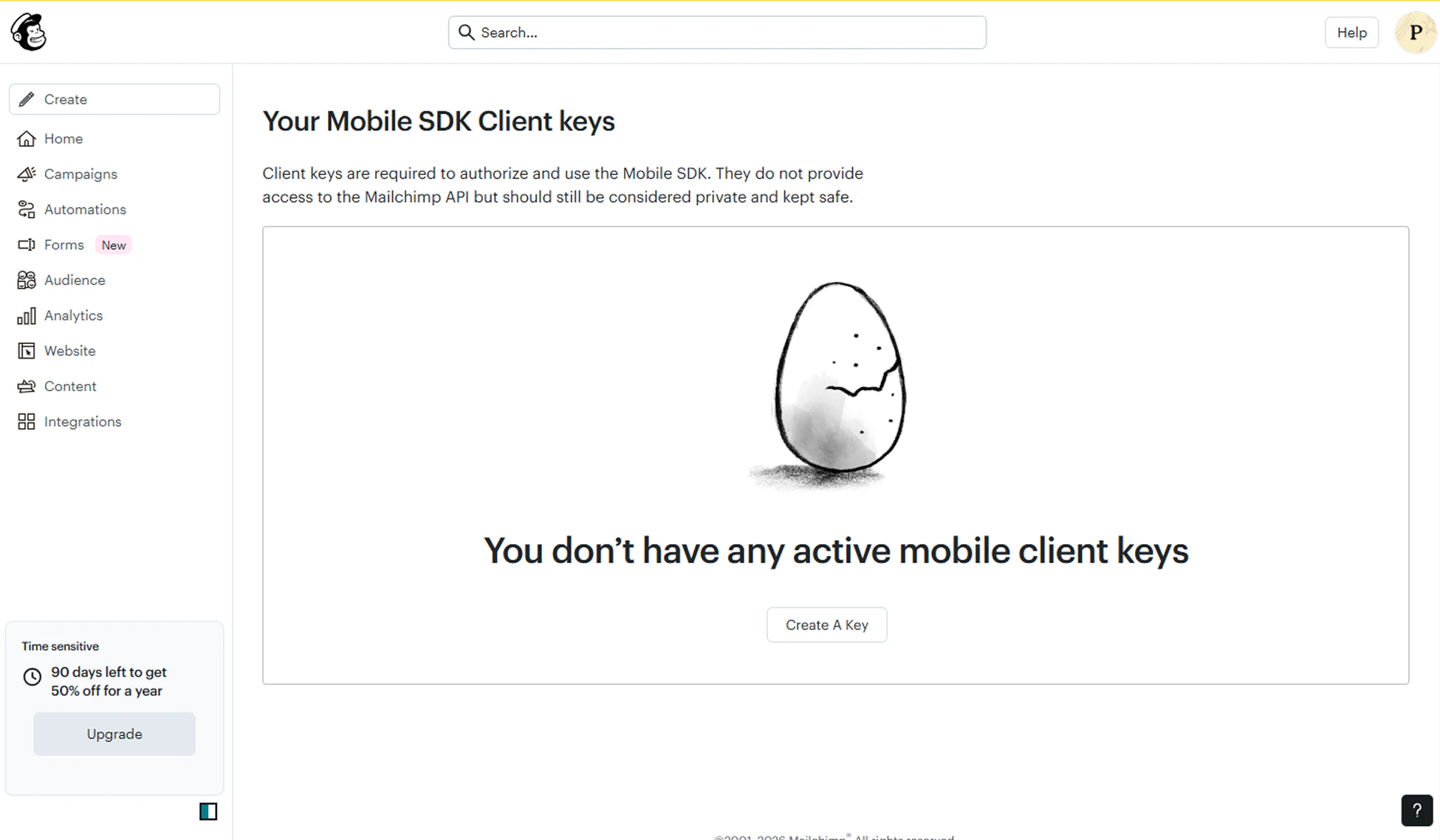
- Login to your Mailchimp account
- Navigate to Profile → Extras → API Keys
- Click Create A Key
- Copy the generated API key
Step 2 - Insert Mailchimp Component Into Your Form
Select your form in the Framer canvas and insert the Mailchimp component. The component connects your form to Mailchimp and automatically detects the form fields in your form layout.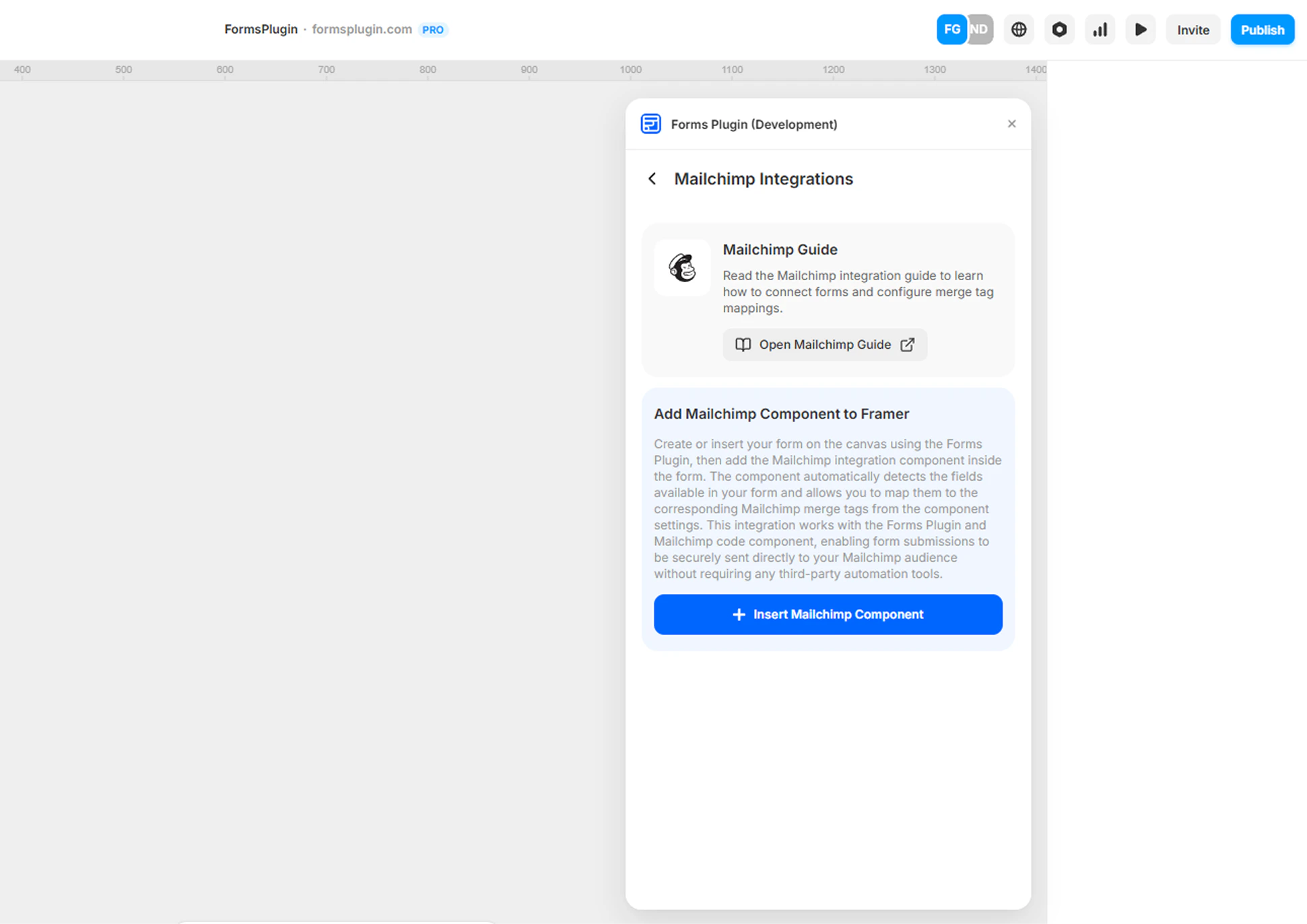
Step 3 - Configure Mailchimp API Settings
After inserting the Mailchimp component, configure the API settings in the component properties panel.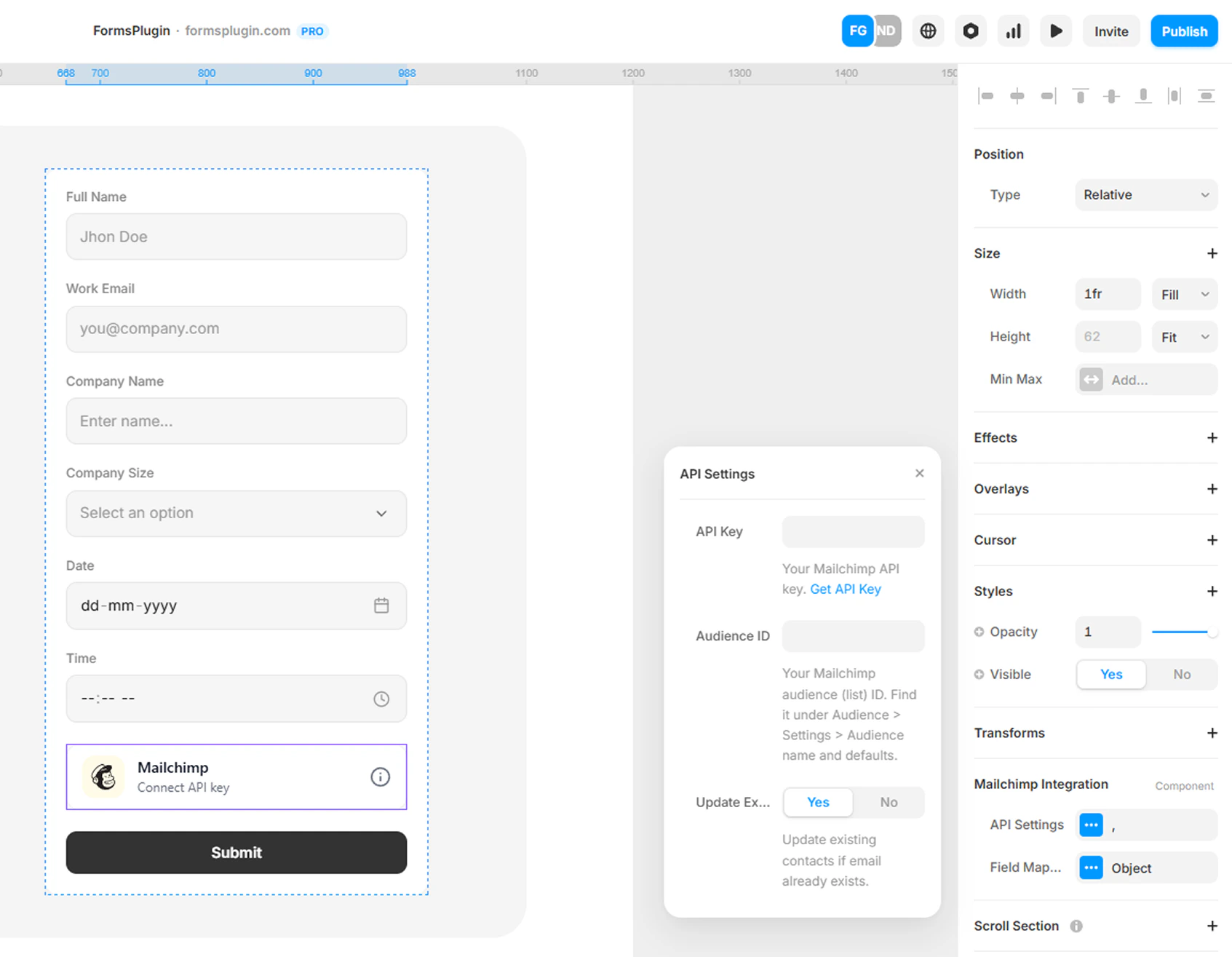
- Select the Mailchimp Integration component in your form
- Open the properties panel on the right side
- Paste your Mailchimp API Key
- Enter your Audience ID (List ID)
Required Fields
- API Key - Paste the API key generated from your Mailchimp account.
- Audience ID - Enter the Mailchimp Audience ID (also called List ID) where new subscribers should be added.
Step 4 - Configure Field Mapping
Map your form fields to Mailchimp subscriber attributes. The component automatically detects your form field names. You simply connect each field to the correct Mailchimp attribute.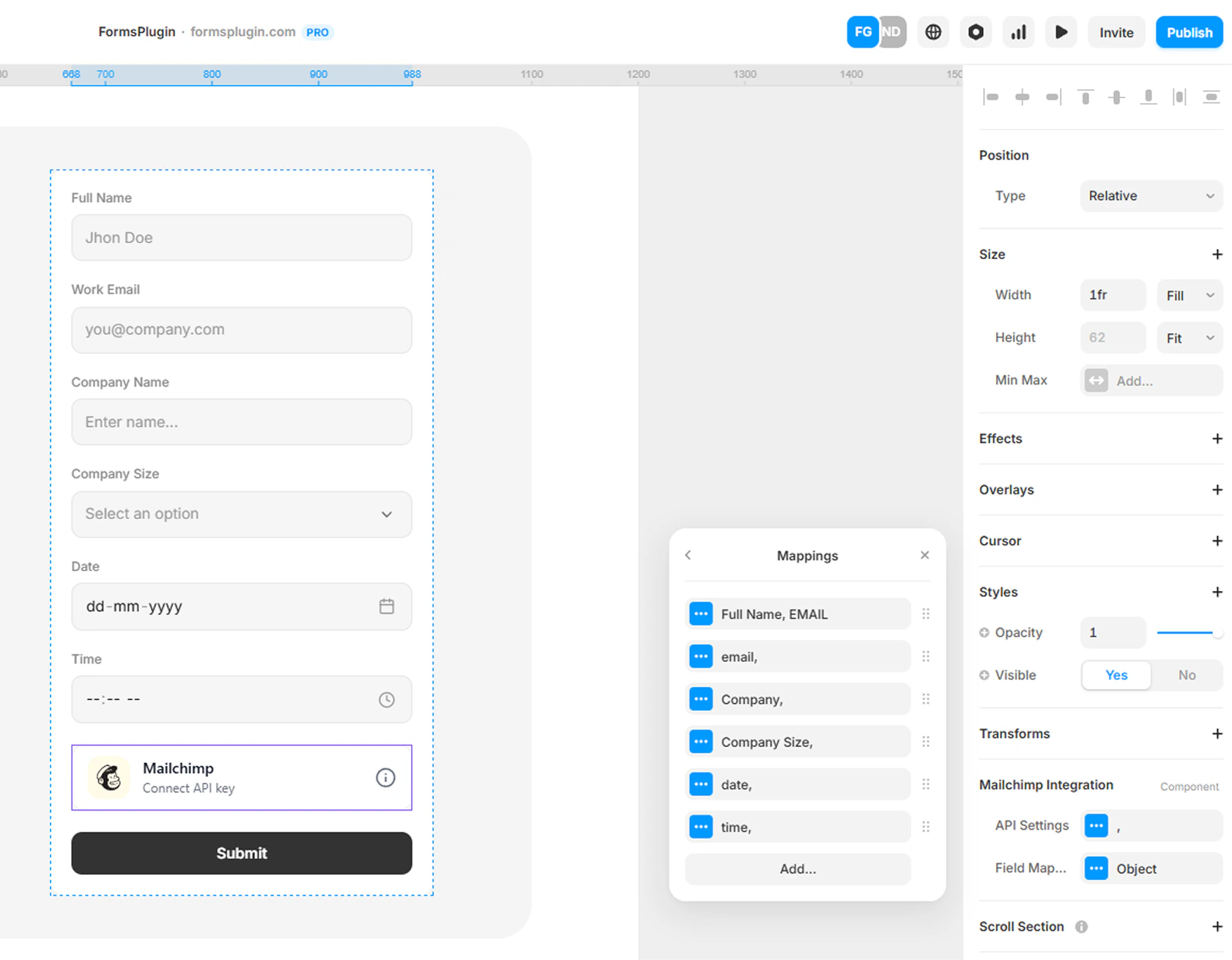
Example Mapping
Step 5 - Configure Tags (Optional)
Tags help you segment subscribers in Mailchimp. The Forms Plugin supports two ways to apply tags from a single form: Static Tags that are applied to every submission, and Dynamic Tags that are derived from a form field’s selected value.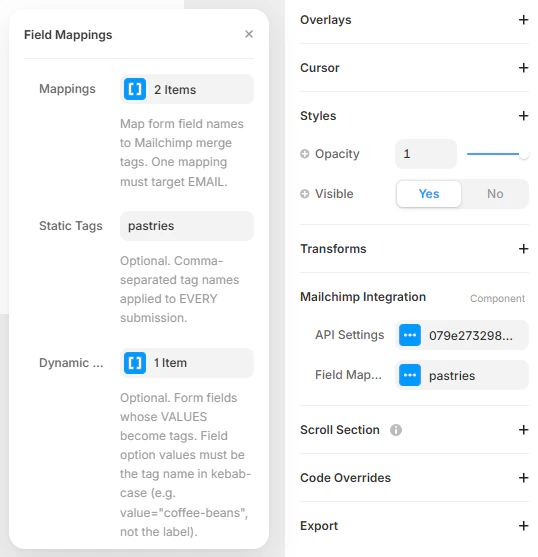
Static Tags
Use Static Tags when you want the same tag(s) applied to every submission from this form - for example, tagging every signup aspastries, newsletter, or framer.
- Open the Field Mappings panel for the Mailchimp component
- In the Static Tags field, enter one or more tag names separated by commas (e.g.,
pastries, newsletter)
Dynamic Tags
Use Dynamic Tags when you want the tag to come from what the user selected on the form - for example, a “Favorite Snacks” dropdown where the chosen option becomes the tag in Mailchimp.- Open the Field Mappings panel for the Mailchimp component
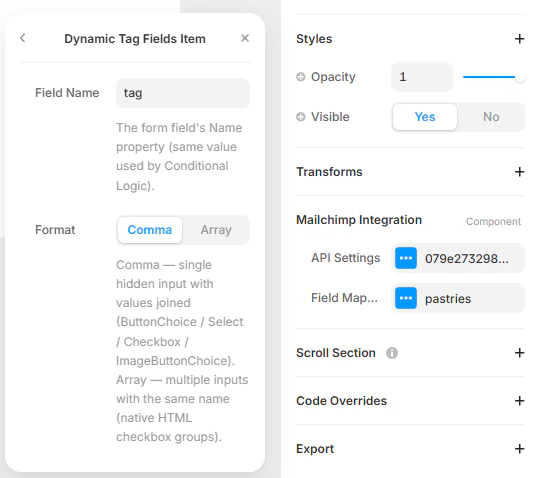
- Click Dynamic Tags to add an item
- Enter the Field Name - this must match the form field’s
Nameproperty exactly (the same value used by Conditional Logic) - Choose a Format based on the field type (see below)
- Repeat to add multiple fields if needed
Format: Comma vs Array
The Format option tells the plugin how to read values from the form field:- Comma - Use for fields that submit a single hidden input with values joined by commas. Choose this for
ButtonChoice,Select,Checkbox, andImageButtonChoicefields. - Array - Use for fields that submit multiple inputs sharing the same name. Choose this for native HTML checkbox groups.
Example
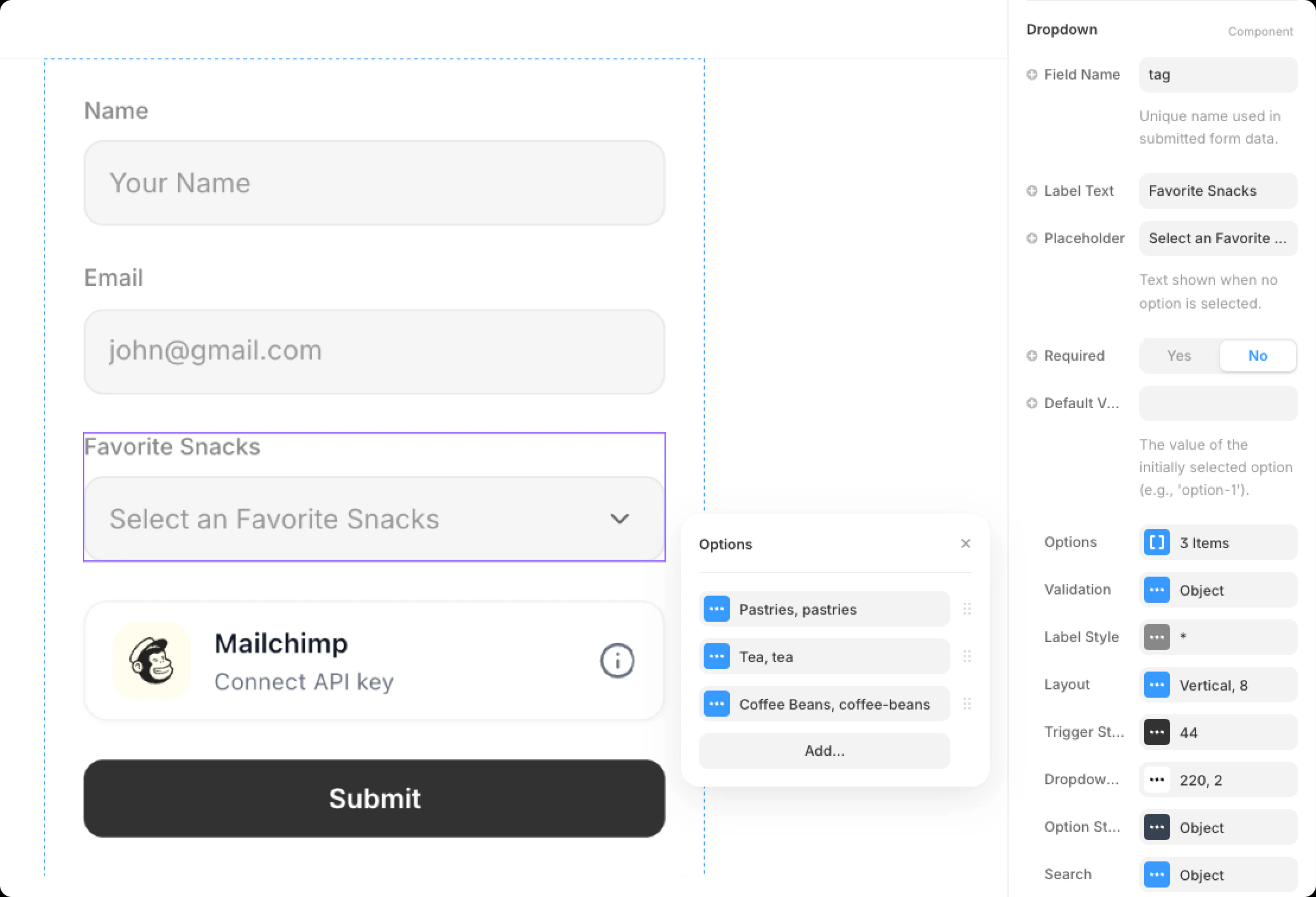
Here is a real Framer form with a Dropdown component namedtag and three options. The Field Name (tag) is what you enter in the Dynamic Tag modal, and the option values (pastries, tea, coffee-beans) are what become tags in Mailchimp.
Combined with Static Tags
pastries, a submission selecting “Coffee Beans” will be tagged with pastries and coffee-beans in Mailchimp.
Where to Manage Tags in Mailchimp
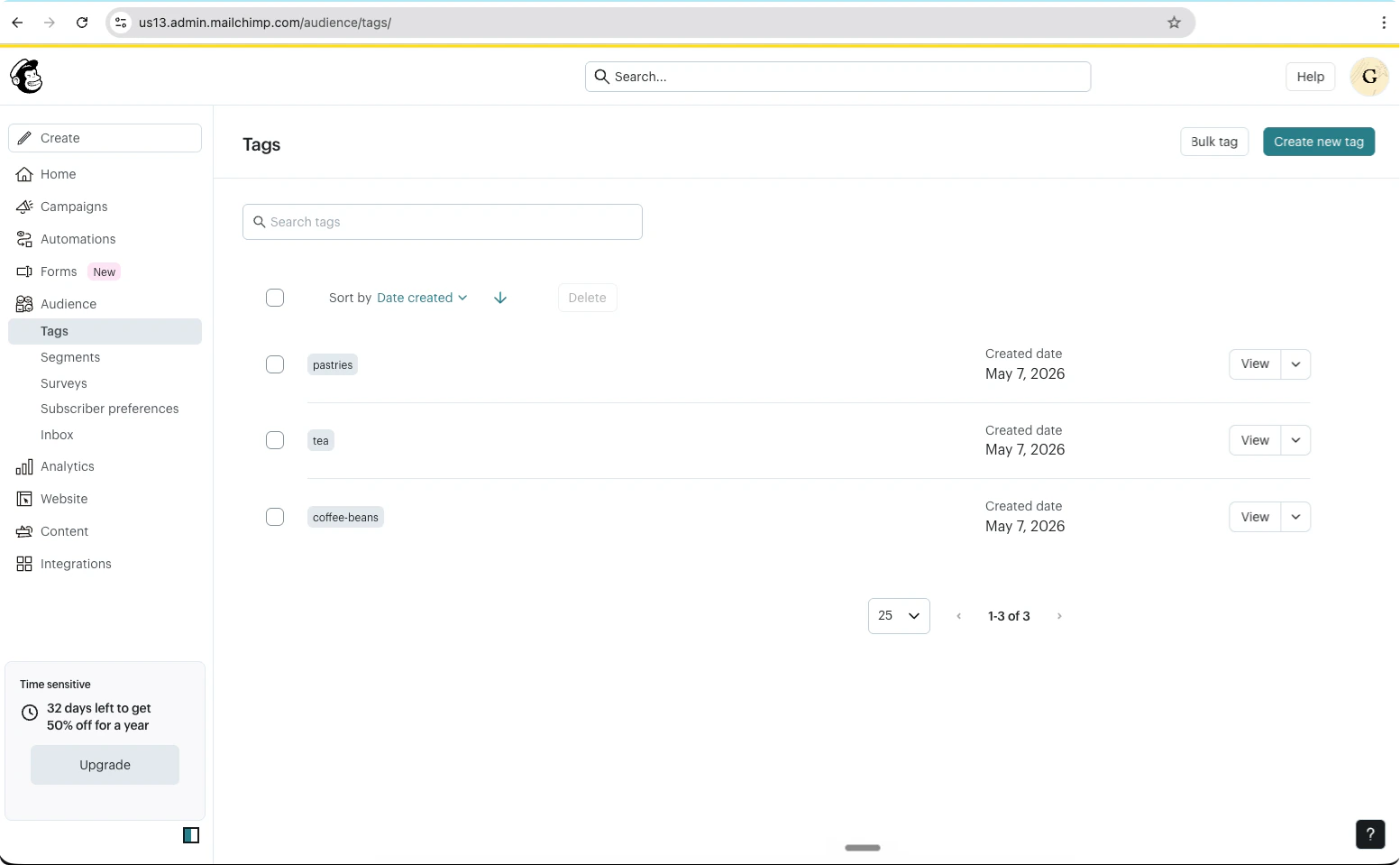
Tags applied from the Forms Plugin are created automatically in Mailchimp the first time they are used - you do not need to pre-create them. To view, rename, or delete tags later:- Open your Mailchimp account
- Go to Audience → Tags (direct link)
- From this page you can search existing tags, click Create new tag to add one manually, or use Bulk tag to apply a tag to multiple contacts at once
Step 6 - Result
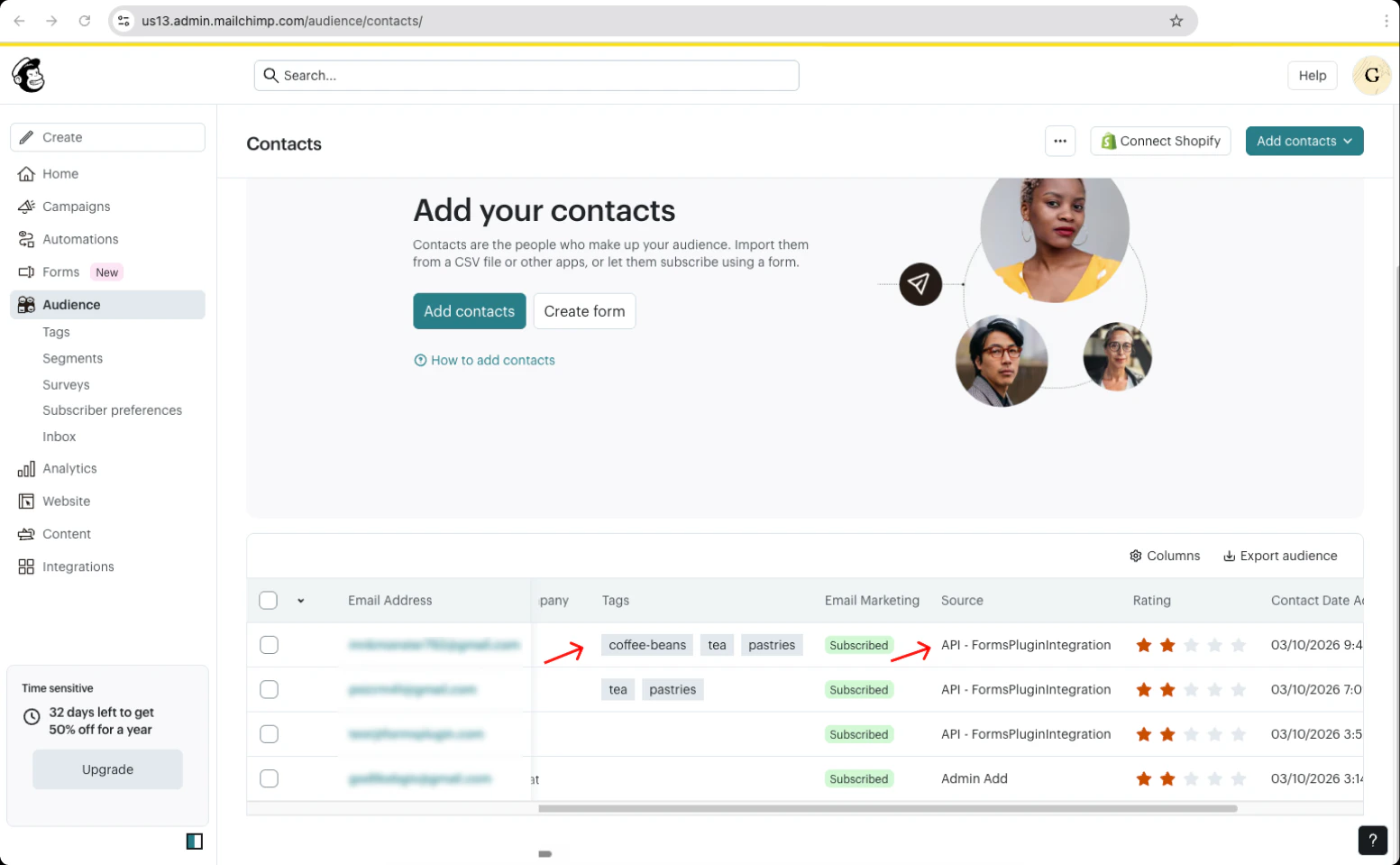
When a user submits the form, their details will automatically be added to your Mailchimp audience along with any configured tags. You can verify new subscribers in your Mailchimp Audience dashboard.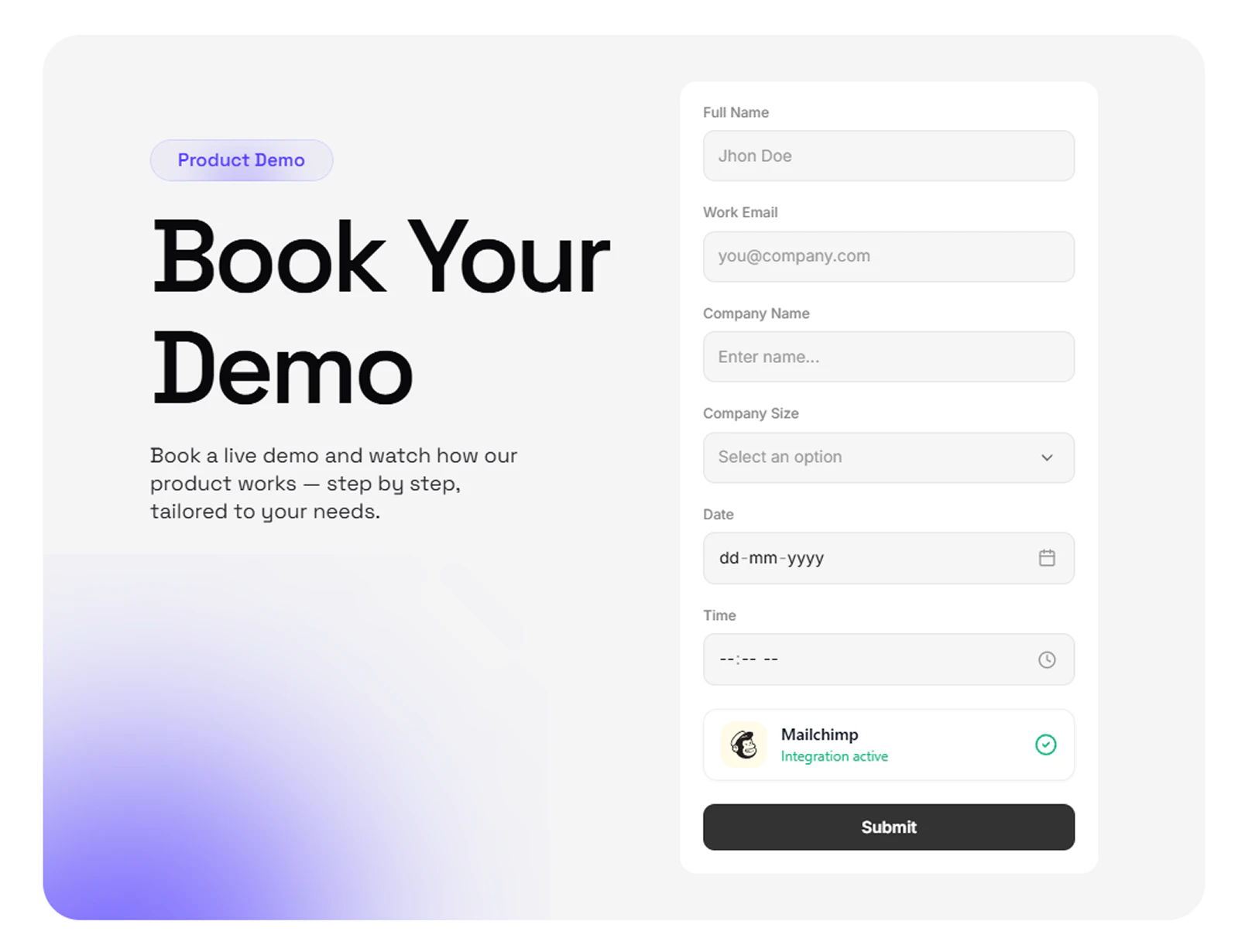
API - FormsPluginIntegration for submissions that came in through the plugin.
Next Steps
- Integrations Overview
- Contact Support if you need help