Key Takeaways
- A demo request form only needs seven fields to qualify a lead: name, work email, company, job title, team size, a time slot, and what they want to see on the call.
- Framer's native form collects those fields fine but treats every submission the same, there's no way to route or filter leads before a rep sees them.
- Forms Plugin's demo form template ships all seven fields and is free on every plan, including Basic.
- Conditional logic can show, hide, require, disable, or reset fields based on earlier answers, useful for qualifying leads before submission, and works on the free Basic plan for this form since all seven fields are Basic-tier field types.
- HubSpot and other native CRM integrations push submissions straight into your pipeline, but that's a Scale-plan feature, not included on Basic or Pro.
Overview
A demo request form has one job: get the right people booked and give the sales team enough context to run a good call. Most demo forms fail at both. They either ask too little, so every submission reads the same regardless of whether it's a 2-person startup or a 500-seat enterprise account, or they ask too much and people bail before submitting. The fix is fewer, sharper fields, plus logic that reacts to what someone answers. Here's how to build one in Framer, and where the free tier stops being enough.
Quick Answer
- A demo request form only needs seven fields to qualify a lead: name, work email, company, job title, team size, a time slot, and what they want to see on the call.
- Framer's native form collects those fields fine but treats every submission the same, there's no way to route or filter leads before a rep sees them.
- Forms Plugin's demo form template ships all seven fields and is free on every plan, including Basic.
- Conditional logic can show, hide, require, disable, or reset fields based on earlier answers, useful for qualifying leads before submission. It's built into each field, not gated by plan tier, so it works on Basic here since all seven fields are Basic-tier types.
- HubSpot and other native CRM integrations push submissions straight into your pipeline, but that's a Scale-plan feature, not included on Basic or Pro.
What fields does a demo request form actually need?
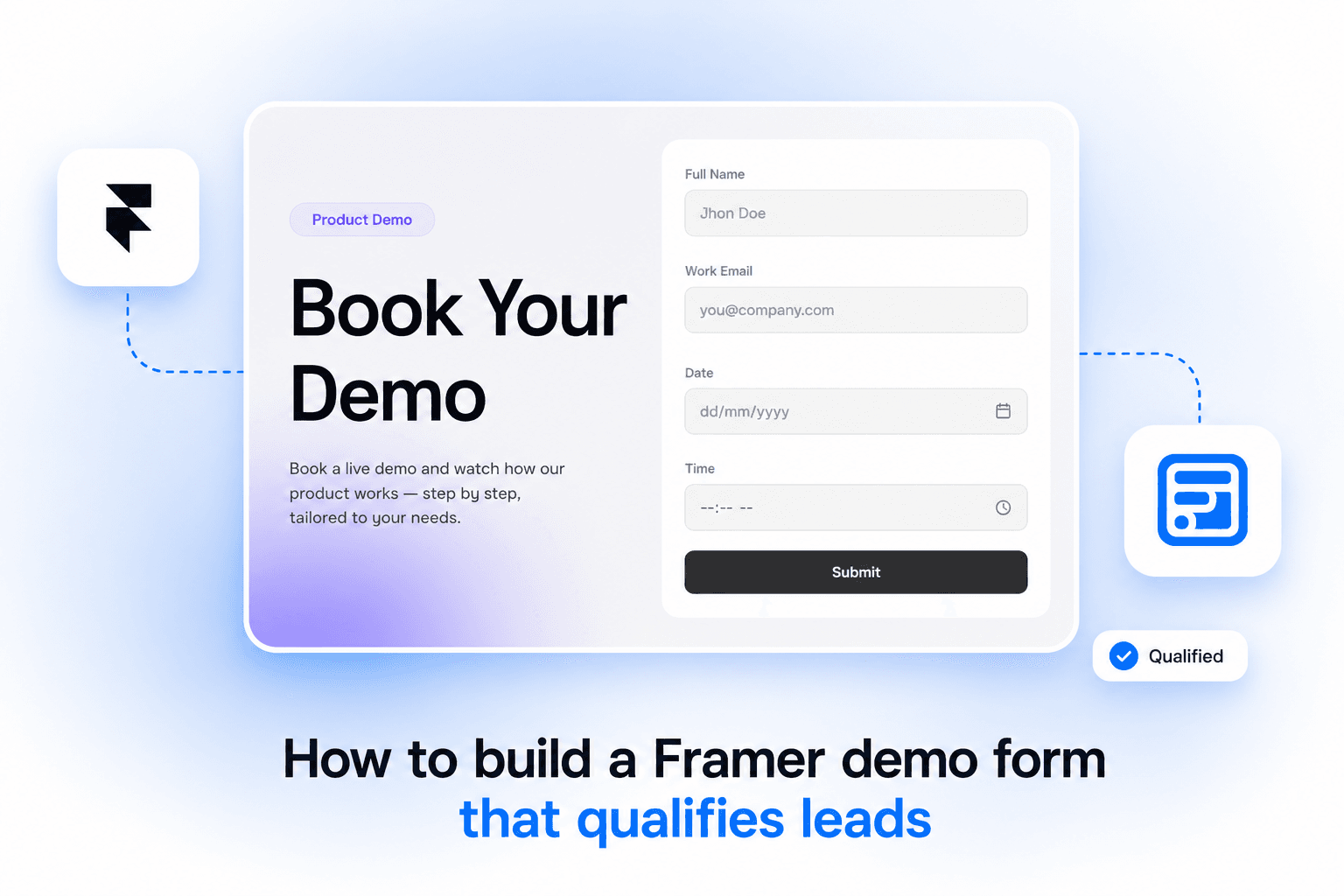
Forms Plugin's demo form template uses seven fields, in this order:
- Full name
- Work email
- Company name
- Job title
- Team size (dropdown)
- Preferred time slot (date and time picker)
- What you want to see in the demo (textarea)
Every field earns its place. Labeling it "Work email" instead of a plain email field sets the expectation up front that this is a business inquiry, that's a framing cue for the person filling it out, not an automatic filter. Team size as a dropdown, not free text, gives sales a clean way to size and route the account before the call. The time slot picker removes the back-and-forth email thread that usually happens after a demo request, someone picks a slot, the form captures it, done. And the open textarea is the one place a lead tells the rep what they actually care about, so the call doesn't open with generic slides nobody asked for.
Seven fields is short enough that most people finish it, and long enough that a rep walking into the call already knows who they're talking to.
Why doesn't Framer's native form handle this well?
Framer's built-in form can collect all seven fields without any plugin. What it can't do is treat submissions differently based on what's in them. A 2-person team and a 500-seat enterprise account both land in the same inbox, formatted the same way, with no routing, no conditional required fields, and no way to filter out the leads that were never going to convert.
That's fine for a contact form. It's a real gap for a demo form, where the whole point is separating leads worth a live call from ones that aren't, before someone's calendar gets booked.
How does conditional logic qualify or route a demo lead?
Conditional logic changes a field's behavior based on an earlier answer, it can show, hide, require, disable, or reset any field on the form. On a demo form, that turns the Team size dropdown into a routing signal instead of just a data point.
A few patterns that work well here:
- Require a budget or use-case field only when Team size is set to a larger bracket, so smaller accounts aren't asked a question that doesn't apply to them.
- Hide the time slot picker and show a different message, a waitlist note or a self-serve trial link, when Team size falls below whatever threshold makes a live demo worth booking.
- Reset the time slot field if someone changes their Team size answer after already picking a time, so a rep isn't scheduled against a stale qualification.
Rules combine with AND/OR logic, so a form can check company size and stated use case together before deciding what to show next. Conditional logic lives on the field itself, not on your plan tier, whether a field can use it depends on whether that field type is Basic or an advanced Pro/Scale field. Every field in this demo form template, name, work email, company, job title, team size, time slot, and textarea, is a Basic field type, so all three of these routing patterns work on the free Basic plan. Our full breakdown of conditional logic rules covers every action and operator in detail.
How does a demo form connect to HubSpot?
Once a demo request comes in, it needs to land somewhere a sales rep will actually see it. Forms Plugin's native integrations push submissions straight into a connected platform, including HubSpot, matching by email so a repeat submission updates the existing contact instead of creating a duplicate.
This is a Scale-plan feature. Basic and Pro don't include native CRM integrations, so on those plans a demo request notification goes to email only. If HubSpot routing matters for how your sales team works a demo pipeline, that's the plan tier to check first. Our Framer HubSpot integration post walks through field mapping and setup once you're on a plan that includes it.
Should a demo form be one step or split into multiple?
At seven fields, a single-step form is usually the right call, it's short enough that splitting it adds friction rather than removing it. Multi-step forms tend to pay off past six or seven fields, or when a form branches heavily based on earlier answers.
If a demo form grows past this template, adding qualification questions, use-case detail, or a longer intake, splitting it into steps keeps it from feeling like a wall of fields. Multi-step forms are a Pro and Scale feature, not available on Basic. Our multi-step design patterns post covers when splitting actually helps versus when it just adds clicks. The date picker field used for the preferred slot works the same whether the form is single-step or split.
Building this with Forms Plugin
The demo form template itself is free on every plan, including Basic, so the base form costs nothing to stand up. Where the plans diverge is what you layer on top:
| Feature | Basic (Free) | Pro ($99) | Scale ($119) |
|---|---|---|---|
| Demo form template, all 7 fields | Yes | Yes | Yes |
| Multi-step splitting | No | Yes | Yes |
| Conditional logic (qualify, route, hide fields) | Yes | Yes | Yes |
| Native HubSpot / CRM integration | No | Yes | Yes |
Both Pro and Scale are one-time payments with lifetime access, not a subscription. Because every field in this template is a Basic field type, Basic alone gets you the full seven-field form and working qualification logic on top of it, free. Pro's real value here shows up if the form grows past seven fields, starts branching heavily, or needs those leads landing directly in HubSpot without anyone exporting a CSV, multi-step splitting and native CRM integrations both unlock at Pro. Scale adds unlimited sites and the commercial license for client work. Check the pricing page for the full comparison.
Frequently asked questions
Is the product demo form template actually free?
Yes, the template with all seven fields is included on the free Basic plan. No paid plan is required to use the base form.
Do I need the Scale plan to use this with HubSpot?
No. Native CRM integrations, including HubSpot, are available from the Pro plan up. Scale is only needed for unlimited sites and the commercial license for client work.
Can conditional logic automatically disqualify a lead?
Not as a single dedicated action, but you can build the same outcome with the actions it does support: hide the time-slot picker and required fields for leads that don't meet your criteria, and show an alternate message instead. Since every field in this template is a Basic field type, this works on the free Basic plan.
Does the demo form need to be multi-step?
Not at seven fields. Multi-step forms tend to help once a form grows longer or branches heavily, and the feature itself requires Pro or Scale, it's not on Basic.
What happens to a submission if I'm on the free Basic plan?
It's collected and delivered by email like any other form on Basic. Qualification logic runs on Basic too, since every field in this template is a Basic field type. CRM routing is the piece that isn't available until Scale.
Bottom line
A demo request form doesn't need to be complicated, seven well-chosen fields cover most of what a sales team needs to run a good call. Because every field this template uses is a Basic field type, Basic gets you both the form and working qualification logic on top of it, free. Pro's real value-add is multi-step splitting if the form grows past seven fields, and Scale adds direct CRM routing. Start from the demo form template and add the pieces that match where your pipeline actually needs help.
Ready to build smarter Framer forms?
Forms Plugin gives you everything covered in this article - natively, inside Framer.
Get Forms Plugin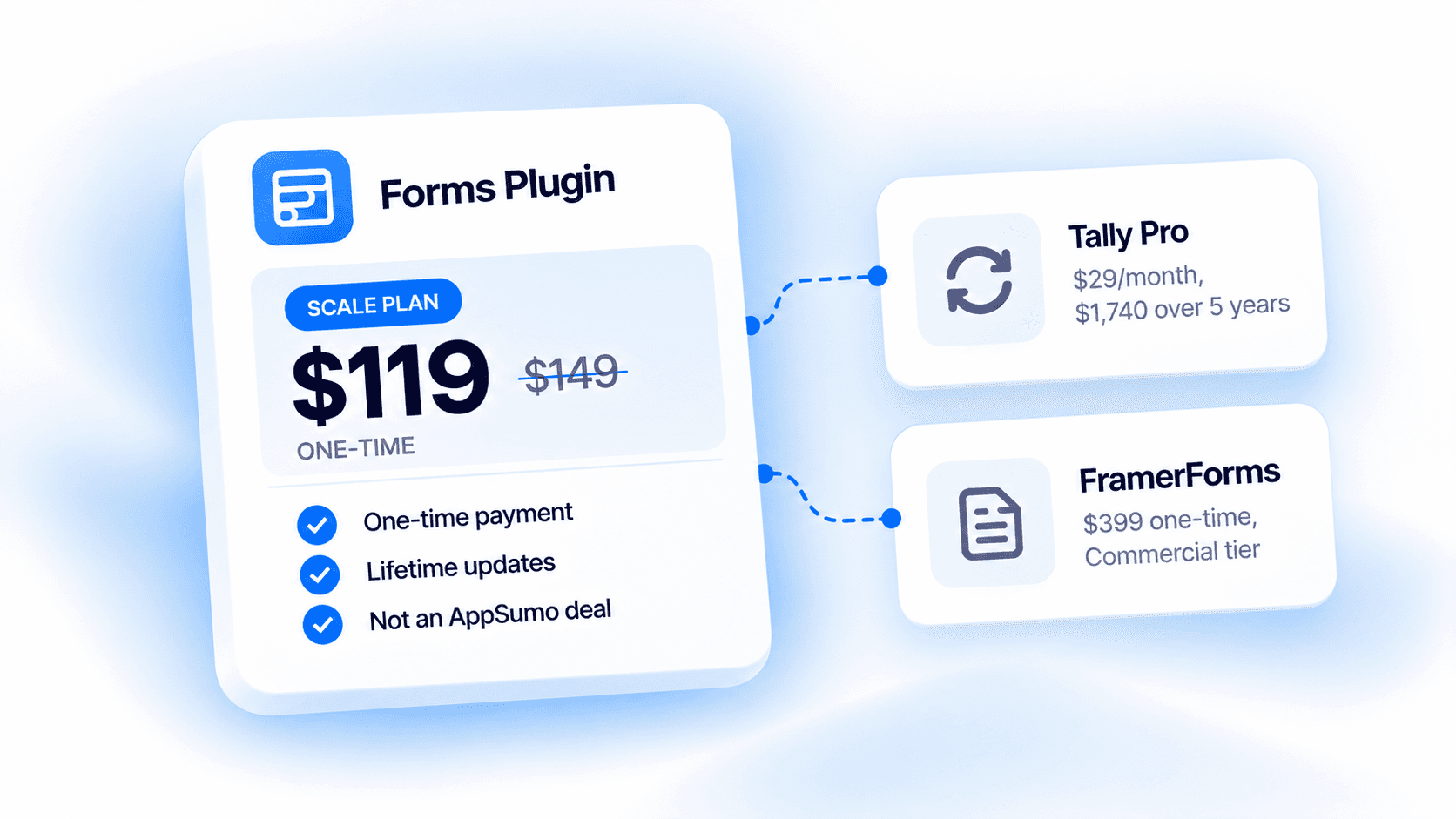


 Get this Plugin