Key Takeaways
- Forms Plugin's Brevo integration uses an API key and a manually entered List ID, not a dropdown picker.
- One field mapping must target EMAIL, that's a hard requirement before anything else works.
- Field Mappings has only one section, Mappings, unlike Mailchimp's integration there is no Static Tags or Dynamic Tags panel here.
- Form field names and Brevo attribute names must match exactly, case-sensitive, or the mapped data silently fails to sync.
- Brevo is a Pro and Scale feature in Forms Plugin, Basic does not include native integrations.
Overview
Connecting a Framer form to Brevo with Forms Plugin means pasting an API key, entering a List ID by hand, and mapping form fields to Brevo contact attributes, where a single case mismatch is enough to make the whole sync fail without an error. This covers the actual panel fields, what each one does, and the setup gotchas that aren't obvious from the panel alone.
Quick Answer
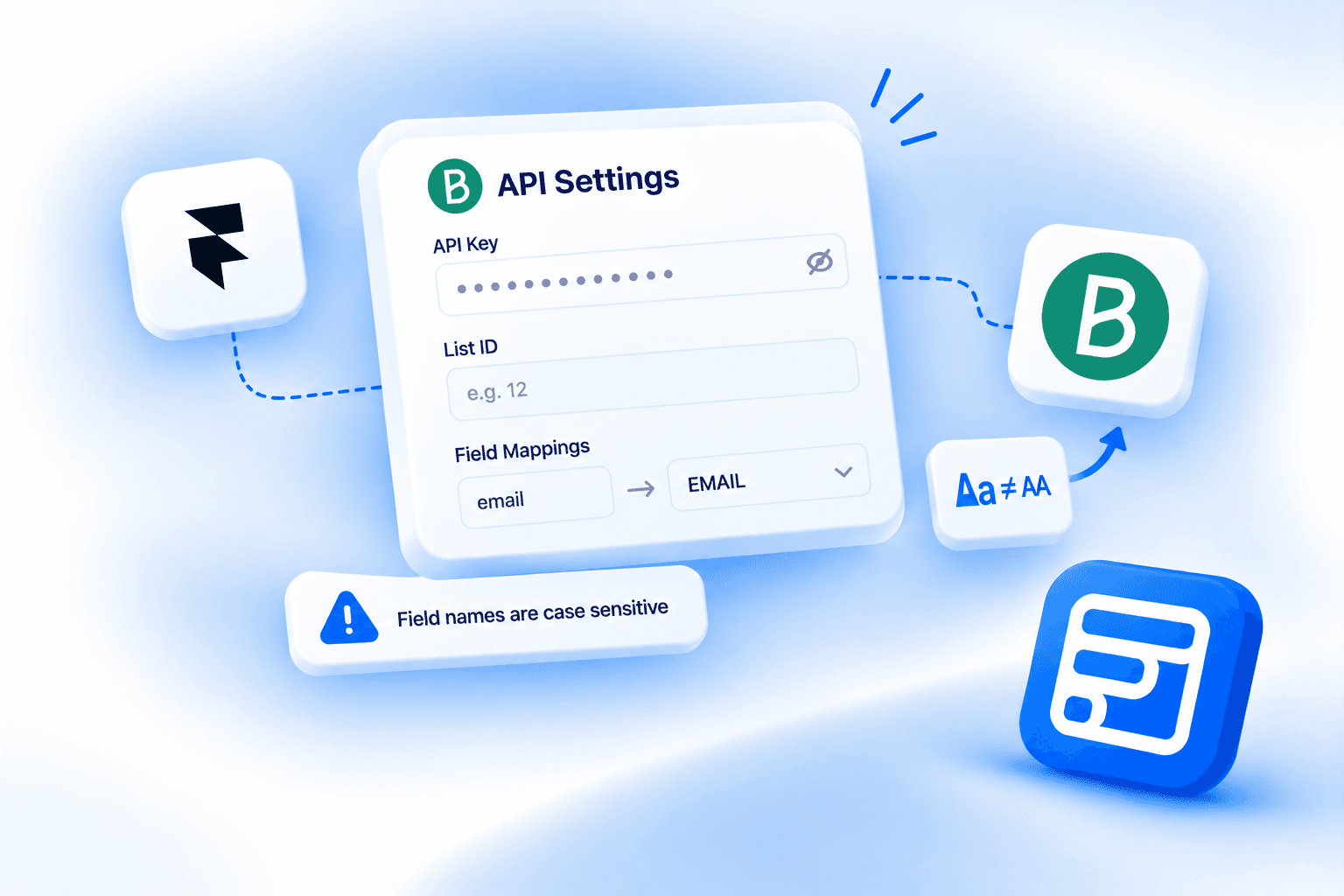
- The Brevo integration needs an API Key and a List ID, entered as plain text fields in the component's API Settings.
- The List ID is typed in manually. It is not a dropdown or picker.
- Field Mappings has one section, Mappings, unlike Mailchimp's integration there is no Static Tags or Dynamic Tags feature here.
- Form field names and Brevo attribute names must match exactly, case-sensitive, or the mapped data will not sync.
- Native integrations, including Brevo, are a Pro and Scale feature in Forms Plugin. Basic does not include them.
Setting up API Settings
Create or insert your form on the canvas using Forms Plugin, then add the Brevo integration component inside the form. The component automatically detects the fields available in your form and lets you map them to the corresponding Brevo contact attributes from the component settings. The whole thing runs through Forms Plugin together with a Framer code component, so submissions go straight to Brevo without a third-party service like Zapier sitting in between.
The API Settings panel has three fields.
API Key. Paste your Brevo API key, there's a "Get API Key" link in the panel. In Brevo itself, generate one from Settings, then SMTP & API, then the API Keys tab. Click to generate a new key, name it something you'll recognize later, and save it somewhere secure, since Brevo won't show you the full key again after you close that dialog.
List ID. A manual text field, not a dropdown. Forms Plugin's own pages don't document where to find this number inside Brevo, so here it is directly: log into Brevo, go to Contacts, then Lists, and click into the specific list you want to use, not the checkbox next to it, the name itself. The list ID isn't shown on the Lists overview page, it only appears once you're on that individual list's own page. Copy the number from there into the List ID field in Forms Plugin.
Update Existing. A Yes/No toggle: "Update existing contacts if email already exists." Same pattern as every other Forms Plugin integration, set to Yes and a resubmission from a contact already in Brevo updates that record instead of creating a duplicate.
Field Mappings and the case-sensitive attribute gotcha
This is the part of the setup most likely to fail quietly, so read it before you map anything.
Brevo's Field Mappings panel has exactly one section: Mappings. That's different from Mailchimp's integration in Forms Plugin, which also has Static Tags and Dynamic Tags panels for applying fixed or per-submission tags. Brevo doesn't have an equivalent tagging feature here. Don't build a setup assuming one exists.
Each mapping row has two parts:
- Form Field: the name attribute of your form field, not the visible label a visitor sees. If a mapping isn't working, check the field's name attribute in Forms Plugin rather than the label text on the form.
- Brevo Attr: a plain text field, not a validated dropdown selector. You type the Brevo attribute name yourself.
One mapping must target EMAIL. Same hard requirement as every other integration, Brevo can't create or update a contact without it.
The gotcha: form field names and Brevo attribute names must match exactly, including case. If they don't match, character for character, the data simply doesn't sync, with no error shown anywhere. Brevo's standard attributes are all uppercase, with no underscore in the name fields: EMAIL, FIRSTNAME, LASTNAME, SMS, COMPANY_NAME. That's a different convention from Mailchimp, which uses shorter tags like FNAME and LNAME. Don't assume the two work the same way just because they're both email platforms, the plain-text, case-sensitive attribute field is the real difference between them.
The safest approach is naming your Framer form fields to match Brevo's attribute names directly, EMAIL to EMAIL, FIRSTNAME to FIRSTNAME, so there's nothing to misremember when you fill in the Brevo Attr column.
API key setup gotchas
Two things outside the Forms Plugin panel itself commonly break this integration before it ever gets to field mapping.
IP blocking. Brevo's API keys are unrestricted by default, which is the setting you want here. If IP blocking is turned on for your key under Brevo's Security, then Authorized IPs, submissions coming from Forms Plugin's servers can get rejected, since the plugin doesn't send from a single fixed IP. If your integration connects fine in testing but submissions fail intermittently once live, check that setting first and deactivate it for the API key you're using.
Custom attributes must already exist in Brevo. Mapping a form field to a Brevo attribute that hasn't been created yet doesn't create it for you. Custom attributes have to be set up manually in Brevo before Forms Plugin can send data to them, and even after they exist, they won't show up in your contact list view by default. To see the values, open the list in Brevo, click Customize Columns, and add the attribute from the Select Attributes dropdown. Skipping this step is a common reason data looks like it's "not syncing" when it's actually arriving, just invisible in the view you're looking at.
What plan do you need for Brevo
Native integrations, including Brevo, are a Pro and Scale feature in Forms Plugin. Basic does not include them. Pro is $99 one-time and Scale is $119 one-time, both lifetime purchases, not subscriptions, unlocking the full integration list, Brevo, HubSpot, Mailchimp, MailerLite, Kit, Klaviyo, ActiveCampaign, Drip, and Beehiiv, identically, there's no per-integration tier split. Check the pricing page directly before you build a setup around a specific tier, since plan details are the kind of thing that can shift between updates.
Frequently asked questions
Is this Brevo or Sendinblue?
Same company. Sendinblue rebranded to Brevo in 2023.
Do I need to map every form field, or is email the only requirement?
Email is the only hard requirement, one mapping must target EMAIL or Brevo can't create or update the contact. Everything else in the Mappings panel is optional, map only the attributes you're actually collecting and want stored in Brevo.
Why isn't my field mapping working even though I set it up?
The most common cause is a case mismatch between the Form Field name and the Brevo Attr name. Brevo's matching is case-sensitive, so "Email" won't match "EMAIL" even though they look like the same field to a human. Check both values character for character, including capitalization, before assuming anything else is wrong.
Does Brevo's free plan work with this integration?
Brevo's free plan supports up to 300 emails a day and up to 100,000 stored contacts, with no credit card required, and includes API access, which is what this integration relies on. If you're on the free tier and hitting limits, that's a Brevo-side cap, not something Forms Plugin controls.
Is this GDPR compliant if I need EU data hosting?
Brevo is a French company that stores data in the EU by default and provides a GDPR-compliant data processing agreement. That's a Brevo-side guarantee tied to your Brevo account and how you configure it, not something Forms Plugin adds on top, so review Brevo's own compliance documentation if GDPR is a hard requirement for your use case.
Bottom line
The Brevo integration itself is a short setup: an API key, a manually typed List ID, and a single Field Mappings panel where EMAIL is the one non-negotiable mapping. The part worth slowing down for is the case-sensitive attribute matching, since a mapping that looks right at a glance can fail silently if the case doesn't match exactly. Get the field names right, confirm custom attributes already exist in Brevo before mapping to them, and check IP blocking is off, and the rest of the setup follows from there. For the full field reference, see Forms Plugin's Brevo integration page and setup docs, or browse the full integrations list for other platforms Forms Plugin connects to.
Ready to build smarter Framer forms?
Forms Plugin gives you everything covered in this article - natively, inside Framer.
Get Forms Plugin
 Get this Plugin