Key Takeaways
- The field goes by three names: Voice Recording in the Advanced Fields picker, Voice Upload on the canvas component badge, and voice-upload as the default Field Name value.
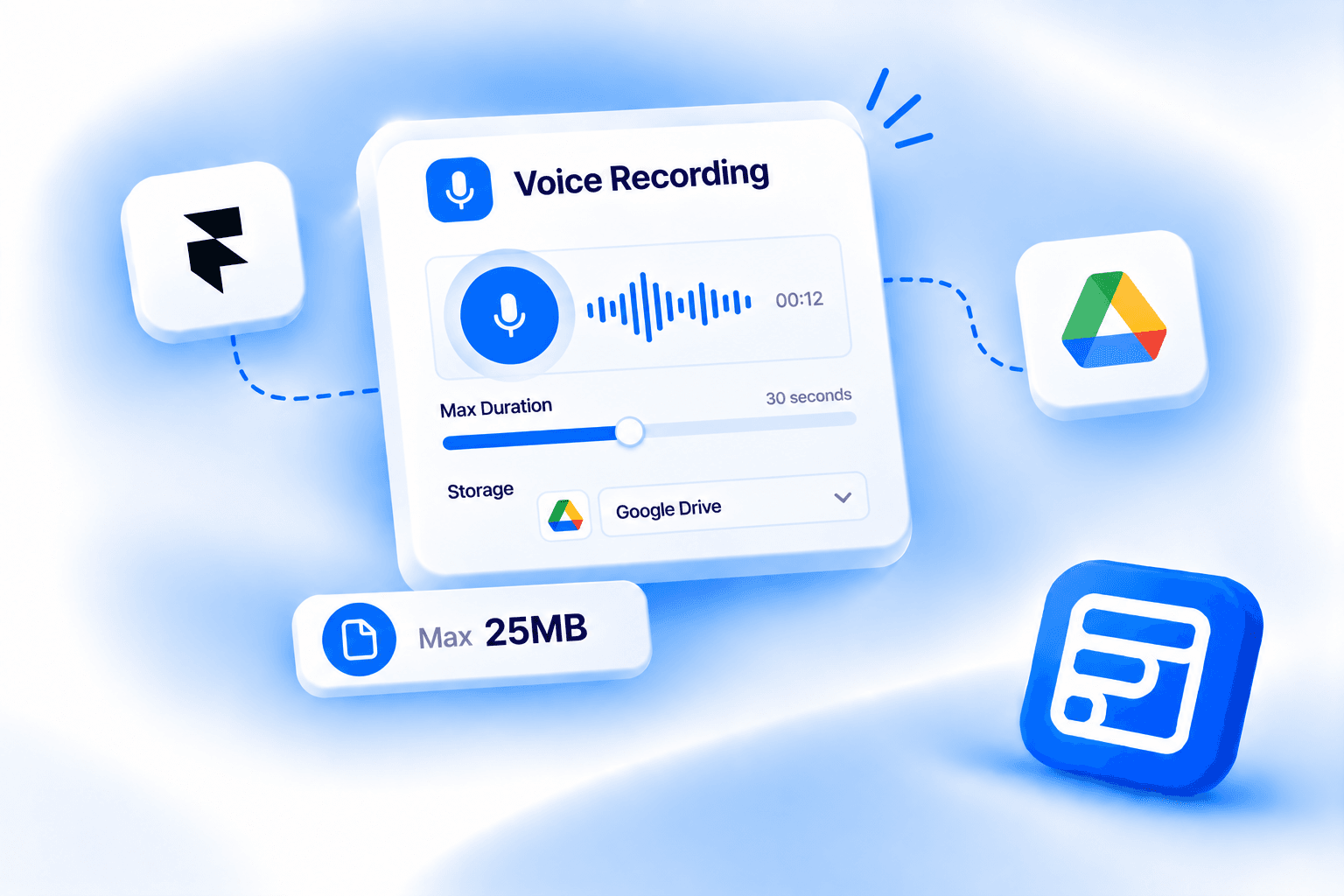
- Recording length is configurable from 30 seconds up to 10 minutes, output as MP3 or M4A.
- Max Size is a hard 25MB cap, enforced client and server, under both storage options. That's a separate limit from the File Upload field's 50MB cap.
- Google Drive storage isn't a one-click connection, it requires deploying your own Google Apps Script web app and pasting the resulting /exec URL into the field's settings.
- Available on the Pro and Scale plans, not Basic.
Overview
The voice recording field's marketing page covers the basics well, but two common questions, how the audio gets stored and whether there's a file size limit, aren't detailed there. This post fills in those specifics straight from the field's own settings panel.
This covers the field's real name (it has three), what Record Settings actually configures, and the Storage sub-panel that's the whole reason this field is more than a novelty, including a hard cap and a Google Drive setup that isn't one-click.
Quick Answer
- The field goes by three names: "Voice Recording" in the Advanced Fields picker, "Voice Upload" on the canvas component badge, and "voice-upload" as the default Field Name value.
- Recording length is configurable from 30 seconds up to 10 minutes, output as MP3 or M4A.
- Max Size is a hard 25MB cap, enforced client and server, under both storage options. That's a separate limit from the File Upload field's 50MB cap.
- Google Drive storage isn't a one-click connection. It requires deploying your own Google Apps Script web app and pasting the resulting
/execURL into the field's settings. - Available on the Pro and Scale plans, not Basic.
What is the Voice Recording field?
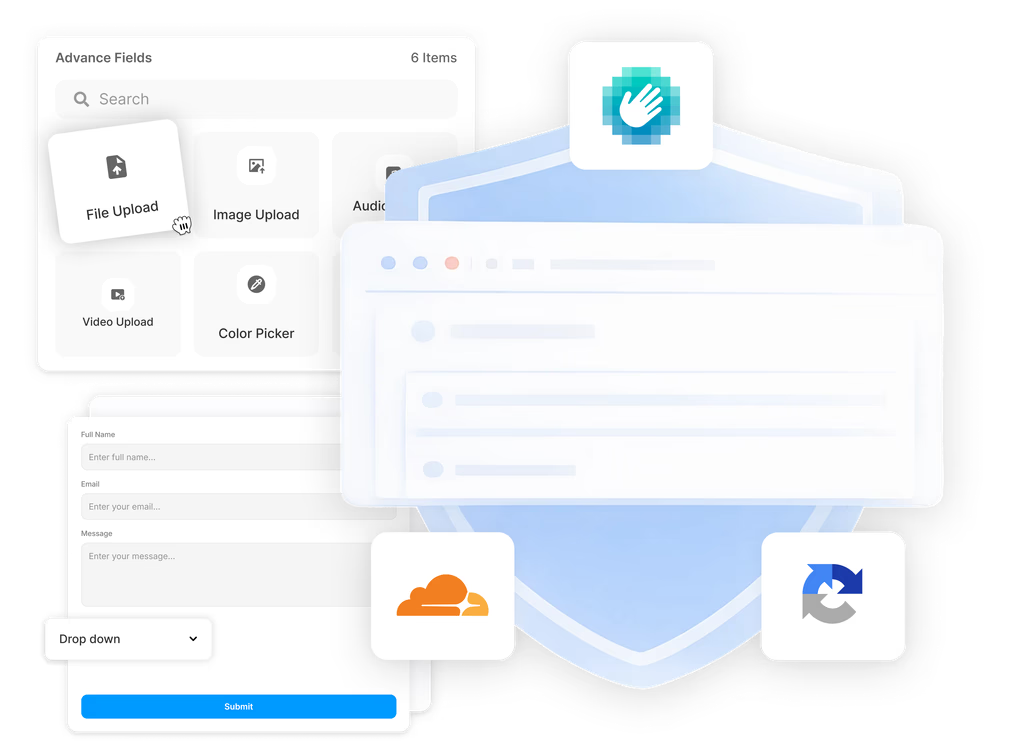
It's one of 14 Advanced Fields in Forms Plugin, alongside File Upload, Phone Number, Country, Image Upload, Range Slider, Color Picker, Button Option, Rating, Promoter Score (NPS), E-Signature, Audio Upload, Video Upload, and URL Source Collector. It records audio directly in the browser and attaches it to the form submission, no plugin or app install for the visitor.
The naming is worth a callout before anything else, because it changes depending on where you're looking. The Advanced Fields picker tile calls it "Voice Recording." Drop it on the canvas and the component type badge reads "Voice Upload." Open the settings and the default Field Name value is "voice-upload." Same field, three labels. Forms Plugin does this with more than one Advanced Field, so don't assume you've added the wrong component if the label shifts on you.
What do the core settings control?
Field Name is the unique identifier that shows up in your submitted form data, defaulting to "voice-upload." Label Name defaults to "Voice Recording," and Placeholder defaults to "Click to record voice," both editable text that visitors see on the form itself.
Sub Text uses a template string, "Max {max} seconds," where {max} gets replaced with whatever you set as the maximum recording duration. Required is a straightforward Yes/No toggle. Validation adds a "Required Error" field for a custom message, and that message supports {label} and {name} placeholders so the error text can reference the field's own label or name without you retyping it.
What does the Record Settings panel do?
This is a separate sub-panel from the core settings, and it governs the recording experience itself. Max Duration is a slider. The live voice recording page states the configurable range as 30 seconds up to 10 minutes, so treat that as the real ceiling and floor rather than any single example value you might see mid-configuration.
Three label strings update through the recording lifecycle. Recording label text defaults to "Recording... [Time]," with [Time] replaced by the live recording duration as it counts up. Recorded label text defaults to "Recorded [Time]," showing the final duration once the visitor stops recording. Uploading label text reads "Uploading voice recording..." based on what's visible in the panel, though the full string wasn't fully legible to confirm with complete confidence, so treat that as a close approximation rather than an exact quote.
Show Timer is a Yes/No toggle controlling whether the running time displays at all during recording.
Where does the recording actually get stored?
This is the real differentiator once you're actually building with this field. Storage is its own sub-panel with two options: "FormsPlugin (default)" or "Google Drive."
Max Size applies as a hard 25MB cap under both storage options, described in the panel as enforced client and server, meaning the browser blocks an oversized recording before it even uploads, and the server checks again on receipt. That's a deliberately different number from the File Upload field's cap, which sits at 50MB. They're separate fields with separate limits, don't assume one governs the other just because both are upload-type Advanced Fields. If you're routing large files through Forms Plugin, our file upload guide covers that field on its own terms.
Selecting Google Drive storage reveals an "Apps Script URL" field with helper text: "Deploy the Apps Script template, then paste the /exec URL," linking to a setup guide. That phrasing means Google Drive storage is not an OAuth connection you click through in a couple of seconds. You deploy your own Google Apps Script web app and paste the resulting endpoint into the field. Forms Plugin's own documentation confirms this same Apps Script mechanism, and the same "Downloadable" versus "Preview only" Link Type choice, applies across all six upload-type fields, including File Upload, so if you've already set this up for a different field on your site, the voice recording field reuses that identical setup rather than needing its own separate deployment logic.
Link Type appears once Google Drive is selected, with two options. Downloadable returns a direct link that saves the file to whoever opens it. Preview only returns a link that opens the recording inside Drive without downloading it, useful if you want reviewers to listen without cluttering their downloads folder.
Can you style it and add conditional logic?
Yes to both, and neither is specific to voice recording. Styling controls, Label Style, Layout, Input Style, Icon, Clear Button, Focus Style, and Error Style, match the same generic styling system every other Forms Plugin field uses, so the recorder is fully restyleable natively without custom code.
Conditions work identically to every other field too: the standard five actions (Show/Hide, Required, Read-Only, Disable, Value Reset) combine with AND/OR logic across operators like Is Empty, Is Not Empty, Contains, Exact Match, Starts With, Ends With, length comparisons, and Regex. That's generic conditional-logic mechanics rather than anything voice-specific, so if you want the full operator breakdown, our conditional logic guide covers it in depth, and the conditional logic feature page has the current specifics.
What plan do you need for the voice recording field?
Pro or Scale. It's not included on Basic. Current pricing is one-time and lifetime: Pro at $99, Scale at $119. Both plans include the field, so which one you pick comes down to how many sites you run and whether you need the commercial license, not whether you get voice recording at all.
Frequently asked questions
Why does the field show three different names?
The Advanced Fields picker calls it "Voice Recording." The canvas component badge reads "Voice Upload." The default Field Name value is "voice-upload." All three refer to the same field, the naming just varies depending on which part of the interface you're looking at.
Is the 25MB voice recording cap the same as the File Upload field's limit?
No. Voice Recording has its own hard 25MB cap enforced client and server under both storage options. File Upload has a separate 50MB cap. They're different fields with different limits, don't assume one carries over to the other.
Does Google Drive storage require connecting a Google account?
Not through OAuth. You deploy your own Google Apps Script web app and paste the /exec URL it generates into the field's Storage settings. It's a self-hosted routing mechanism, not a one-click account link, and the same mechanism applies across all of Forms Plugin's upload-type fields.
Will voice recording work on every browser?
The voice recording page states support for Safari 17+, Chrome, Firefox, and Edge, plus iOS and Android with microphone permission. The underlying browser recording API has broader support history than that on some platforms, so Safari 17+ looks like Forms Plugin's own tested baseline rather than a hard floor set by the recording API itself. Stick to the stated range if you need guaranteed behavior.
Can you require voice recording only in certain situations?
Yes, through the same conditional logic every other field uses. Set a Required condition tied to another field's value, for example only requiring a recording if a visitor selects "language assessment" from a dropdown elsewhere in the form.
Bottom line
Voice recordings cap at 25MB regardless of where they're stored, a separate number from File Upload's 50MB, and Google Drive storage means deploying your own Apps Script endpoint rather than clicking through an OAuth prompt. Between the Record Settings panel controlling the recording experience and the Storage panel controlling where the file lands, this is a more configurable field than a quick glance suggests, available on Pro and Scale.
Ready to build smarter Framer forms?
Forms Plugin gives you everything covered in this article - natively, inside Framer.
Get Forms Plugin
 Get this Plugin