Key Takeaways
- Every Framer form flows directly into Google Sheets, no Zapier, no Apps Script, no developer.
- The setup is one toggle in Framer's form inspector, the Send To field.
- Forms Plugin extends Framer's native form, so the Google Sheets toggle still works automatically, including for file upload, multi-step, and e-signature.
- You can run a CRM and a Sheet in parallel from the same submission, with no extra wiring.
- Zapier or Make is only worth $20+ a month when you need a destination Framer cannot reach natively.
Introduction: Native, Free, No Zapier
Every Framer form can land directly in Google Sheets. Native, free, no Zapier. The whole setup is one toggle in Framer's inspector, and it works the same for advanced Forms Plugin fields (file upload, multi-step, e-signature, conditional logic) as it does for plain text inputs.
TL;DR
- Every Framer form flows directly into Google Sheets, no Zapier, no Apps Script, no developer.
- The setup is one toggle in Framer's form inspector (the
Send Tofield). - Forms Plugin extends Framer's native form. The Google Sheets toggle still works automatically, including for file upload, multi-step, and e-signature.
- You can run a CRM and a Sheet in parallel from the same submission.
- Zapier or Make is only worth $20+ a month when you need a destination Framer cannot reach natively.
For years, every client form project we touched hit the same wall. Framer's native form was clean but limited. Designers reached for Tally or Typeform, paid the iframe tax, and watched Zapier middleware to the client's Sheet break every few months. We built Forms Plugin so the form lives inside Framer, and the data lands wherever the client already works.
This post is the five-minute version.
Why use a Google Sheets destination?
Use a Google Sheet because it is the lowest-friction handoff when a client owns the data. CRMs are great for sales workflows, but if you are a designer collecting feedback, an agency tracking inbound leads for a client, or a founder running a waitlist, a Sheet is often the right home for the raw data:
- Easy to share with anyone, no seat license
- Pivot tables and charts are five clicks away
- Filters, formulas, conditional formatting, all built in
- Free for any reasonable volume
- Trivial to export, archive, or hand off
A Sheet is also the cleanest place for a client to take ownership. You share a link, they take it from there.
How does Framer form to Google Sheets work?
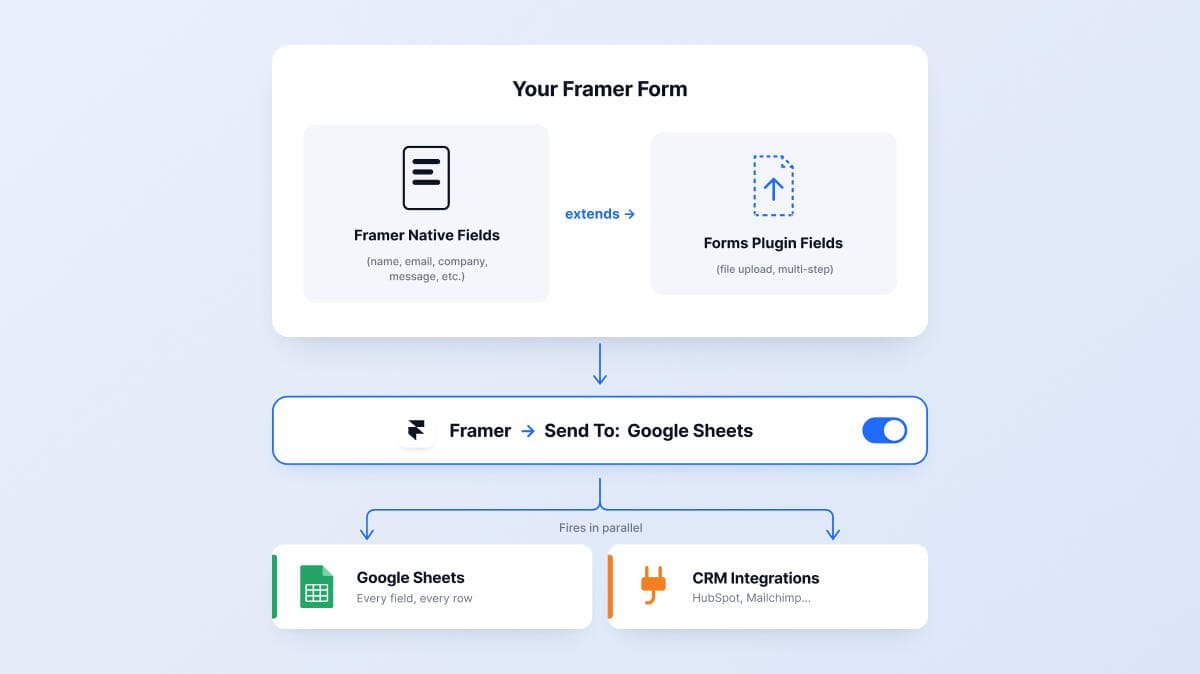
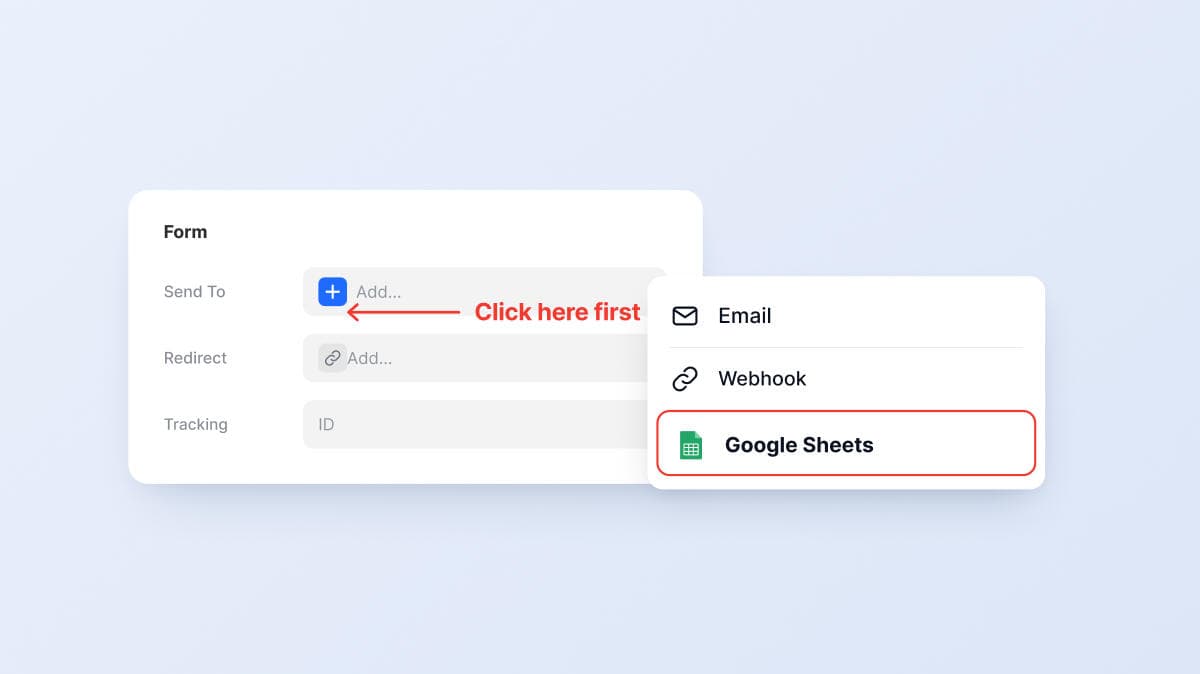
Framer's native form component ships three send destinations in the form inspector: Email, Webhook, and Google Sheets, plus a redirect URL and a tracking ID. Set Send To, pick Google Sheets, every submission lands in your Sheet automatically.
Forms Plugin extends Framer's native form. It does not replace it. When you drop a Forms Plugin field onto a Framer form (file upload, e-signature, voice recording, multi-step page, conditional-logic block, country selector), the form is still a Framer-native form underneath. The Send To, Google Sheets toggle keeps sending. Every field, native and Forms Plugin alike, lands in your Sheet.
That is the whole mental model:
No webhook to set up. No Apps Script. No connector to install.
How do you wire a Framer form to Google Sheets?
Three steps, start to finish. The whole sequence takes under five minutes if you already have a Framer site published. You never leave Framer, the destination Sheet is created from the inspector.
Step 1: build your form on the Framer canvas
If your form only needs basic fields (text, email, textarea, dropdown, radio, checkbox), use Framer's built-in form blocks. Drop the Form component, add the fields, done.
If your form needs anything richer, install Forms Plugin from the Framer plugin browser. Forms Plugin adds 30+ field types to the same Framer form:
- File upload, with supported file types including PDF, DOCX, ZIP, image, audio, and video
- Multi-step pages with progress bars
- Conditional logic, show or hide fields based on other answers
- Field-level validation, regex, length, required toggles
- International phone, country selector, NPS, rating, color picker
- E-signature, voice recording
- Five CAPTCHA options
You can mix native Framer fields and Forms Plugin fields on the same form. Underneath, Framer treats it as one form with one submission.
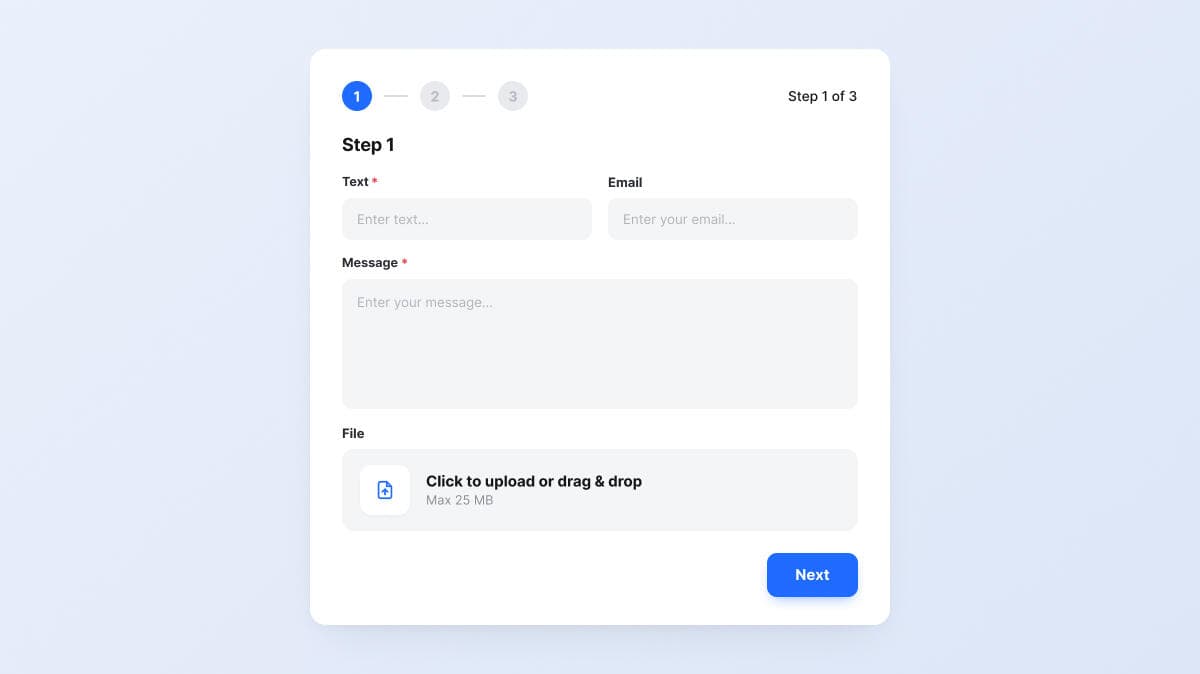
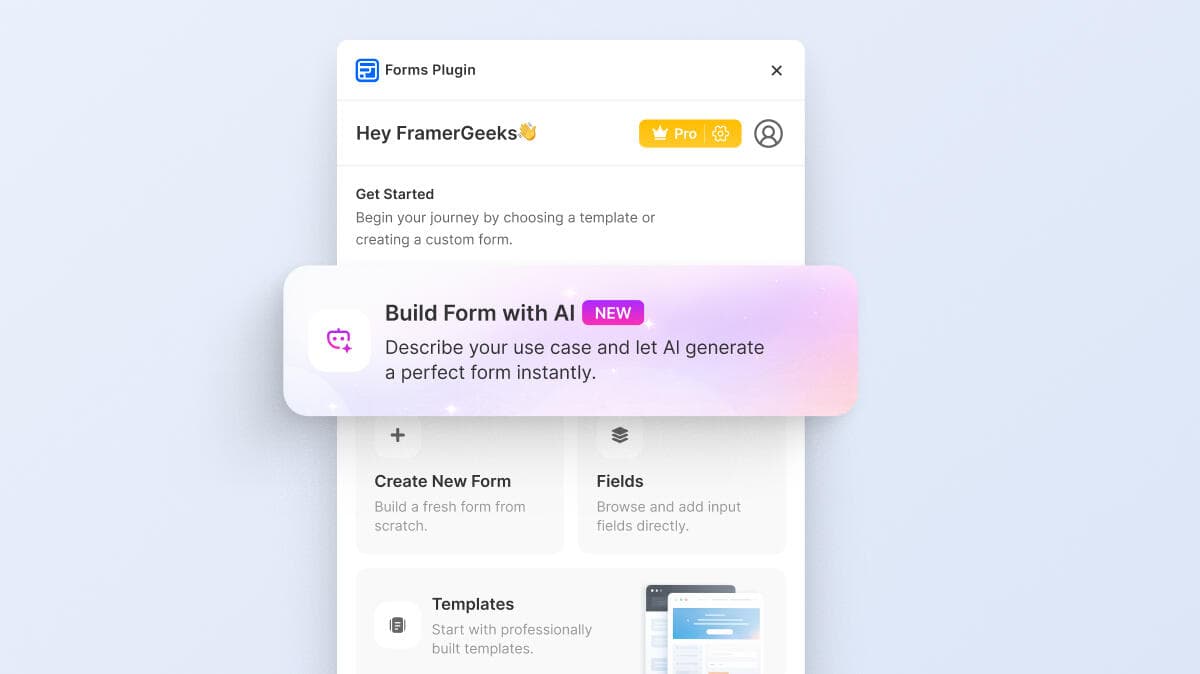
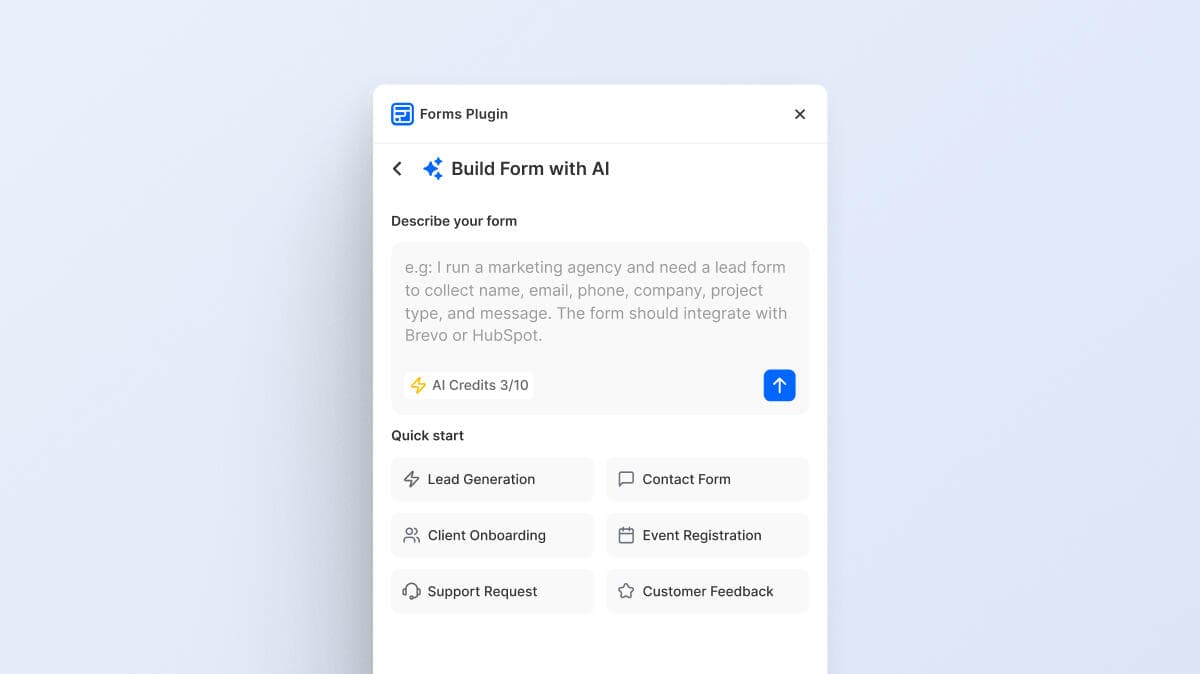
The fastest way to start: open Forms Plugin, click Build Form with AI, type a description like "lead capture form with name, work email, company, message, resume upload". The AI generates the full structure in seconds, and you adjust from there.
Step 2: connect Send To, Google Sheets
- Click your form on the Framer canvas
- In the right-hand inspector, find
Send Toat the top of the Form section - Click
+and choose Google Sheets
- First time only: authorize Framer with the Google account that should own the Sheet. Once approved, every other Framer form in the same project picks the same account from a dropdown without re-prompting.
- Name the destination Sheet (for example,
Framer form dataorLead capture, October 2026) - Framer creates the Sheet automatically in that account's Drive. Click the link in the inspector any time to open it.

You do not visit sheets.google.com and you do not pre-add a header row. Framer writes the header row on the first submission, using the field names from your form. If you pre-add headers and the names do not match exactly, you risk a mismatch.
This works whether the form is pure Framer native or has Forms Plugin advanced fields attached. The Send To wiring is at the form level, not the field level.
Step 3: publish and test
- Publish your Framer site
- Open the published page in a clean browser tab
- Submit the form once with test data, including any file uploads or advanced fields you wired up
- Open the destination Sheet from the link in the inspector. On the first submission, both the header row and the first data row appear together within a second or two
If the row does not show up, the most common cause is the wrong Google account during authorization. Re-open Send To, re-authorize with the account that owns the Sheet.
What lands in Google Sheets from advanced Forms Plugin fields?
Every Forms Plugin field type maps cleanly to a Sheet column. For file, signature, and audio fields, the column receives a hosted URL that anyone with Sheet access can click to view or download.
| Form field type | Sheet column receives |
|---|---|
| Text, email, textarea | The value |
| Dropdown, radio, checkbox | The selected value(s) |
| File upload | The hosted file URL (clickable in the Sheet) |
| E-signature | The signature image URL |
| Voice recording | The audio file URL |
| Multi-step pages | All fields across all steps in one row, submitted once at the end |
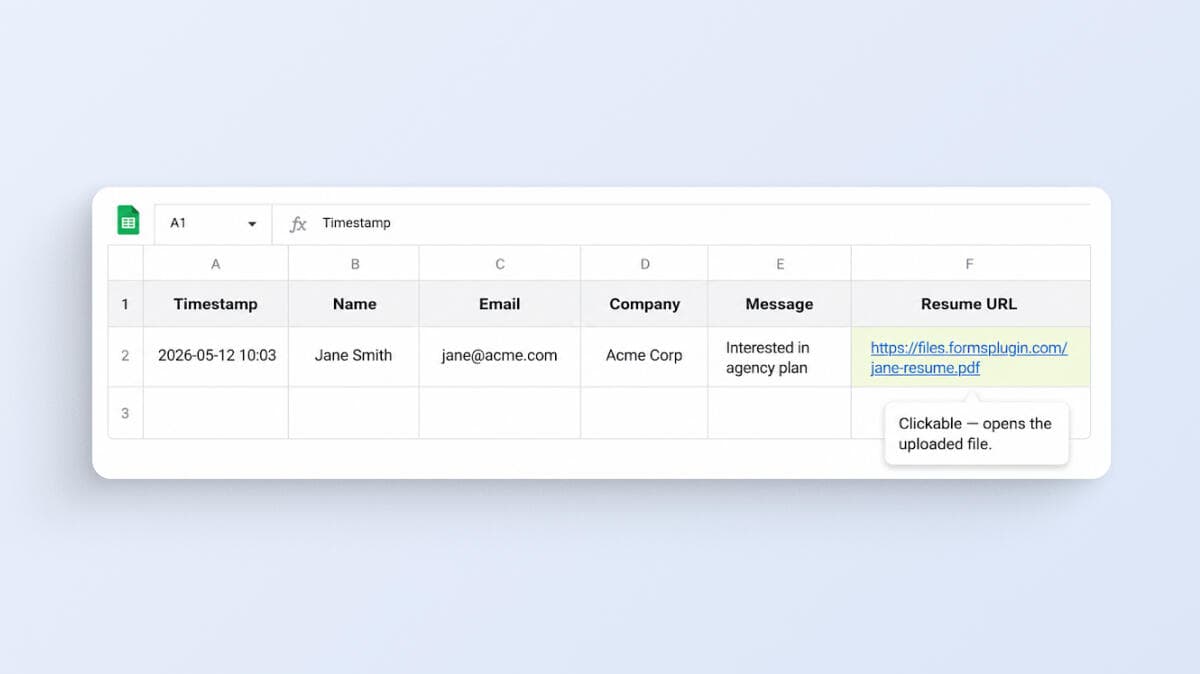
Forms Plugin hosts the file assets on its own storage and passes the URL through the submission. The Sheet sees only the link. If you delete a submission row in the Sheet later, the underlying file stays on Forms Plugin storage until you delete it from the plugin's submissions panel.
Can you run a CRM and Google Sheets at the same time?
Yes, and most lead-gen setups should. Configure your CRM under Forms Plugin's Integrations panel (for example, HubSpot, Mailchimp, Klaviyo, Brevo, ConvertKit). Keep Framer's Send To, Google Sheets wired in parallel. Both fire on every submission.
The CRM gets the lead with whatever fields your sales team needs to act. The Sheet gets the raw data row, including fields that never reach the CRM (file uploads, voice notes, internal tracking columns, the multi-step submission timestamp). The two run in parallel and do not block each other, if one fails the other still goes through.
This pattern is useful when sales lives in the CRM but marketing or analytics wants a row-level view in a Sheet. It is also useful when a client owns the Sheet and your team owns the CRM. The data fans out on its own.
Common pitfalls
A few issues come up often enough to call out.
The row does not appear. Nine times out of ten this is the wrong Google account during authorization. Re-open the Send To flow and re-authorize with the account that owns the Sheet. The second most common cause is the Sheet living in a Shared Drive where the authorizing account has read-only access, fix the share permissions and re-test.
File URLs and Google Drive cleanup. File-upload URLs in the Sheet point to Forms Plugin's hosted storage, not Google Drive. They do not expire on the 30-day Drive trash rotation. If you ever export the Sheet to a different system, the URLs keep resolving as long as the underlying file stays in Forms Plugin storage.
Authorization scope. Framer requests the minimum Google scope to write to the specific Sheet you pick. If your IT policy blocks third-party Sheet writes, a Google Workspace admin needs to allow the app first.
When would you need Zapier or Make?
Most teams do not. The native path covers Sheet plus CRM, file uploads, multi-step, conditional logic, and validation. Zapier or Make is worth $20+ a month only when you need to:
- Fan out to a destination Framer cannot reach natively (Slack DMs, Notion, Airtable, Discord, Telegram)
- Transform the data mid-flight (parse a field, look up a value in another system, conditionally route based on a Sheet lookup)
- Give a non-technical teammate a UI to modify routing without touching Framer or Forms Plugin
For everything else, the native path is faster, free, and has fewer moving parts to debug at 11pm the night before a launch.
Wrap-up
One path. Free. Native.
- Simple form, only Framer native fields: build it in Framer, set
Send To, Google Sheets, publish. - Form needs file upload, multi-step, conditional logic, e-signature, or CRM dual-routing: build it with Forms Plugin on top of Framer's form, set
Send To, Google Sheets, publish.
Same toggle, same destination. Every field lands in the Sheet.
New to Framer forms? The practical guide to Framer forms covers native limits, plugin options, and when to reach for each one.
Starting from scratch with Forms Plugin:
- Get Forms Plugin from the Framer marketplace
- Build your form with the AI generator or pick a template
- Wire
Send To, Google Sheetsin Framer's inspector - Done
Common questions
Does Framer have a built-in Google Sheets connector?
Yes. Framer's native form component ships three send destinations in the inspector: Email, Webhook, and Google Sheets, plus a redirect URL and a tracking ID. The Sheets connector is free and works without any plugin.
Does Forms Plugin need its own Google Sheets connector?
No. Forms Plugin extends Framer's native form, so Framer's Send To, Google Sheets toggle already routes Forms Plugin's submissions, including advanced fields, into your Sheet. You only set the destination once, at the form level.
What lands in the Sheet for a file upload field?
A hosted file URL. Forms Plugin stores the file (the supported file types cover the common cases) and passes the URL through the submission. Framer writes the URL into the Sheet column. Click the URL to view or download.
Does this work with multi-step forms?
Yes. Forms Plugin's multi-step pages submit a single payload at the end of the flow. Framer's Sheets destination writes all fields across all steps into one row. For patterns on structuring steps effectively, see multi-step form design patterns for Framer.
Can I send the same submission to a CRM and a Google Sheet at the same time?
Yes. Configure your CRM under Forms Plugin's Integrations panel, keep Framer's Send To, Google Sheets wired. Both fire on every submission, in parallel.
What about e-signature or voice recording fields?
Same pattern as file uploads. Forms Plugin hosts the asset and passes the URL through. The Sheet column receives a clickable URL.
Do I need to write any code?
No. Everything is wired in Framer's inspector and Forms Plugin's panel. No Apps Script, no webhook code, no backend.
What about data residency or GDPR?
The Sheet lives in your Google Workspace, under your account, under your retention policy. Forms Plugin holds file uploads on its hosted storage. For EU-only data residency, audit both pipes before launch and treat Forms Plugin as a processor under your GDPR setup.
Ready to build smarter Framer forms?
Forms Plugin gives you everything covered in this article - natively, inside Framer.
Get Forms Plugin


 Get this Plugin