Key Takeaways
- Audio Upload and Voice Recording are two separate fields. Voice Recording captures live microphone audio in the browser. Audio Upload accepts a pre-existing audio file from the visitor's device.
- Max file size is 25MB, enforced both client-side and server-side, under both storage options — FormsPlugin default and Google Drive.
- Storage is either FormsPlugin's own storage (default) or Google Drive via a self-deployed Google Apps Script web app. It is not a one-click OAuth connection.
- The Uploading text supports a [FileName] token that gets replaced with the actual uploaded filename during upload.
- Available on Pro and Scale plans, not Basic.
Overview
Forms Plugin has two audio-related fields and they solve completely different problems. Voice Recording captures audio live from a visitor's microphone directly in the browser. Audio Upload does something different: it lets a visitor select and submit a pre-existing audio file from their device. If you landed here looking for the live-recording field, the voice recording guide covers that one. This post is specifically about Audio Upload.
The distinction matters because the use cases don't overlap much. Audio Upload is the right field when a visitor already has a finished audio file they need to hand over as part of a form submission — a demo reel, a reference track, a pronunciation sample, an audition file. This covers what the field's settings panel actually controls, where uploaded files get stored, and the real use cases it's built for.
Quick Answer
- Audio Upload and Voice Recording are two separate fields. Voice Recording captures live microphone audio in the browser. Audio Upload accepts a pre-existing audio file from the visitor's device.
- The default Field Name is
audio-upload, the default Label is "Audio", and the default Placeholder is "Click to upload audio file". - Max Size is a hard 25MB cap enforced both client-side and server-side, under both storage options.
- Storage is either FormsPlugin's own storage (default) or Google Drive via a self-deployed Google Apps Script web app. It is not a one-click OAuth connection.
- Available on Pro and Scale plans, not Basic.
What is the Audio Upload field?
It's one of 14 Advanced Fields in Forms Plugin, alongside File Upload, Phone Number, Country, Image Upload, Range Slider, Color Picker, Button Option, Rating, Promoter Score (NPS), E-Signature, Voice Recording, Video Upload, and URL Source Collector. Drop it into a form and it gives visitors a file picker that accepts audio files from their device and attaches the upload to the form submission.
The canvas component badge reads "Audio Upload" with a purple play icon. In the Advanced Fields panel inside the plugin, it appears under the "Advance" tab, and the field panel header reads "Inserting into Audio Upload" when selected. Unlike Voice Recording, there is no browser microphone prompt and no live recording interface — the visitor selects a file they already have.
The core distinction from Voice Recording is worth stating plainly. Voice Recording is a capture tool: it records in real time, and it has its own Record Settings sub-panel governing duration, output format, and recording-state label strings. Audio Upload is a submission tool: it accepts a file the visitor brings to the form. Different panel structures, different defaults, different use cases. A form asking for a live voice note uses Voice Recording. A form asking for a submitted demo track, a podcast sample, or a reference audio file uses Audio Upload.
What do the core settings control?
Field Name is the unique identifier that appears in your submitted form data, defaulting to audio-upload. This is the name that shows up in your CRM field mapping, your email notification, or your webhook payload, so rename it if the default clashes with another field or your integration expects a different key.
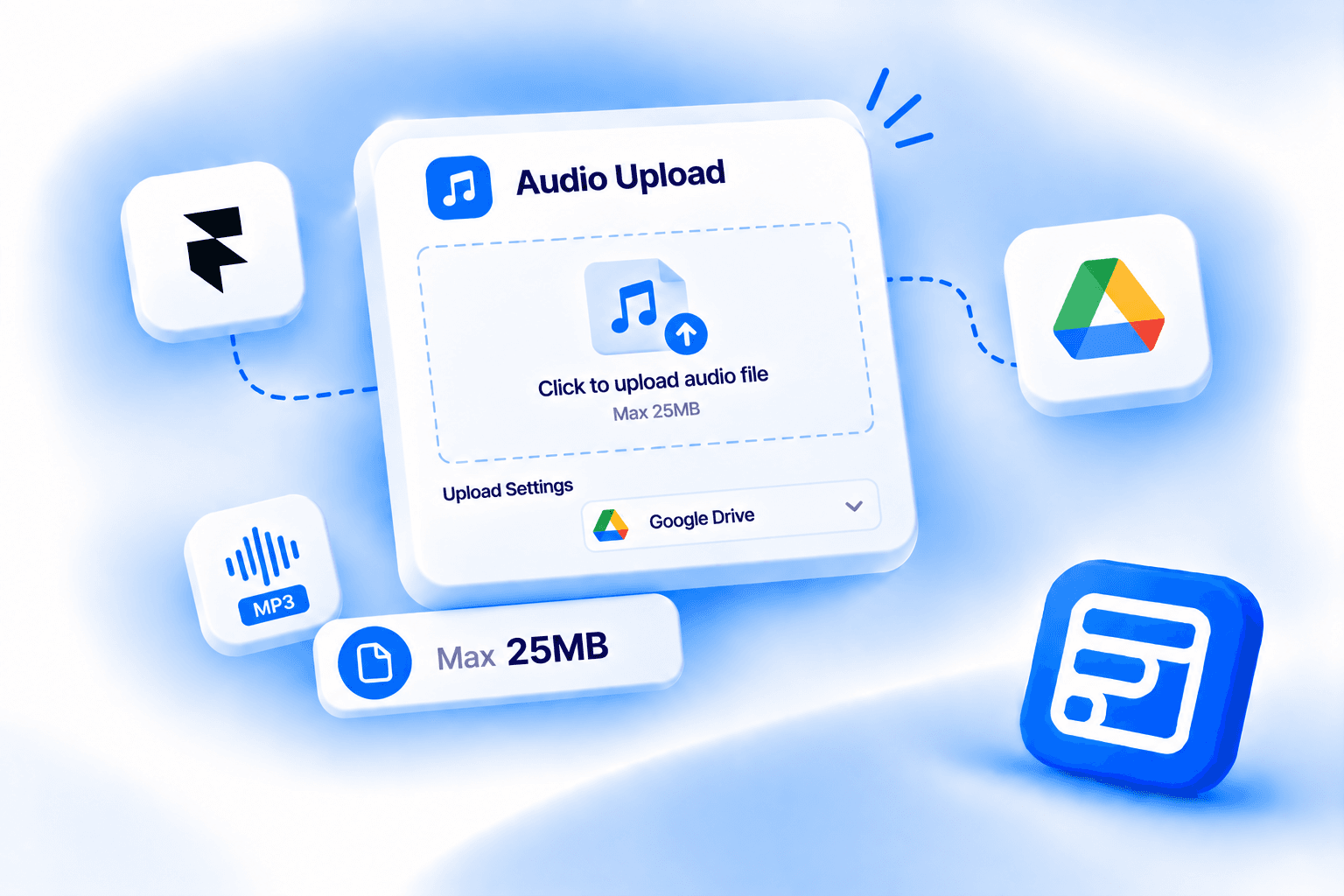
Label Name defaults to "Audio" and Placeholder defaults to "Click to upload audio file" — both the visible text a visitor sees on the form itself. Sub Text uses a template string, "Max {max} MB", where {max} gets replaced dynamically with whatever you set as the Max Size in the Upload Settings panel. That way the helper text stays accurate automatically if you change the size limit later, without needing to manually update the Sub Text string.
Required is a Yes/No toggle, defaulting to No. The Validation sub-panel adds two custom error message fields. Required Error lets you write a custom message for when a visitor tries to submit without uploading, and it supports {label} and {name} placeholders so the error can reference the field's own label or name without hardcoding them. Max Size Error does the same for the file size limit, and it additionally supports a {max} placeholder that inserts the configured size ceiling directly into the error message.
What does the Upload Settings panel control?
Upload Settings is a dedicated sub-panel with four controls: Max Size, an uploading state label, a spinner toggle, and the storage destination.
Max Size is a slider control, set to 25MB by default. This is a hard cap enforced both client-side and server-side, meaning the browser validates the file size before the upload begins and the server validates again on receipt. A file over the limit is rejected at both points. Note this is a separate limit from the File Upload field's cap, which sits at 50MB. Audio Upload and File Upload are different fields with their own independent limits, so don't assume the File Upload ceiling applies here.
The uploading state label defaults to "Uploading [FileName]...", where [FileName] is a token that gets replaced with the actual filename of the file being uploaded during the upload process. This gives visitors real-time feedback showing which specific file is in progress, rather than a generic uploading message. Show Spinner is a Yes/No toggle (defaulting to Yes) that controls whether a spinner appears during the upload.
Storage is a dropdown with two options: "FormsPlugin (default)" and "Google Drive." Selecting Google Drive reveals additional fields covered in the next section.
Where does the uploaded audio file get stored?
Storage is the part of the Audio Upload field that requires the most setup work, depending on which option you choose.
FormsPlugin default storage means Forms Plugin handles file hosting on its end. There's no additional configuration required to start receiving uploads — the storage just works once the field is in place. Files are stored and accessible via a URL that shows up in your form submission data.
Google Drive storage is meaningfully different and worth understanding before you expect it to work like OAuth. The Apps Script URL field requires you to deploy your own Google Apps Script web app and paste the resulting /exec endpoint URL into the field settings. This is a self-hosted routing mechanism: when a visitor submits an audio file, Forms Plugin sends it through your Apps Script deployment to your Google Drive, rather than routing it through a standard OAuth-connected account. The helper text in the panel reads: "Deploy the Apps Script template, then paste the /exec URL" with a link to the setup guide. It is not a one-click connection.
Two additional options appear once Google Drive is selected. Link Type has two choices: "Downloadable" returns a direct file URL that downloads the file when opened, and "Preview only" returns a Drive preview page URL that opens the file inside Google Drive without downloading it. The Customize toggle (defaulting to Off) is described as "Reveal advanced folder controls: name override, per-field subfolder, date/time stamp" — turning it on exposes additional controls for organizing how files land inside your Drive folder.
This same Apps Script mechanism applies across all upload-type Advanced Fields in Forms Plugin, including File Upload, Image Upload, Video Upload, and Voice Recording. If you've already deployed the Apps Script web app for one of those fields, the Audio Upload field reuses the same setup — you don't need a separate deployment for each field type.
Can you style it and add conditional logic?
Yes to both, and neither is specific to this field. The styling system is the same across every Forms Plugin field, and every property listed below is editable directly on the canvas.
Label Style controls whether the label is shown or hidden, the required indicator character, the label font, and the label color (defaults to 888888). Layout controls direction (Vertical or Horizontal) and gap (defaults to 8px). Input Style covers font, text color, sub text color, background color, padding, border, corner radius, and shadow — all editable, with defaults of 333333, 999999, BBBBBB, 12/15/12/12 padding, solid border, radius 10. Icon lets you toggle the icon on or off, swap it for a custom uploaded icon, and change its color, size, background, and border independently. Clear Button can be shown or hidden, with its own icon, color, size, background, and radius all editable. Focus Style lets you set the focused-state border color and shadow. Error Style controls the error-state text color and font.
Conditions work identically to every other Forms Plugin field: the five actions (Show/Hide, Required, Read-Only, Disable, Value Reset) combine with AND/OR logic. The available operators include Is Empty, Is Not Empty, Contains, Not Contains, Exact Match (Case Sensitive), Match (Case Insensitive), Starts With, Ends With, Length Greater Than, Length Less Than, and Regex. Full details are on the conditional logic feature page.
What are the real use cases for an audio upload field in a form?
The right use cases are situations where a visitor has a finished audio file to submit as part of an application, intake, or content workflow — not situations calling for live capture, which is what Voice Recording is for.
Music and audio submissions. Musician inquiry forms, demo reel intake for labels or sync agencies, audition submissions for voice acting or podcast roles. A visitor uploads an MP3 or WAV they recorded and edited on their own before reaching the form.
Podcast guest intake. A podcast that requires audio quality checks before booking guests can add an Audio Upload field to its guest application form, asking applicants to submit a 60-second sample recorded in their typical setup. Easier than back-and-forth file sharing over email.
Language learning and pronunciation assessment. Platforms that assess spoken language can collect pronunciation samples or reading exercises as audio file submissions rather than asking users to record directly in a browser session, which can be less reliable across devices.
Creative agency briefs and sound direction. A design or video agency intake form that asks clients to submit reference tracks, music direction examples, or existing brand audio as part of the project brief. Collects richer context upfront instead of chasing it in a follow-up email.
Voiceover and audio portfolio submissions. Talent platforms, creative marketplaces, or agencies collecting voiceover demos or audio portfolio samples. An Audio Upload field inside an application form keeps the submission self-contained rather than requiring a separate file transfer.
Content creator platforms. Platforms onboarding creators who need to submit audio samples as part of a profile or application flow, separate from any live recording requirement.
The through-line across all of these: the visitor already has the file. They're submitting something they made or recorded elsewhere, not capturing something in real time. That's the case Audio Upload is designed for.
What plan do you need?
Pro or Scale. Audio Upload is not included on the free Basic plan. Current pricing is one-time and lifetime — check that page for the current figures before making a decision. Both Pro and Scale include the field, so the choice between them comes down to how many sites you're running and whether you need the commercial license for client work, not whether you get Audio Upload at all. The features page has the full Advanced Fields list if you want to see everything included alongside it.
Frequently asked questions
What is the difference between Audio Upload and Voice Recording in Forms Plugin?
Voice Recording captures audio live from a visitor's microphone inside the browser, with its own recording interface, duration controls, and MP3/M4A output settings. Audio Upload accepts a pre-existing audio file from the visitor's device, the same way a file input field works. Different field, different panel structure, different use cases. A form asking for a live voice note or real-time feedback uses Voice Recording. A form asking for a submitted demo, sample, or reference track uses Audio Upload.
What audio file formats does the Audio Upload field accept?
The field accepts the following formats: MP3, WAV, OGG, M4A, AAC, WMA, FLAC, MID, MIDI, AIF, and AIFF. This is the explicit allowlist defined in the field's code. Files outside these formats will be rejected.
Is the 25MB limit the same as the File Upload field?
No. Audio Upload has its own hard 25MB cap enforced client-side and server-side under both storage options. File Upload is a separate field with its own separate limit, which sits at 50MB. They're independent fields with independent limits, and one doesn't carry over to the other.
Does Google Drive storage for Audio Upload require a Google account connection?
Not through OAuth. Google Drive storage requires deploying your own Google Apps Script web app and pasting the resulting /exec URL into the Apps Script URL field in the Upload Settings panel. It's a self-hosted routing mechanism. The same setup applies across all upload-type Advanced Fields in Forms Plugin, so if you've already deployed the Apps Script for File Upload or Voice Recording on the same site, that deployment works for Audio Upload as well.
Can I make the audio upload field conditional on another field's answer?
Yes, using the same conditional logic system every other Forms Plugin field uses. The Conditions sub-panel supports Show/Hide, Required, Read-Only, Disable, and Value Reset actions, triggered by AND/OR rules across a full set of operators including Is Empty, Is Not Empty, Contains, Exact Match, and Regex. For example, show the Audio Upload field only if a visitor selects "audio submission" from a service type dropdown earlier in the form. The conditional logic page has the full rule builder details.
Bottom line
Audio Upload and Voice Recording solve different problems and shouldn't be treated as interchangeable. Audio Upload is for forms where a visitor submits a file they already have — a demo, a sample, a reference track. The 25MB cap applies under both storage options, and Google Drive storage means deploying your own Apps Script endpoint rather than clicking through an OAuth flow, the same mechanism as every other upload-type field in Forms Plugin. Available on Pro and Scale, with styling and conditional logic working identically to every other field in the plugin.
Ready to build smarter Framer forms?
Forms Plugin gives you everything covered in this article - natively, inside Framer.
Get Forms Plugin

 Get this Plugin