> ## Documentation Index
> Fetch the complete documentation index at: https://formsplugin.com/docs/llms.txt
> Use this file to discover all available pages before exploring further.
# ActiveCampaign
> Connect ActiveCampaign with Framer Forms using the Forms Plugin to automatically add form submissions to your ActiveCampaign contacts.
# Connect ActiveCampaign with Framer Forms
Capture leads from your Framer forms and automatically add them to your ActiveCampaign contacts using the Forms Plugin.
***
## Step 1 - Get Your ActiveCampaign API Key and Account URL
Before connecting ActiveCampaign to your form, get your API key and account URL from your ActiveCampaign account. These allow the Forms Plugin to securely send form submissions to ActiveCampaign.
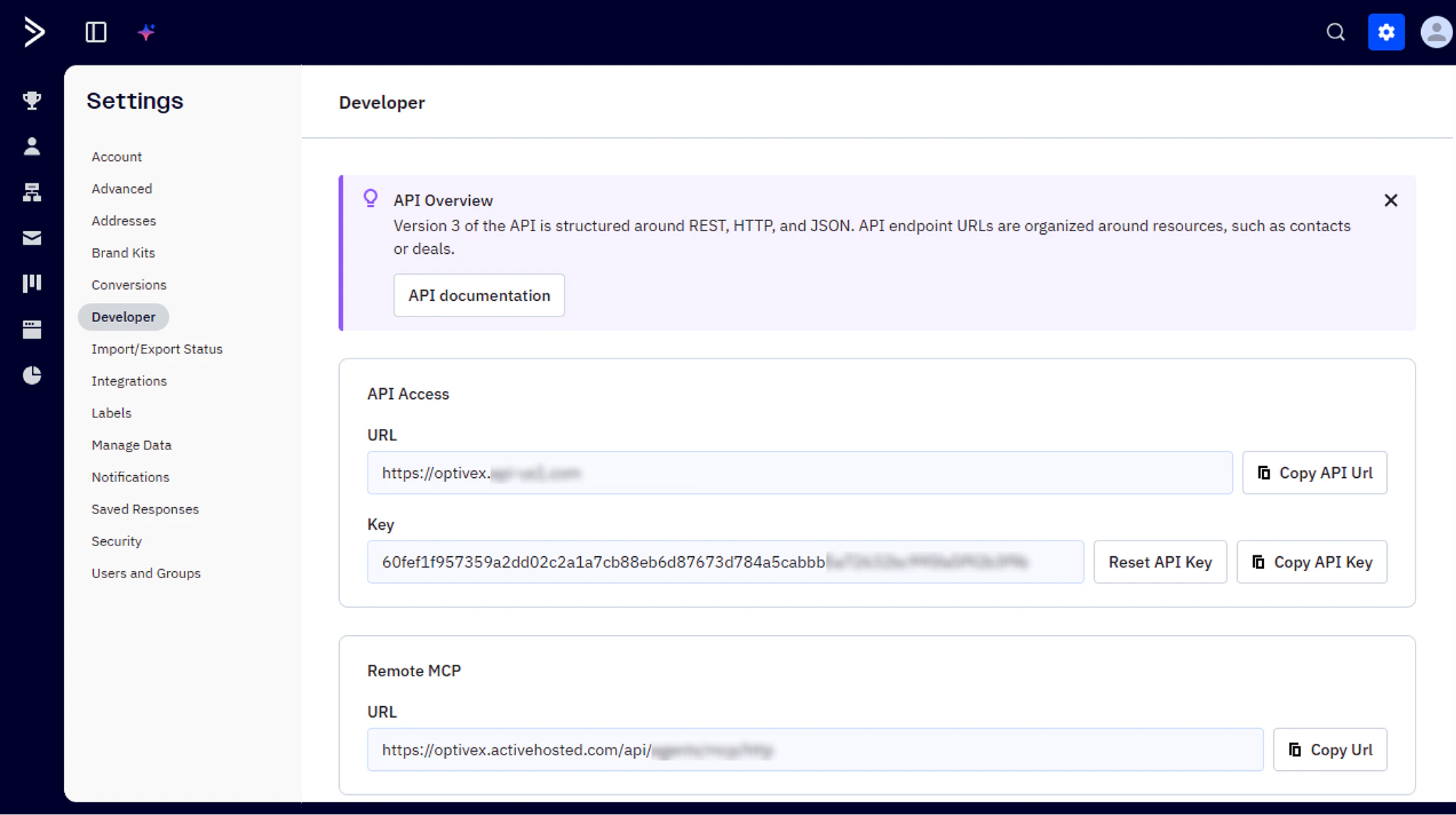 1. Login to your ActiveCampaign account
2. Navigate to **Settings** → **Developer**
3. Copy your **API Key** and **Account URL**
Keep your API key in a secure password manager. Never share it publicly or commit it to a code repository.
***
## Step 2 - Insert ActiveCampaign Component Into Your Form
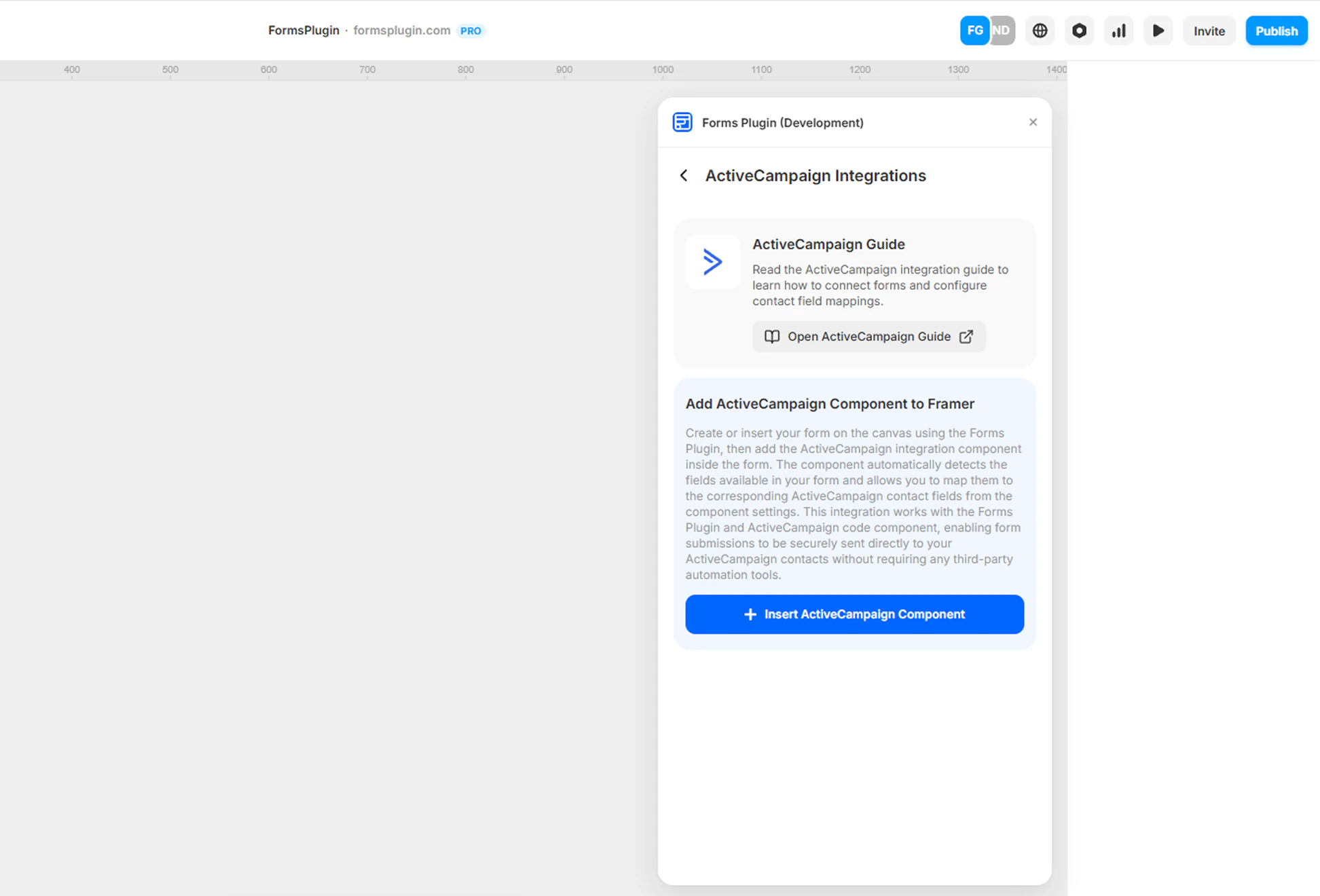
Select your form in the Framer canvas and insert the ActiveCampaign component.
The component connects your form to ActiveCampaign and automatically detects the form fields in your form layout.
1. Login to your ActiveCampaign account
2. Navigate to **Settings** → **Developer**
3. Copy your **API Key** and **Account URL**
Keep your API key in a secure password manager. Never share it publicly or commit it to a code repository.
***
## Step 2 - Insert ActiveCampaign Component Into Your Form
Select your form in the Framer canvas and insert the ActiveCampaign component.
The component connects your form to ActiveCampaign and automatically detects the form fields in your form layout.
 ***
## Step 3 - Configure ActiveCampaign API Settings
After inserting the ActiveCampaign component, configure the API settings in the component properties panel.
***
## Step 3 - Configure ActiveCampaign API Settings
After inserting the ActiveCampaign component, configure the API settings in the component properties panel.
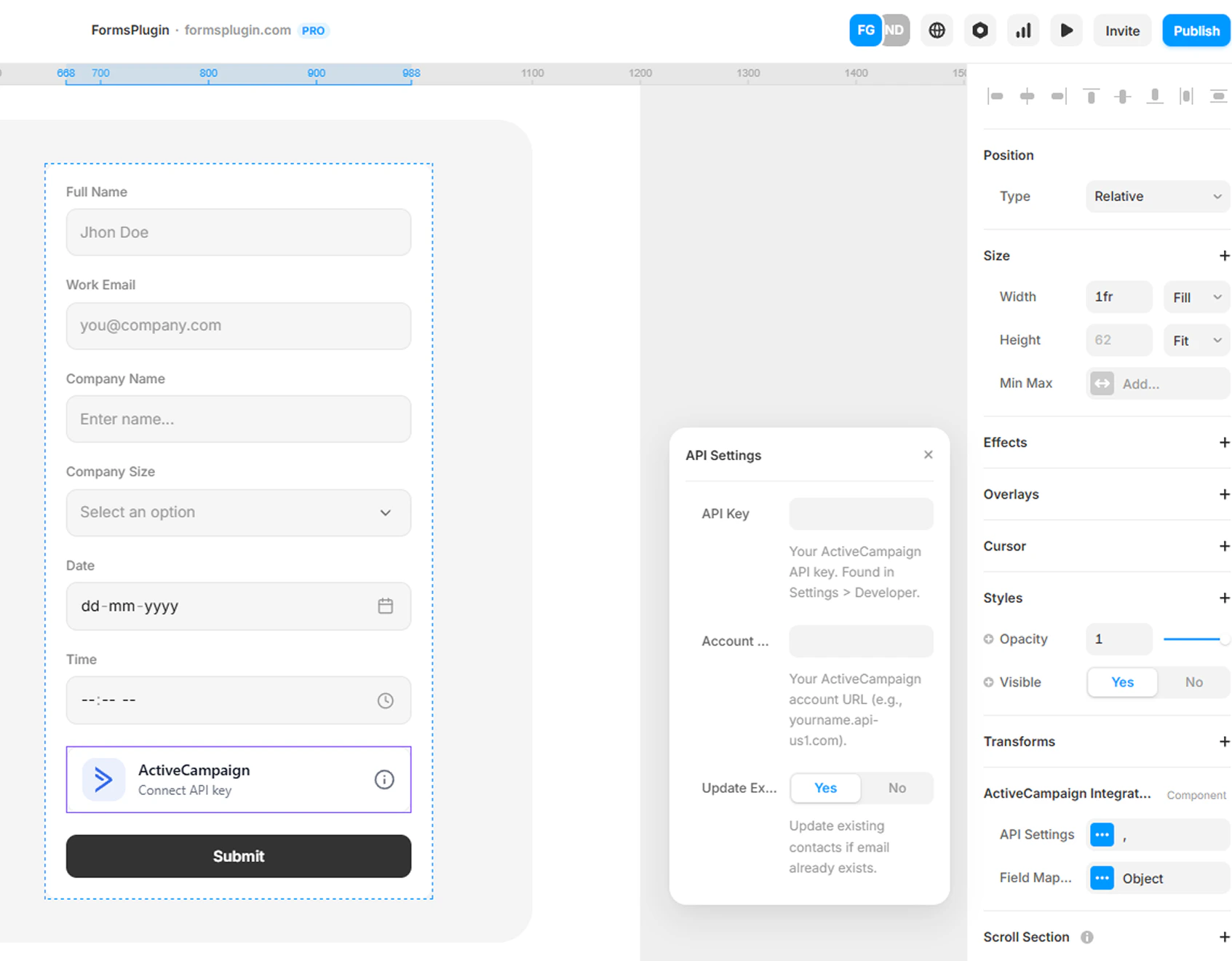 1. Select the **ActiveCampaign Integration** component in your form
2. Open the properties panel on the right side
3. Paste your **ActiveCampaign API Key**
4. Enter your **Account URL**
### Required Fields
* **API Key** - Paste the API key from your ActiveCampaign account.
* **Account URL** - Enter your ActiveCampaign account URL (e.g., `https://youraccountname.activehosted.com`).
***
## Step 4 - Configure Lists (Optional)
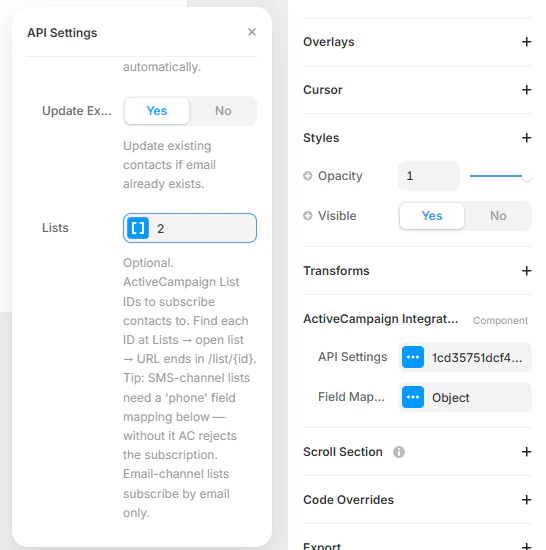
The **Lists** field lets you automatically subscribe new contacts to one or more ActiveCampaign lists when the form is submitted. This is useful for organizing contacts by channel (Email or SMS), campaign source, or audience segment.
1. Open the **API Settings** modal on the ActiveCampaign component
2. Scroll to the **Lists** field
3. Click the field and enter one or more **List IDs**
4. Save the component
### How to Find Your List ID
Each ActiveCampaign list has a numeric ID that you can grab from the URL.
1. Login to your ActiveCampaign account
2. Open **Contacts → Lists**
3. Click the list you want to subscribe contacts to (or open its contacts view)
4. Look at the URL in your browser. The list ID will appear in the URL as `/list/{id}` or as the `listid={id}` query parameter (for example, `?listid=2`). The number is the **List ID**.
1. Select the **ActiveCampaign Integration** component in your form
2. Open the properties panel on the right side
3. Paste your **ActiveCampaign API Key**
4. Enter your **Account URL**
### Required Fields
* **API Key** - Paste the API key from your ActiveCampaign account.
* **Account URL** - Enter your ActiveCampaign account URL (e.g., `https://youraccountname.activehosted.com`).
***
## Step 4 - Configure Lists (Optional)
The **Lists** field lets you automatically subscribe new contacts to one or more ActiveCampaign lists when the form is submitted. This is useful for organizing contacts by channel (Email or SMS), campaign source, or audience segment.
1. Open the **API Settings** modal on the ActiveCampaign component
2. Scroll to the **Lists** field
3. Click the field and enter one or more **List IDs**
4. Save the component
### How to Find Your List ID
Each ActiveCampaign list has a numeric ID that you can grab from the URL.
1. Login to your ActiveCampaign account
2. Open **Contacts → Lists**
3. Click the list you want to subscribe contacts to (or open its contacts view)
4. Look at the URL in your browser. The list ID will appear in the URL as `/list/{id}` or as the `listid={id}` query parameter (for example, `?listid=2`). The number is the **List ID**.
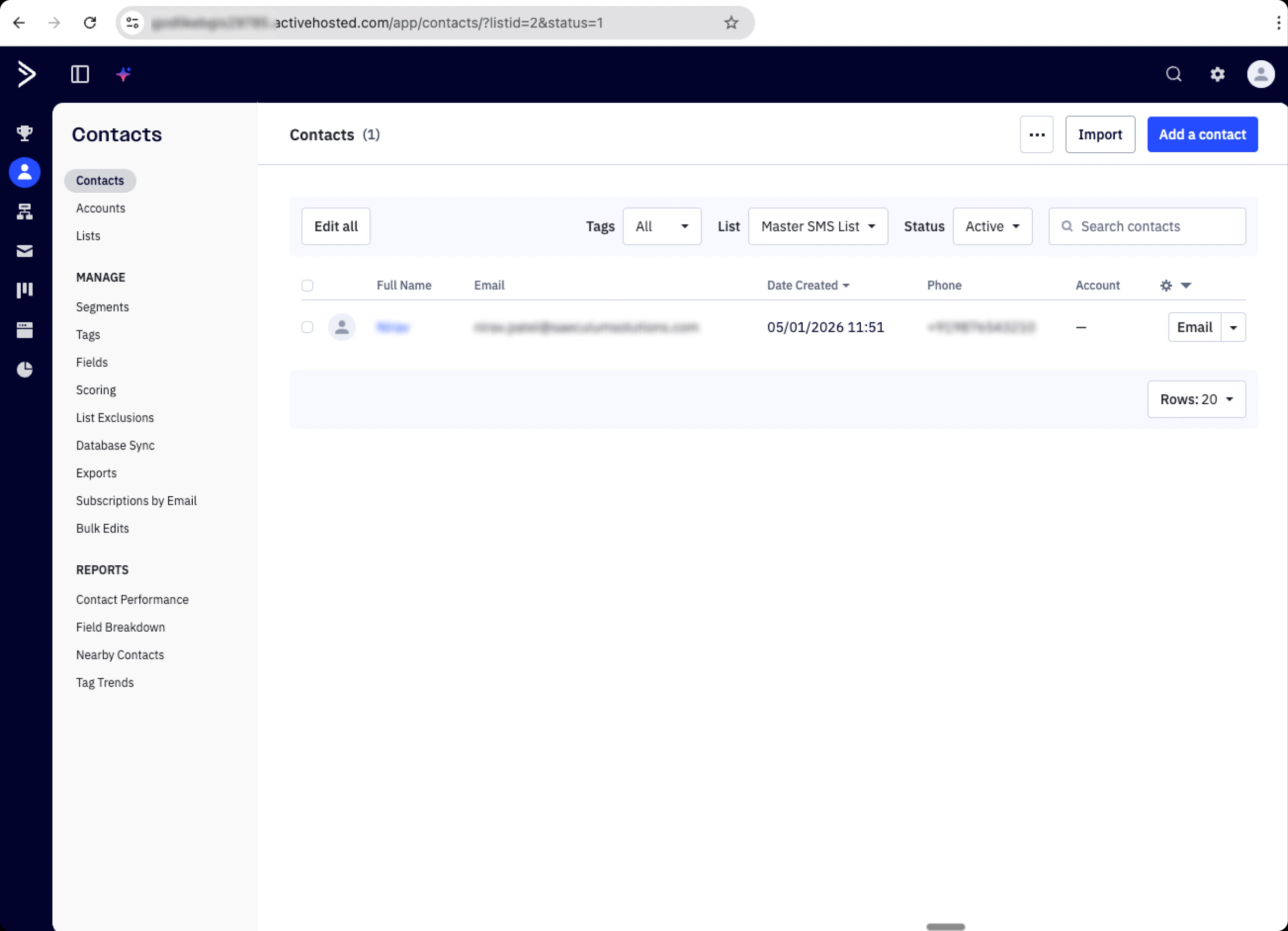 You can also see all your lists and their channels (Email or SMS) on the **Contacts → Lists** page:
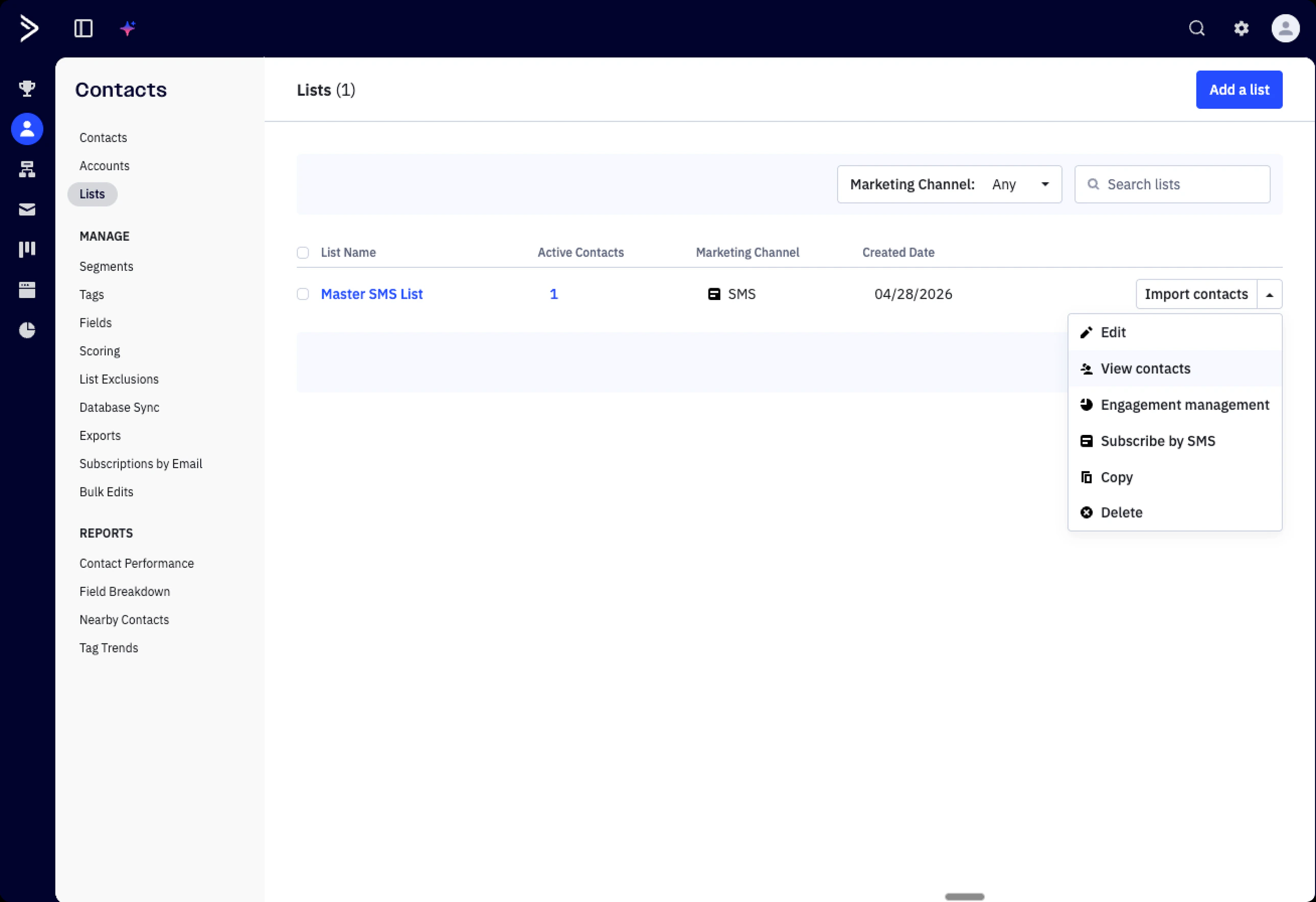 You can find or create lists at **Contacts → Lists → Add a list** in the ActiveCampaign sidebar. Each list has its own marketing channel (Email or SMS) which determines how the contact is subscribed.
### SMS-Channel Lists
If a list is set up as an **SMS** marketing channel, ActiveCampaign requires a phone number for the subscription. The form must include a `phone` field that is mapped in **Step 5 - Configure Field Mapping** below. Without the phone mapping, ActiveCampaign will reject the subscription and the contact will not be added to the SMS list.
### Email-Channel Lists
**Email** lists subscribe contacts using their email address only. As long as your form has an email field mapped, the contact will be added without any extra setup.
***
## Step 5 - Configure Field Mapping
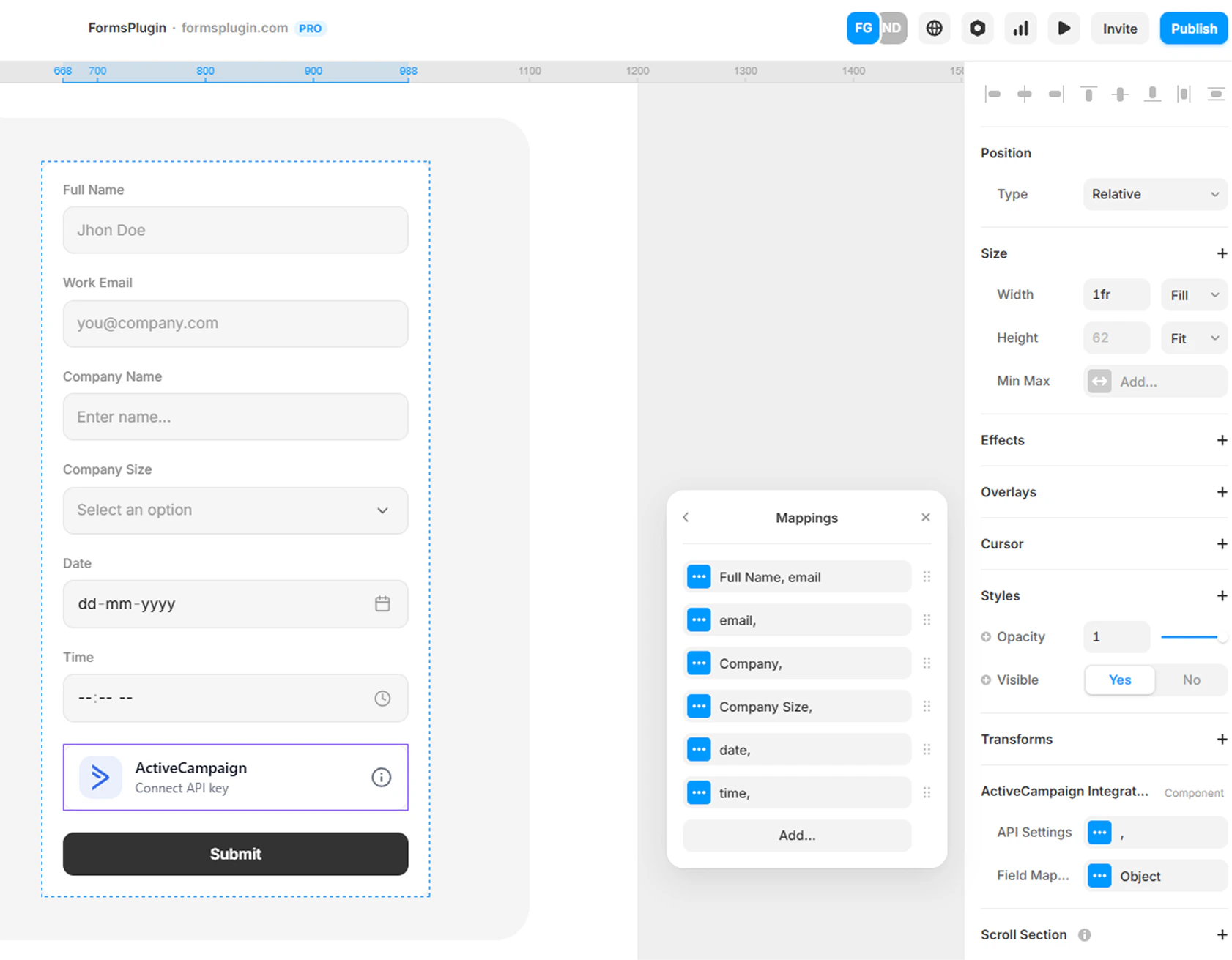
Map your form fields to ActiveCampaign contact properties.
The component automatically detects your form field names. You simply connect each field to the correct ActiveCampaign property.
You can find or create lists at **Contacts → Lists → Add a list** in the ActiveCampaign sidebar. Each list has its own marketing channel (Email or SMS) which determines how the contact is subscribed.
### SMS-Channel Lists
If a list is set up as an **SMS** marketing channel, ActiveCampaign requires a phone number for the subscription. The form must include a `phone` field that is mapped in **Step 5 - Configure Field Mapping** below. Without the phone mapping, ActiveCampaign will reject the subscription and the contact will not be added to the SMS list.
### Email-Channel Lists
**Email** lists subscribe contacts using their email address only. As long as your form has an email field mapped, the contact will be added without any extra setup.
***
## Step 5 - Configure Field Mapping
Map your form fields to ActiveCampaign contact properties.
The component automatically detects your form field names. You simply connect each field to the correct ActiveCampaign property.
 ### Example Mapping
| Form Field | ActiveCampaign Property |
| ---------- | ----------------------- |
| email | email |
| firstname | firstName |
| lastname | lastName |
| phone | phone |
If you're subscribing contacts to an **SMS** list (see Step 4), make sure the `phone` mapping is present. Otherwise the subscription request will be rejected by ActiveCampaign.
***
## Step 6 - Result
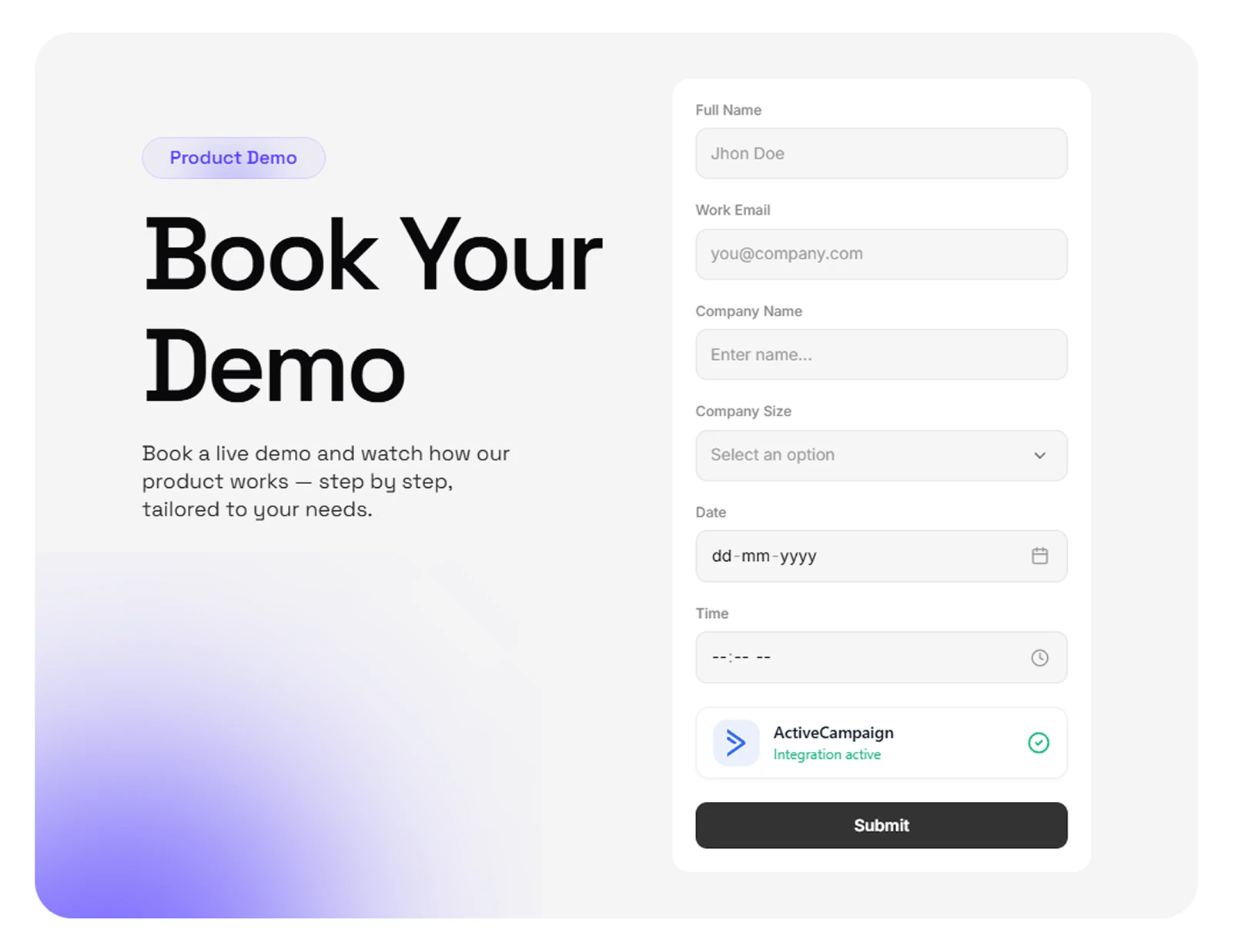
When a user submits the form, their details will automatically be added as a contact in ActiveCampaign and subscribed to any List IDs you configured. You can verify new contacts in your **Contacts → Lists** view by opening the relevant list.
### Example Mapping
| Form Field | ActiveCampaign Property |
| ---------- | ----------------------- |
| email | email |
| firstname | firstName |
| lastname | lastName |
| phone | phone |
If you're subscribing contacts to an **SMS** list (see Step 4), make sure the `phone` mapping is present. Otherwise the subscription request will be rejected by ActiveCampaign.
***
## Step 6 - Result
When a user submits the form, their details will automatically be added as a contact in ActiveCampaign and subscribed to any List IDs you configured. You can verify new contacts in your **Contacts → Lists** view by opening the relevant list.
 ## Next Steps
* [Integrations Overview](/integrations/overview)
* [Contact Support](https://go.formsplugin.com/contact) if you need help
## Next Steps
* [Integrations Overview](/integrations/overview)
* [Contact Support](https://go.formsplugin.com/contact) if you need help