> ## Documentation Index
> Fetch the complete documentation index at: https://formsplugin.com/docs/llms.txt
> Use this file to discover all available pages before exploring further.
# Quick Start
> Create your first form with Forms Plugin in just a few steps.
# Quick Start
This guide walks you through creating your first form with Forms Plugin. By the end, you'll have a working form component placed on your Framer canvas, ready to customize.
## The Home Screen
When you open Forms Plugin, you land on the **home screen**. This is your starting point for everything in the plugin.
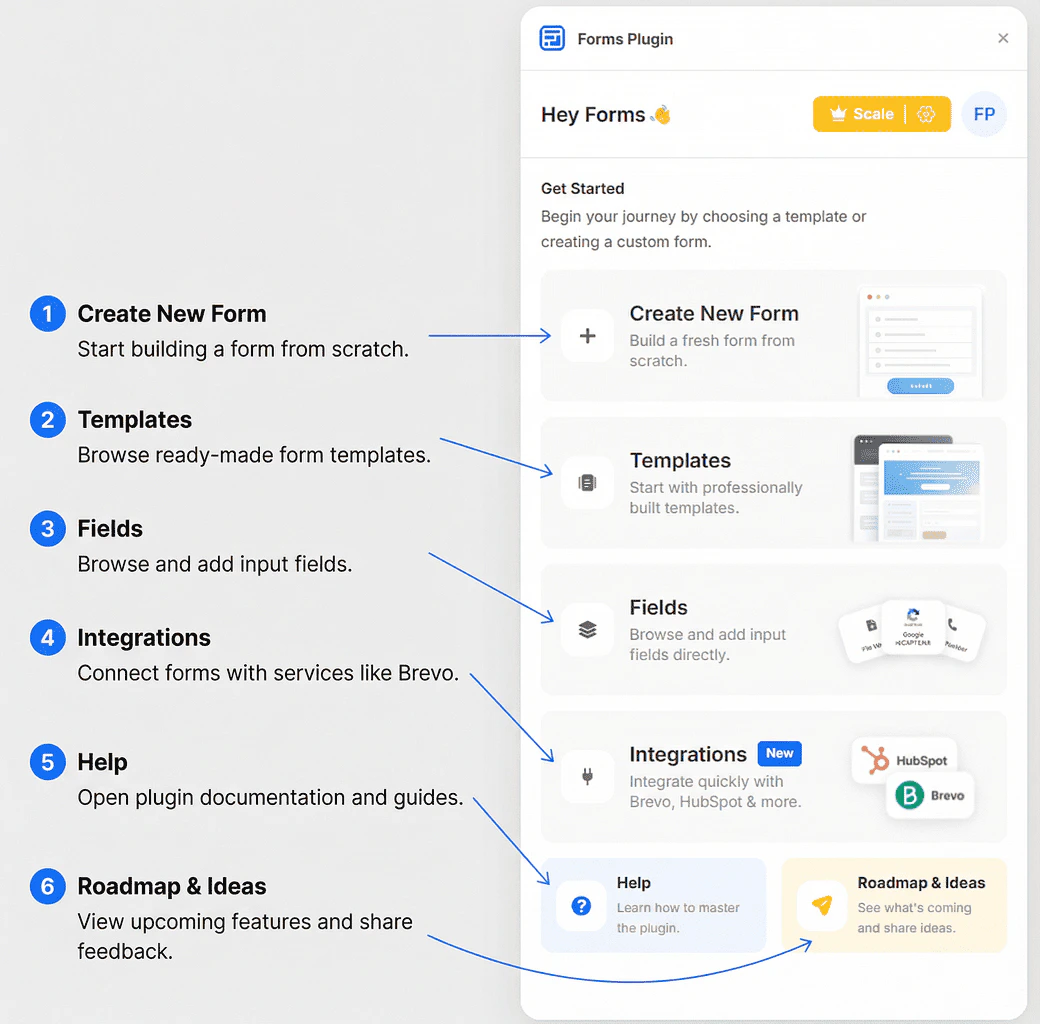 The **Get Started** section contains six actions:
| Action | What it does |
| ------------------- | ----------------------------------------- |
| **Create New Form** | Build a form from scratch |
| **Templates** | Browse the form template library |
| **Fields** | Explore available field types |
| **Integrations** | Connect to third-party tools |
| **Help** | Access documentation and support |
| **Roadmap & Ideas** | View upcoming features and share feedback |
## Option A: Create a Form from Scratch
1. On the home screen, click **Create New Form**
2. A `single-step-form` component is inserted directly onto your Framer canvas
3. The form is now selected in the canvas - you can resize and reposition it like any other Framer element
4. Use the **Fields** section in the plugin to browse and add field types to your form
Start with a blank form when you need full control over every field and layout. This is the best option for custom designs.
## Option B: Start from a Template
Templates let you skip the setup and launch with a professionally designed form:
1. On the home screen, click **Templates**
2. Browse the form template library - use the search bar to filter by name
3. Click a template card to see a preview
4. Click **Insert Template** to add it directly to your canvas
Some templates are marked with a **Pro** or **Scale** badge, which means they require a paid plan to insert. See [Plans & Pricing](/plans/overview) for details.
## Add Fields to Your Form
Once a form is on the canvas:
1. Click **Fields** on the home screen (or from the plugin navigation)
2. Browse the **Basic**, **Advanced**, or **CAPTCHA** tabs
3. Click a field to add it to your form
See [Form Fields](/creating-forms/form-fields) for a full overview of the Fields page.
## Next Steps
* [Learn about all available field types](/field-types/basic-fields)
* [Connect your form to an integration](/integrations/overview)
* [Upgrade your plan to unlock more features](/plans/overview)
The **Get Started** section contains six actions:
| Action | What it does |
| ------------------- | ----------------------------------------- |
| **Create New Form** | Build a form from scratch |
| **Templates** | Browse the form template library |
| **Fields** | Explore available field types |
| **Integrations** | Connect to third-party tools |
| **Help** | Access documentation and support |
| **Roadmap & Ideas** | View upcoming features and share feedback |
## Option A: Create a Form from Scratch
1. On the home screen, click **Create New Form**
2. A `single-step-form` component is inserted directly onto your Framer canvas
3. The form is now selected in the canvas - you can resize and reposition it like any other Framer element
4. Use the **Fields** section in the plugin to browse and add field types to your form
Start with a blank form when you need full control over every field and layout. This is the best option for custom designs.
## Option B: Start from a Template
Templates let you skip the setup and launch with a professionally designed form:
1. On the home screen, click **Templates**
2. Browse the form template library - use the search bar to filter by name
3. Click a template card to see a preview
4. Click **Insert Template** to add it directly to your canvas
Some templates are marked with a **Pro** or **Scale** badge, which means they require a paid plan to insert. See [Plans & Pricing](/plans/overview) for details.
## Add Fields to Your Form
Once a form is on the canvas:
1. Click **Fields** on the home screen (or from the plugin navigation)
2. Browse the **Basic**, **Advanced**, or **CAPTCHA** tabs
3. Click a field to add it to your form
See [Form Fields](/creating-forms/form-fields) for a full overview of the Fields page.
## Next Steps
* [Learn about all available field types](/field-types/basic-fields)
* [Connect your form to an integration](/integrations/overview)
* [Upgrade your plan to unlock more features](/plans/overview)