> ## Documentation Index
> Fetch the complete documentation index at: https://formsplugin.com/docs/llms.txt
> Use this file to discover all available pages before exploring further.
# Using Templates
> Browse the Forms Plugin template library and insert ready-made forms into your Framer project.
# Using Templates
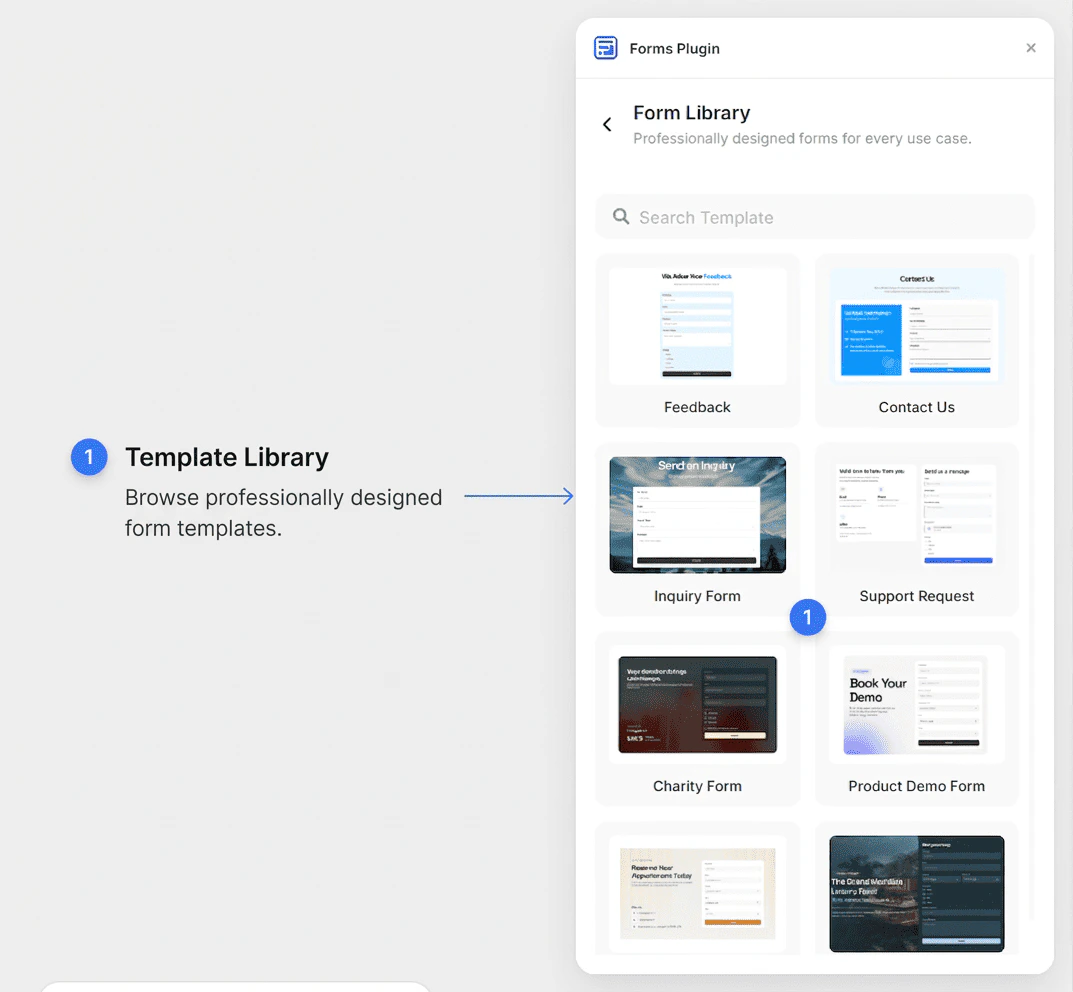
The Forms Plugin **Form Library** gives you a collection of professionally designed, ready-to-use form templates. Instead of building from scratch, you can insert a complete form with pre-configured fields, layout, and styling in a single click.
## Accessing the Template Library
1. Open **Forms Plugin** in Framer
2. On the home screen, click **Templates**
3. The Form Library opens, displaying all available templates
 You must be signed in to browse and insert templates. See [Authentication](/getting-started/authentication) for sign-in instructions.
## Browsing and Searching Templates
The template library displays templates as cards, each showing:
* A **preview thumbnail** of the form (available in light and dark theme variants)
* The **template name**
* A **plan badge** (Pro or Scale) if the template requires a paid plan
Use the **search bar** at the top of the library to filter templates by name. This is useful when you know what type of form you're looking for.
## Available Templates
Forms Plugin includes templates for common use cases, including:
* **Contact Us** - a standard contact form with name, email, and message fields
* **Feedback** - a short form for collecting user feedback and ratings
* **Inquiry Form** - a detailed inquiry form for service-based businesses
* **Support Request** - a structured form for submitting support tickets
* **Product Demo Form** - a lead capture form for scheduling product demos
* **Charity Form** - a donation or participation form for non-profit use cases
* And more - the template library is regularly updated with new designs
New templates are added regularly. Check the library periodically for fresh options that match your project.
## Previewing a Template
To preview a template before inserting it:
1. Hover over a template card in the library
2. Click the **Preview** button
3. A browser tab opens with a live preview of the form
This lets you see the full form - all fields, layout, and interactions - before committing to using it.
## Inserting a Template
When you're ready to use a template:
1. Click the **Insert Template** button on the template card
2. The form component is inserted directly onto your Framer canvas
3. Select and position the form as needed
The template is now a native Framer component. You can customize it using Framer's design tools or adjust its fields through Forms Plugin.
## Plan Requirements
Some templates are locked to paid plans:
| Badge | Required Plan |
| --------- | ----------------------------- |
| **Pro** | Personal (Pro) plan or higher |
| **Scale** | Commercial (Scale) plan |
Free plan users will see an upgrade prompt when trying to insert a locked template. See [Plans & Pricing](/plans/overview) to compare plans and upgrade.
## Light and Dark Theme Support
Template thumbnails in the library show a preview in both light and dark variants when available. Templates automatically adapt to your Framer site's color mode settings once inserted on the canvas.
## Next Steps
* [Learn about form fields](/creating-forms/form-fields)
* [Explore field types](/field-types/basic-fields)
* [Compare plans](/plans/overview)
You must be signed in to browse and insert templates. See [Authentication](/getting-started/authentication) for sign-in instructions.
## Browsing and Searching Templates
The template library displays templates as cards, each showing:
* A **preview thumbnail** of the form (available in light and dark theme variants)
* The **template name**
* A **plan badge** (Pro or Scale) if the template requires a paid plan
Use the **search bar** at the top of the library to filter templates by name. This is useful when you know what type of form you're looking for.
## Available Templates
Forms Plugin includes templates for common use cases, including:
* **Contact Us** - a standard contact form with name, email, and message fields
* **Feedback** - a short form for collecting user feedback and ratings
* **Inquiry Form** - a detailed inquiry form for service-based businesses
* **Support Request** - a structured form for submitting support tickets
* **Product Demo Form** - a lead capture form for scheduling product demos
* **Charity Form** - a donation or participation form for non-profit use cases
* And more - the template library is regularly updated with new designs
New templates are added regularly. Check the library periodically for fresh options that match your project.
## Previewing a Template
To preview a template before inserting it:
1. Hover over a template card in the library
2. Click the **Preview** button
3. A browser tab opens with a live preview of the form
This lets you see the full form - all fields, layout, and interactions - before committing to using it.
## Inserting a Template
When you're ready to use a template:
1. Click the **Insert Template** button on the template card
2. The form component is inserted directly onto your Framer canvas
3. Select and position the form as needed
The template is now a native Framer component. You can customize it using Framer's design tools or adjust its fields through Forms Plugin.
## Plan Requirements
Some templates are locked to paid plans:
| Badge | Required Plan |
| --------- | ----------------------------- |
| **Pro** | Personal (Pro) plan or higher |
| **Scale** | Commercial (Scale) plan |
Free plan users will see an upgrade prompt when trying to insert a locked template. See [Plans & Pricing](/plans/overview) to compare plans and upgrade.
## Light and Dark Theme Support
Template thumbnails in the library show a preview in both light and dark variants when available. Templates automatically adapt to your Framer site's color mode settings once inserted on the canvas.
## Next Steps
* [Learn about form fields](/creating-forms/form-fields)
* [Explore field types](/field-types/basic-fields)
* [Compare plans](/plans/overview)