> ## Documentation Index
> Fetch the complete documentation index at: https://formsplugin.com/docs/llms.txt
> Use this file to discover all available pages before exploring further.
# Form Fields
> Overview of the Fields page in Forms Plugin - how to browse, search, and add fields to your form.
# Form Fields
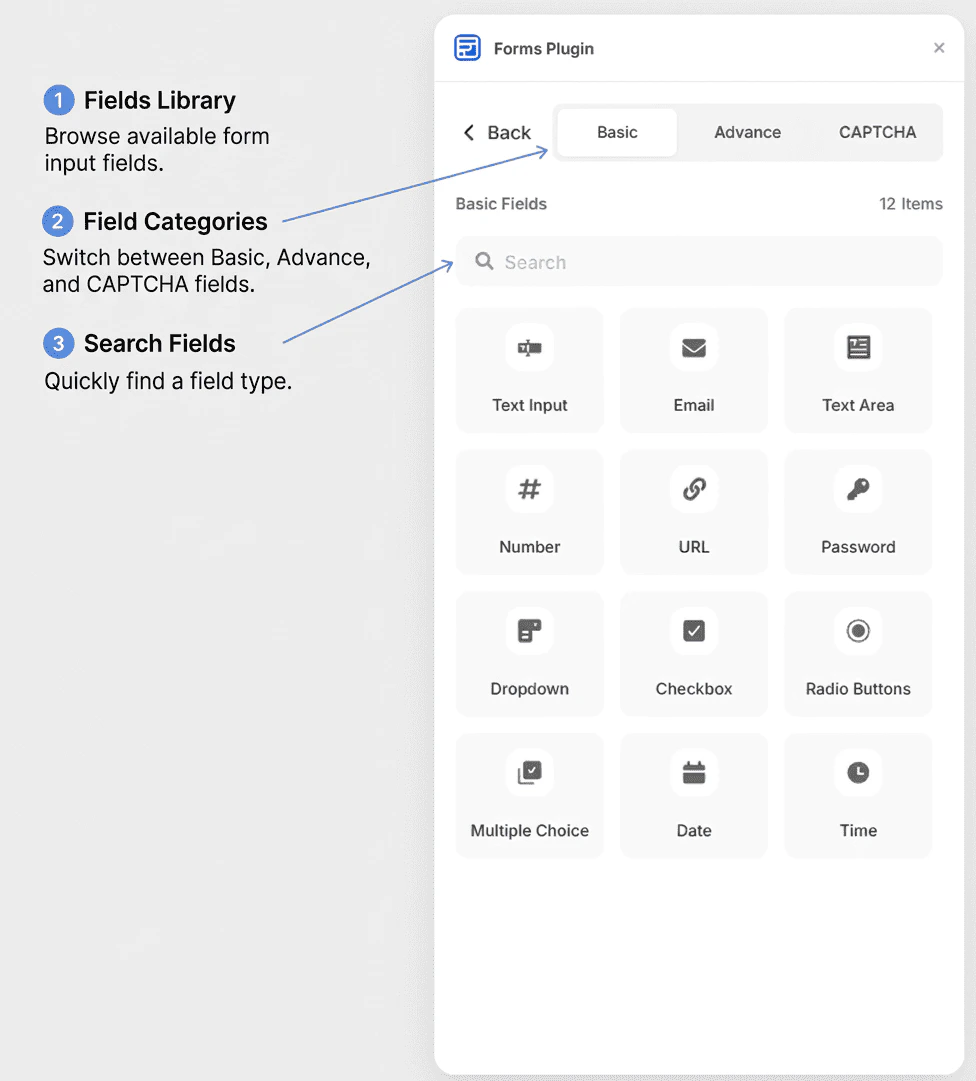
The **Fields** page in Forms Plugin is your central hub for discovering and adding input fields to any form. Whether you need a simple text box or an advanced file upload, this is where you find it.
## Opening the Fields Page
1. Open **Forms Plugin** in Framer
2. On the home screen, click **Fields**
3. The Fields browser opens
You can also access the Fields page while editing a form on the canvas.
 ## Three Tabs of Field Types
The Fields page is organized into three tabs:
### Basic
Core field types available on all plans, including the free Basic plan. Use these for everyday forms - contact, inquiry, feedback, and more.
### Advanced
Enhanced field types that unlock richer data collection. Requires a **Personal (Pro)** plan or higher. Includes file uploads, date pickers, rating scales, and more.
### CAPTCHA
Spam protection fields to keep bots out of your form submissions. Requires a **Commercial (Scale)** plan. Includes Google reCAPTCHA, Cloudflare Turnstile, and several custom CAPTCHA options.
See the full breakdowns in [Basic Fields](/field-types/basic-fields), [Advanced Fields](/field-types/advanced-fields), and [CAPTCHA Fields](/field-types/captcha-fields).
## Searching for Fields
Use the **search bar** at the top of the Fields page to quickly find a specific field type by name. As you type, the list filters in real time.
The item count displayed below the search bar shows how many fields match your current filter, so you always know what's available.
## Adding a Field to Your Form
1. Select your form component on the Framer canvas
2. Open the **Fields** page in Forms Plugin
3. Click any field in the list to add it to the selected form
The field is appended to the form component on your canvas immediately. You can then reorder, remove, or configure fields using Framer's component controls.
If no form is selected on the canvas when you click a field, Forms Plugin will prompt you to select a form first.
## Plan Restrictions
Fields that require a higher plan display a badge indicating which plan unlocks them. If you are on the free Basic plan, clicking a locked field shows an upgrade prompt.
* **Advanced fields** require the Personal (Pro) plan
* **CAPTCHA fields** require the Commercial (Scale) plan
See [Plans & Pricing](/plans/overview) to learn more or upgrade.
## Next Steps
* [Basic Fields - full list](/field-types/basic-fields)
* [Advanced Fields - full list](/field-types/advanced-fields)
* [CAPTCHA Fields - full list](/field-types/captcha-fields)
## Three Tabs of Field Types
The Fields page is organized into three tabs:
### Basic
Core field types available on all plans, including the free Basic plan. Use these for everyday forms - contact, inquiry, feedback, and more.
### Advanced
Enhanced field types that unlock richer data collection. Requires a **Personal (Pro)** plan or higher. Includes file uploads, date pickers, rating scales, and more.
### CAPTCHA
Spam protection fields to keep bots out of your form submissions. Requires a **Commercial (Scale)** plan. Includes Google reCAPTCHA, Cloudflare Turnstile, and several custom CAPTCHA options.
See the full breakdowns in [Basic Fields](/field-types/basic-fields), [Advanced Fields](/field-types/advanced-fields), and [CAPTCHA Fields](/field-types/captcha-fields).
## Searching for Fields
Use the **search bar** at the top of the Fields page to quickly find a specific field type by name. As you type, the list filters in real time.
The item count displayed below the search bar shows how many fields match your current filter, so you always know what's available.
## Adding a Field to Your Form
1. Select your form component on the Framer canvas
2. Open the **Fields** page in Forms Plugin
3. Click any field in the list to add it to the selected form
The field is appended to the form component on your canvas immediately. You can then reorder, remove, or configure fields using Framer's component controls.
If no form is selected on the canvas when you click a field, Forms Plugin will prompt you to select a form first.
## Plan Restrictions
Fields that require a higher plan display a badge indicating which plan unlocks them. If you are on the free Basic plan, clicking a locked field shows an upgrade prompt.
* **Advanced fields** require the Personal (Pro) plan
* **CAPTCHA fields** require the Commercial (Scale) plan
See [Plans & Pricing](/plans/overview) to learn more or upgrade.
## Next Steps
* [Basic Fields - full list](/field-types/basic-fields)
* [Advanced Fields - full list](/field-types/advanced-fields)
* [CAPTCHA Fields - full list](/field-types/captcha-fields)